aster.cloud aster.cloud
  • /
  • Platforms
    • Public Cloud
    • On-Premise
    • Hybrid Cloud
    • Data
  • Architecture
    • Design
    • Solutions
    • Enterprise
  • Engineering
    • Automation
    • Software Engineering
    • Project Management
    • DevOps
  • Programming
    • Learning
  • Tools
  • About
  • /
  • Platforms
    • Public Cloud
    • On-Premise
    • Hybrid Cloud
    • Data
  • Architecture
    • Design
    • Solutions
    • Enterprise
  • Engineering
    • Automation
    • Software Engineering
    • Project Management
    • DevOps
  • Programming
    • Learning
  • Tools
  • About
aster.cloud aster.cloud
  • /
  • Platforms
    • Public Cloud
    • On-Premise
    • Hybrid Cloud
    • Data
  • Architecture
    • Design
    • Solutions
    • Enterprise
  • Engineering
    • Automation
    • Software Engineering
    • Project Management
    • DevOps
  • Programming
    • Learning
  • Tools
  • About
  • DevOps
  • Programming

How To Install And Configure MongoDB In Ubuntu

  • root
  • May 6, 2019
  • 3 minute read

Overview

  • MongoDB is a document-oriented database
  • Shines with document-based design. Supporting sub-documents as values instead of the usual data types, it can be perfect for retrieving a record and a sub-detail or list of records in one query.


Prerequisites

  • Operating System: Ubuntu 18
    • For production environments use from the following : Amazon Linux, Debian 8, RHEL / CentOS 6.2 +, SLES, Ubuntu LTS 16.04 and Windows Server 2012 R2
  • Command Line Interface or Terminal


Partner with aster.cloud
for your next big idea.
Let us know here.


From our partners:

CITI.IO :: Business. Institutions. Society. Global Political Economy.
CYBERPOGO.COM :: For the Arts, Sciences, and Technology.
DADAHACKS.COM :: Parenting For The Rest Of Us.
ZEDISTA.COM :: Entertainment. Sports. Culture. Escape.
TAKUMAKU.COM :: For The Hearth And Home.
ASTER.CLOUD :: From The Cloud And Beyond.
LIWAIWAI.COM :: Intelligence, Inside and Outside.
GLOBALCLOUDPLATFORMS.COM :: For The World's Computing Needs.
FIREGULAMAN.COM :: For The Fire In The Belly Of The Coder.
ASTERCASTER.COM :: Supra Astra. Beyond The Stars.
BARTDAY.COM :: Prosperity For Everyone.

Installation

01. Open a terminal window
 

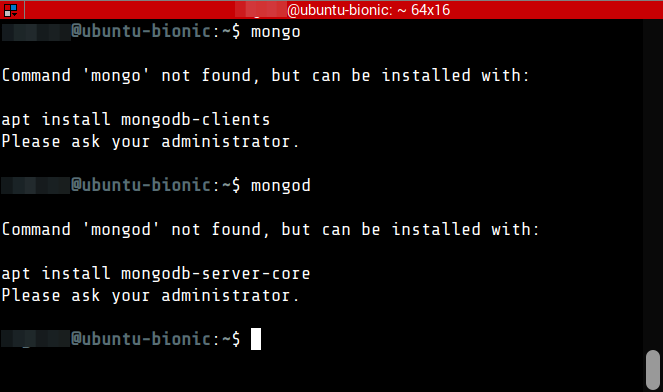
02. Check if MongoDB is already installed. Execute the following to determine.

$ mongo

# and

$ mongod


It should show some suggestion on how to install MongoDB.
 

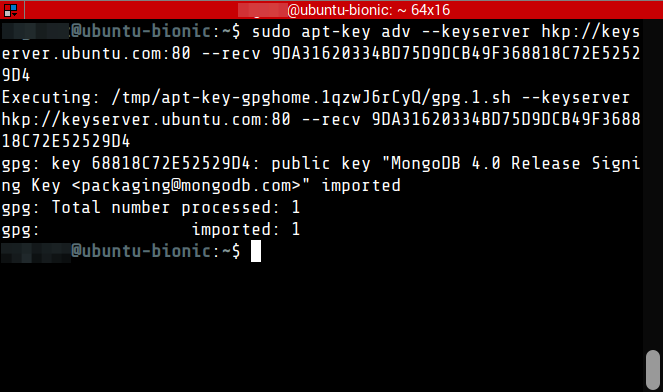
03. At the CLI, import the public key used by the package management system. This will install an official version of MongoDB.

$ sudo apt-key adv --keyserver hkp://keyserver.ubuntu.com:80 --recv 9DA31620334BD75D9DCB49F368818C72E52529D4
 

04. Create a list file for MongoDB

$ echo "deb [ arch=amd64 ] https://repo.mongodb.org/apt/ubuntu bionic/mongodb-org/4.0 multiverse" | sudo tee /etc/apt/sources.list.d/mongodb-org-4.0.list
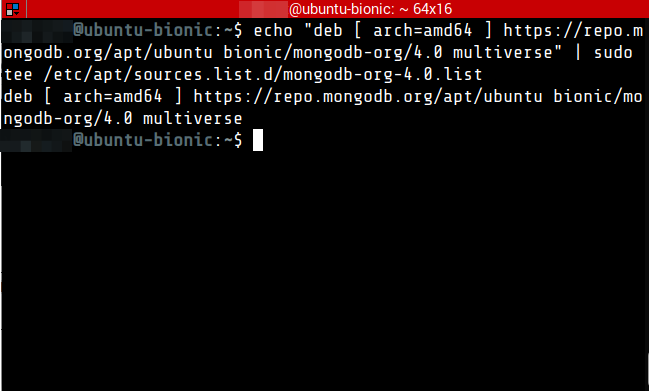
 

05. Reload local package database.

$ sudo apt update


06. Install the MongoDB packages.

$ sudo apt install mongodb-org -y
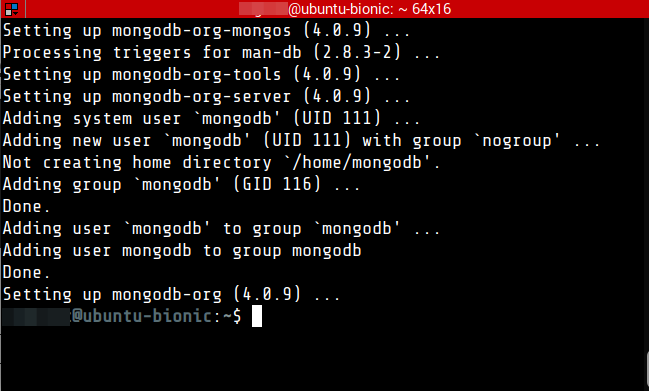
 

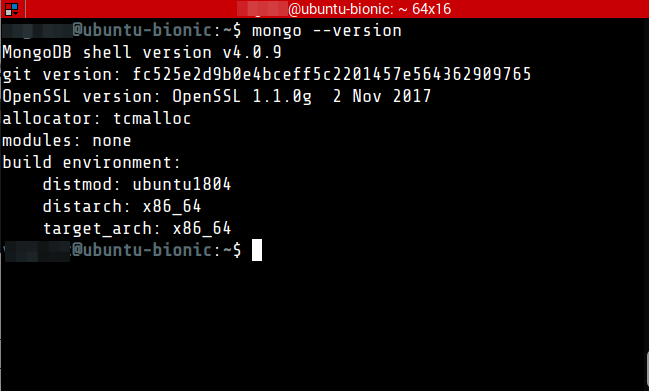
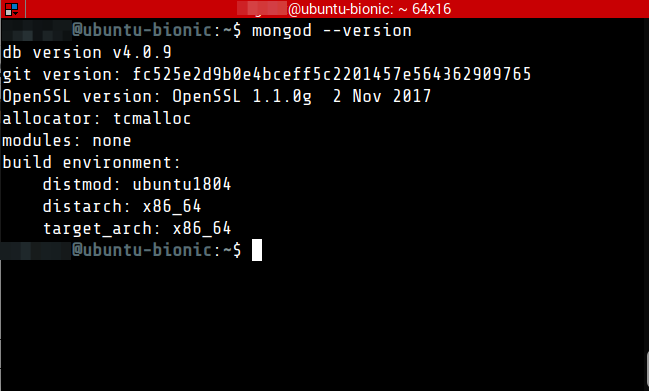
07. Check the version. If the version is returned, this means that MongoDB has been installed correctly.

$ mongod --version

# or

$ mongo --version
 

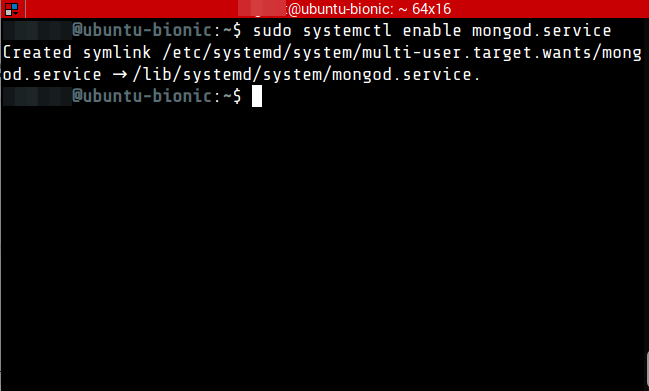
08. Configure MongoDB to start on system boot.

$ sudo systemctl enable mongod.service
 

09. Connect to the Mongo shell.

$ mongo
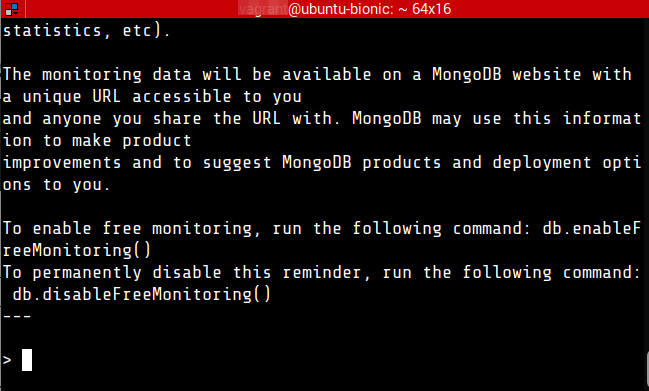
 

If you are unable to connect to the mongo shell. Try restarting the mongod service.

$ sudo service mongod restart


Changing the MongoDB Port

Changing the default port of MongoDB provides a first line of defense against unwanted intruders. While it isn’t a sure-way for deferring against bots that sweep through ports that tries to access database, it prevents them trying to access the database using the default port. For security it is better to enable other mechanisms such as creating database users that have specific roles and access to database with credentials.

Read More  How To: Install Python 3.7 In Windows

01. Edit the MongoDB configuration file

$ sudo nano /etc/mongod.conf


02. While on the nano interface, press Ctrl+W (or command for Mac)  to search for the text, network interfaces. Then press Enter.
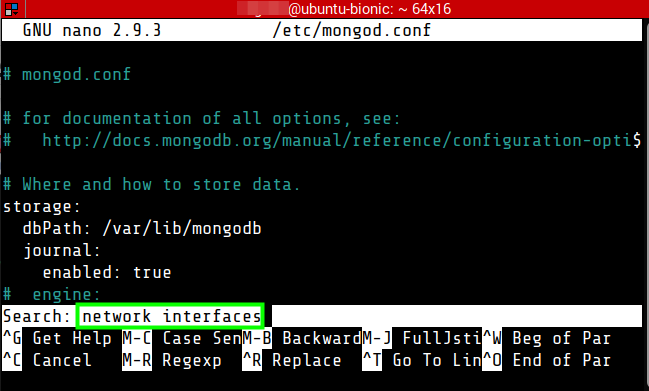
In this example change the port to 29999. After changing the port, Press Ctrl+O (or command for Mac), then Enter. Ctrl+X to exit the nano editor.


03. Restart MongoDB service to apply the changes

$ sudo service mongod restart


04. After restart, you cannot connect to the MongoDB using the default mongod command. Instead you have to identify the port.

$ mongo --port 29999


Adding Security and Authentication

While for development purpose the current setup will suffice. But for production it is recommended to enable authentication and add user with password for security.

01. Edit the MongoDB configuration file

$ sudo nano /etc/mongod.conf


02. While on the nano interface, press Ctrl+W (or command for Mac)  to search for the text, “security”. Then press Enter.
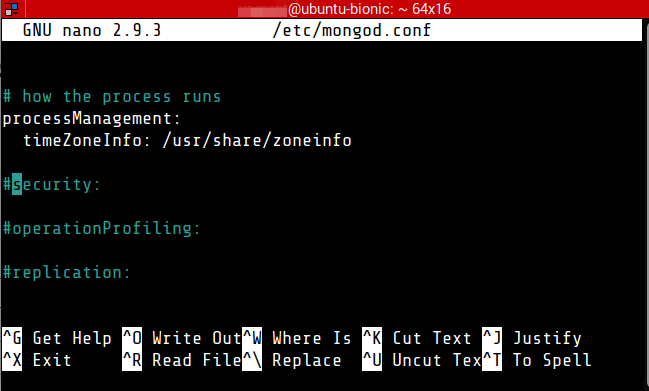
 

03. Add the following lines after the #security comment.

# security:
security:
  authorization: enabled
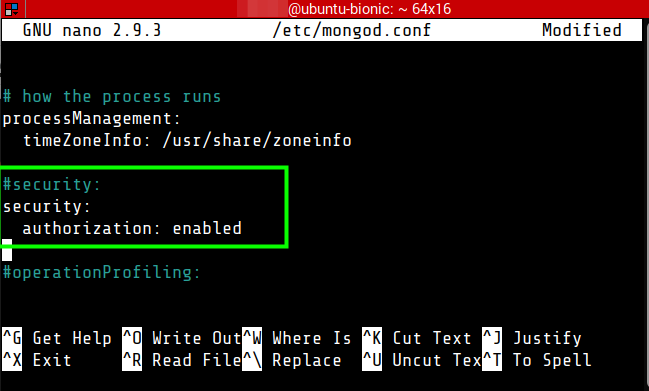
 

04. Restart the MongoDB service.

$ sudo service mongod restart


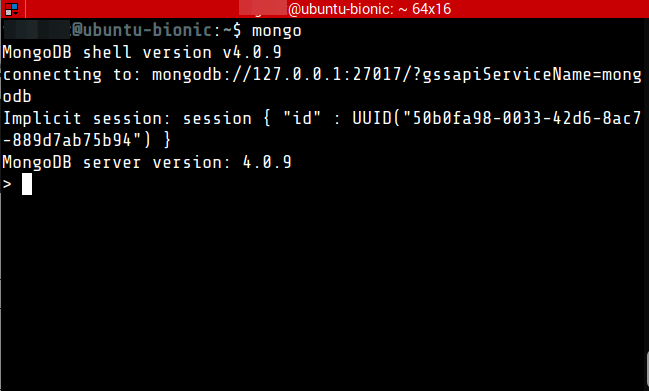
05. Access the MongoDB shell

$ mongo

# or if port has been changed

$ mongo --port
 

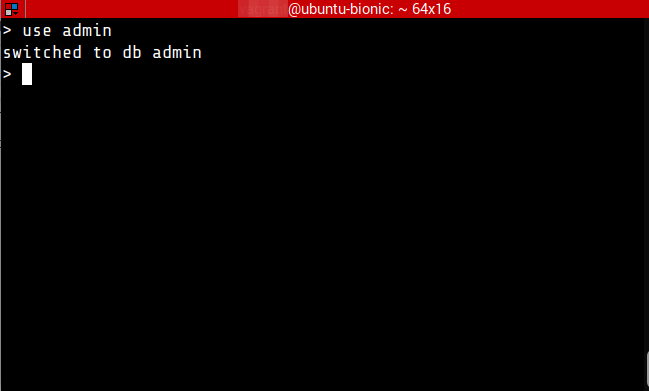
06. Switch to the admin database

> use admin
 

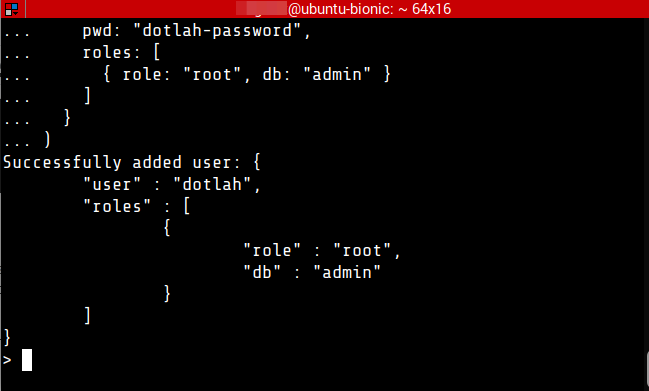
07. Create a Root user account. On the MongoDB shell, execute the following. Replace the dotlah and dotlah-password with your preferred credentials.

Note that roles here should be configured as needed. In this example, we are using the root role. For the list of roles see the following link : https://docs.mongodb.com/manual/reference/built-in-roles/

db.createUser(
  {
    user: "dotlah",
    pwd: "dotlah-password",
    roles: [ 
      { role: "root", db: "admin" } 
    ]
  }
)

It should show something similar. This shows that the user has been added.
Read More  Canonical At HPE Discover 2022


08. Restart the MongoDB instance with access control

> db.adminCommand({shutdown:1})


09. Exit from the MongoDB shell.

> exit


10. Test the new user by using the following authentication command.

$ mongo --port 27017 --username dotlah --password dotlah-password --authenticationDatabase admin


Appendix

01. Start MongoDB service

$ sudo service mongod start


02. Restart MongoDB service

$ sudo service mongod restart


03. Stop MongoDB service

$ sudo service mongod stop


References

For production deployment see the following resource

— https://docs.mongodb.com/manual/administration/production-notes


For enquiries, product placements, sponsorships, and collaborations, connect with us at [email protected]. We'd love to hear from you!

Our humans need coffee too! Your support is highly appreciated, thank you!

root

Related Topics
  • Database
  • How To
  • Installation
  • MongoDB
  • NoSQL
  • Ubuntu
You May Also Like
Users with laptops working with database. Data storage and organization, information access and management, big data protection concept. Vector isolated illustration.
View Post
  • Architecture
  • DevOps
  • Technology

What is application migration? Examples and best practices

  • August 18, 2025
aster-cloud-sms-pexels-tim-samuel-6697306
View Post
  • Programming
  • Software

Send SMS texts with Amazon’s SNS simple notification service

  • July 1, 2025
aster-cloud-website-pexels-goumbik-574069
View Post
  • Programming
  • Software

Host a static website on AWS with Amazon S3 and Route 53

  • June 27, 2025
View Post
  • DevOps
  • Engineering
  • Platforms

How To Fail At Platform Engineering

  • March 11, 2024
View Post
  • Computing
  • DevOps
  • Platforms

The IBM Approach To Reliable Quantum Computing

  • November 28, 2023
DevOps artifact management
View Post
  • Design
  • DevOps
  • Engineering

10 Awesome Benefits Of Artifact Management And Why You Need It

  • August 2, 2023
Automation | Gears
View Post
  • Automation
  • DevOps
  • Engineering

Automating CI/CD With GitHub Actions

  • June 13, 2023
View Post
  • Architecture
  • Data
  • Engineering
  • People
  • Programming
  • Software Engineering
  • Technology
  • Work & Jobs

Predictions: Top 25 Careers Likely In High Demand In The Future

  • June 6, 2023

Stay Connected!
LATEST
  • digital-nomad-freelancer-worker-2151205464 1
    One paperwork problem – Get your Digital Nomad Visa employment documents fast from UK, EU or Singapore
    • June 16, 2026
  • 2
    Samsung Art Store Brings Art Basel to Homes Worldwide With New Curated Collection
    • June 15, 2026
  • 3
    You Do Not Need to Invest in the IPO of SpaceX, Anthropic, and OpenAI
    • June 10, 2026
  • 4
    The consequences of relying on AI for accurate news
    • June 10, 2026
  • 5
    Connecting AI agents with unstructured data using Google Cloud Storage MCP Servers
    • June 10, 2026
  • 6
    WWDC26: Apple unveils next generation of Apple Intelligence, Siri AI, powerful parental controls, and an expansive set of software improvements
    • June 8, 2026
  • 7
    IBM and Google Cloud Announce Strategic Partnership to Scale AI with Human Expertise and AI‑Powered Delivery
    • June 4, 2026
  • Data center 8
    Data Sovereignty in Spain. It’s Not Just About the Law, It’s About Efficiency
    • June 3, 2026
  • 9
    Ink vs Pixels. What you miss versus what you are actually missing.
    • June 1, 2026
  • 10
    Banks race to patch new cyber vulnerabilities, and other cybersecurity news
    • May 25, 2026
about
Hello World!

We are aster.cloud. We’re created by programmers for programmers.

Our site aims to provide guides, programming tips, reviews, and interesting materials for tech people and those who want to learn in general.

We would like to hear from you.

If you have any feedback, enquiries, or sponsorship request, kindly reach out to us at:

[email protected]
Most Popular
  • pope-leo-xiv-cq5dam-1500.844 1
    Pope Leo XIV to Publish First Encyclical on Artificial Intelligence and Human Dignity on 25 May
    • May 22, 2026
  • 2
    Portfolio to Clients, and is Strengthened by Ongoing Project Glasswing Work
    • May 20, 2026
  • reMarkable Paper Pure 3
    Everything The reMarkable Paper Pure Actually Does
    • May 14, 2026
  • 4
    Scaling cloud and AI: Microsoft Azure’s commitment to Europe’s digital future
    • May 11, 2026
  • Anthropic Institute 5
    Introducing The Anthropic Institute
    • March 11, 2026
  • /
  • Technology
  • Tools
  • About
  • Contact Us

Input your search keywords and press Enter.