aster.cloud aster.cloud
  • /
  • Platforms
    • Public Cloud
    • On-Premise
    • Hybrid Cloud
    • Data
  • Architecture
    • Design
    • Solutions
    • Enterprise
  • Engineering
    • Automation
    • Software Engineering
    • Project Management
    • DevOps
  • Programming
    • Learning
  • Tools
  • About
  • /
  • Platforms
    • Public Cloud
    • On-Premise
    • Hybrid Cloud
    • Data
  • Architecture
    • Design
    • Solutions
    • Enterprise
  • Engineering
    • Automation
    • Software Engineering
    • Project Management
    • DevOps
  • Programming
    • Learning
  • Tools
  • About
aster.cloud aster.cloud
  • /
  • Platforms
    • Public Cloud
    • On-Premise
    • Hybrid Cloud
    • Data
  • Architecture
    • Design
    • Solutions
    • Enterprise
  • Engineering
    • Automation
    • Software Engineering
    • Project Management
    • DevOps
  • Programming
    • Learning
  • Tools
  • About
  • Computing

How To Create A Windows Server VM Instance In Compute Engine

  • aster.cloud
  • January 10, 2023
  • 3 minute read
If you want to create a Windows Server Virtual Machine (VM) in Compute Engine, it’s as quick and easy as clicking a few buttons!In this blog post, we’ll learn how to create a Windows Server VM in Compute Engine. If you want to follow along with this blog post, check out the documentation and in-console tutorial.

Step 1

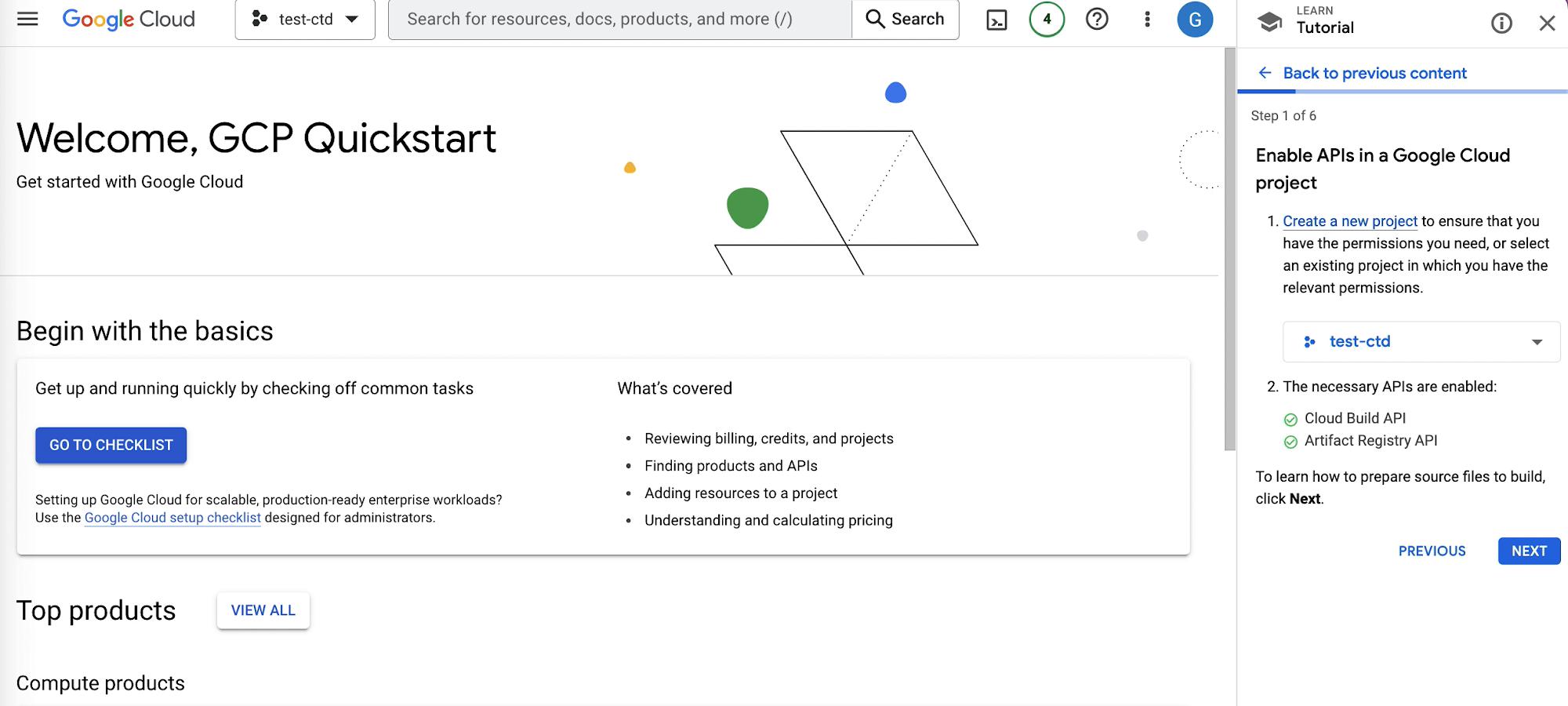
The first step is to create a new project; we will use an existing project called “test-ctd”. If you are unable to use an existing project, you will need to create a new project. Next we’ll enable the Compute Engine API which is necessary for creating a Windows Server VM instance. If you have billing enabled and or are in your free trial mode you’ll be able to enable the necessary APIs with a button labeled “Enable Apis”.


Partner with aster.cloud
for your next big idea.
Let us know here.


From our partners:

CITI.IO :: Business. Institutions. Society. Global Political Economy.
CYBERPOGO.COM :: For the Arts, Sciences, and Technology.
DADAHACKS.COM :: Parenting For The Rest Of Us.
ZEDISTA.COM :: Entertainment. Sports. Culture. Escape.
TAKUMAKU.COM :: For The Hearth And Home.
ASTER.CLOUD :: From The Cloud And Beyond.
LIWAIWAI.COM :: Intelligence, Inside and Outside.
GLOBALCLOUDPLATFORMS.COM :: For The World's Computing Needs.
FIREGULAMAN.COM :: For The Fire In The Belly Of The Coder.
ASTERCASTER.COM :: Supra Astra. Beyond The Stars.
BARTDAY.COM :: Prosperity For Everyone.

Enable APIs In Google Cloud Project

Step 2

The second step is to create the Windows Server VM instance. In the Google Cloud console navigate to Compute Engine > VM instances, this where you’ll be able to create VM instances from micro-VMs to larger instances like Debian, Windows or Linux.
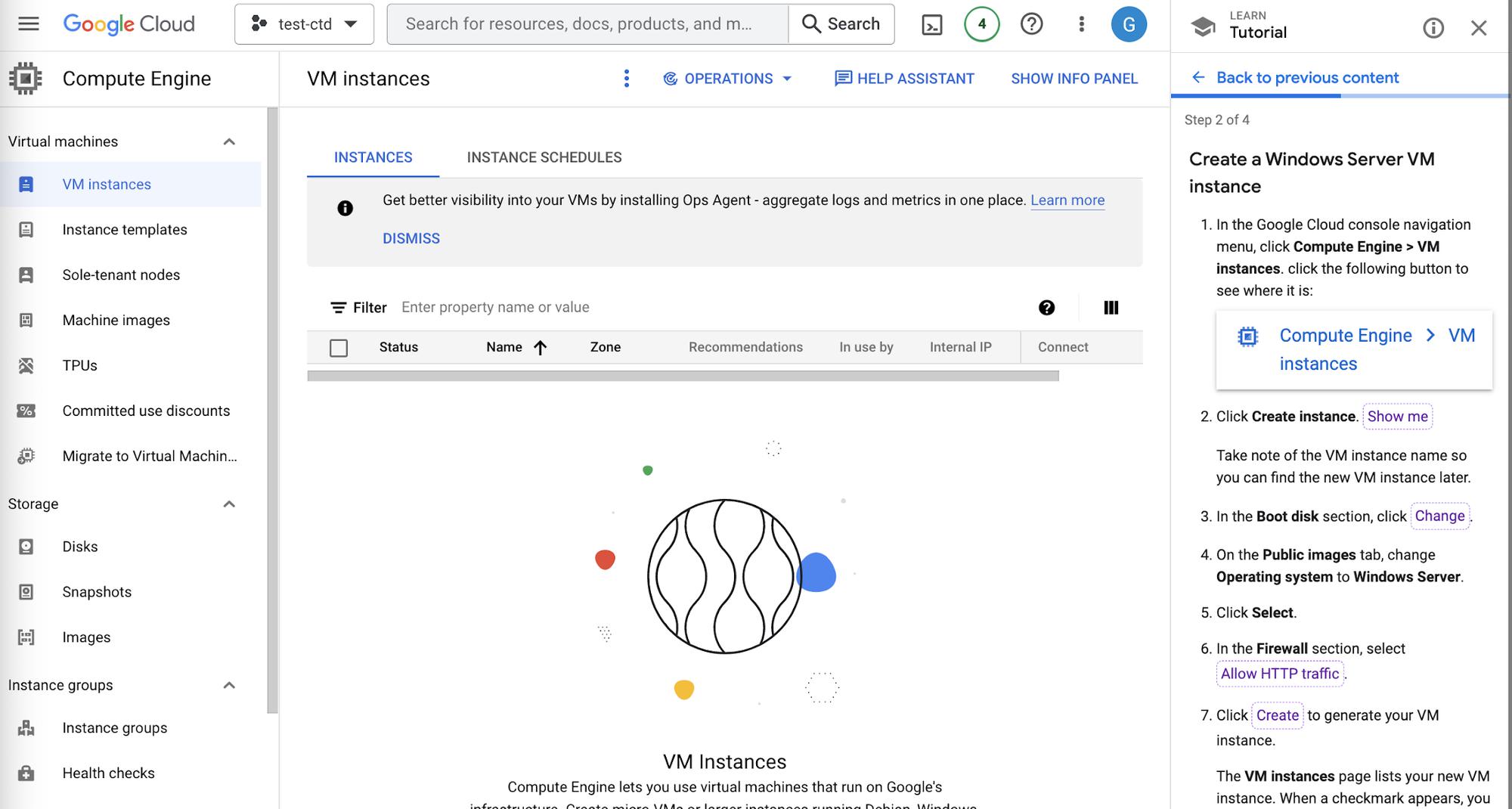
 

Create Instance Page
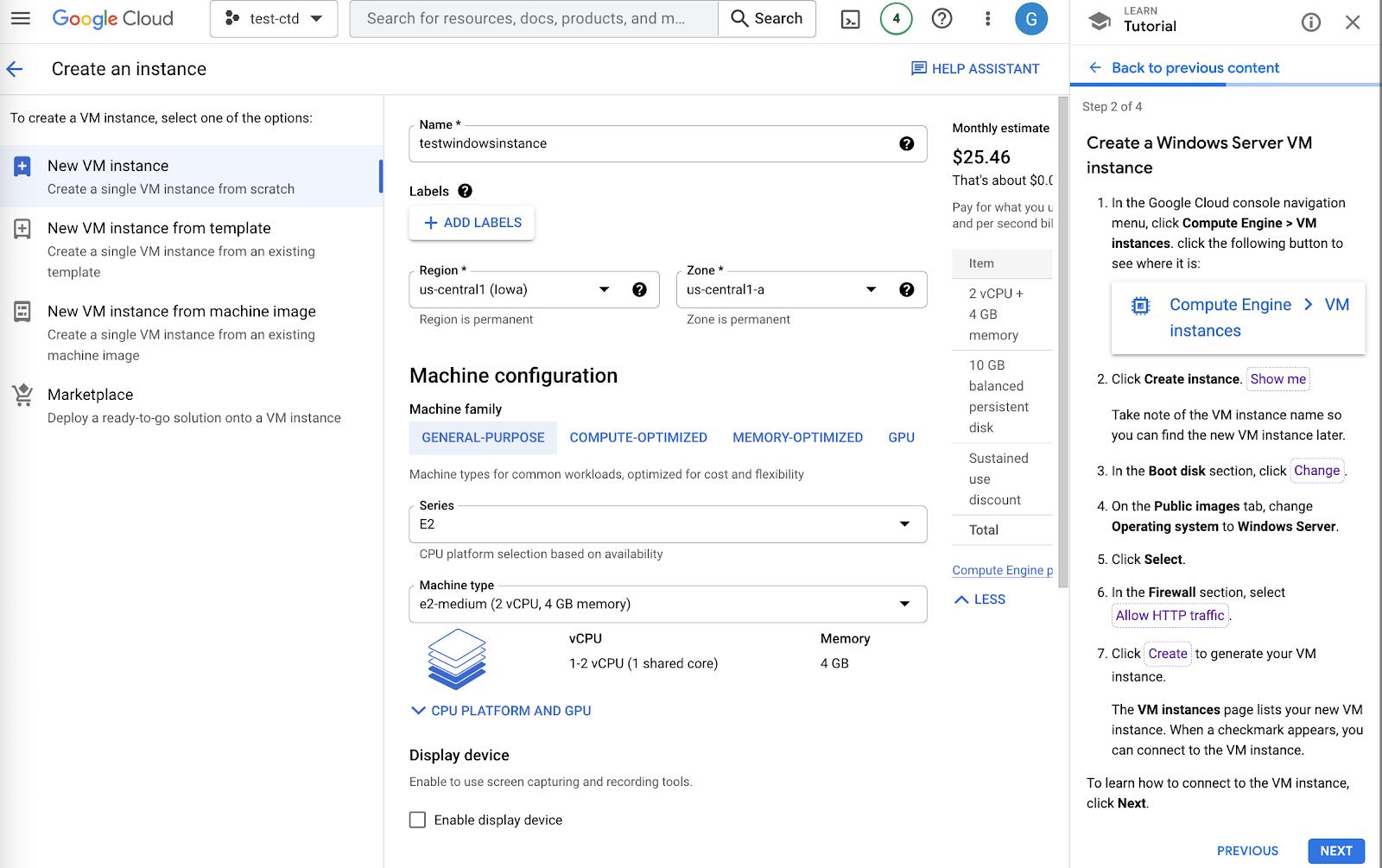
We’ll click the Create Instance button, and then fill in the requirements to create a VM instance. Starting first with the name, we’ll use the name testwindowsinstance. Make sure to remember the name because we’ll need it to find the new instance later. 

Name VM Instance

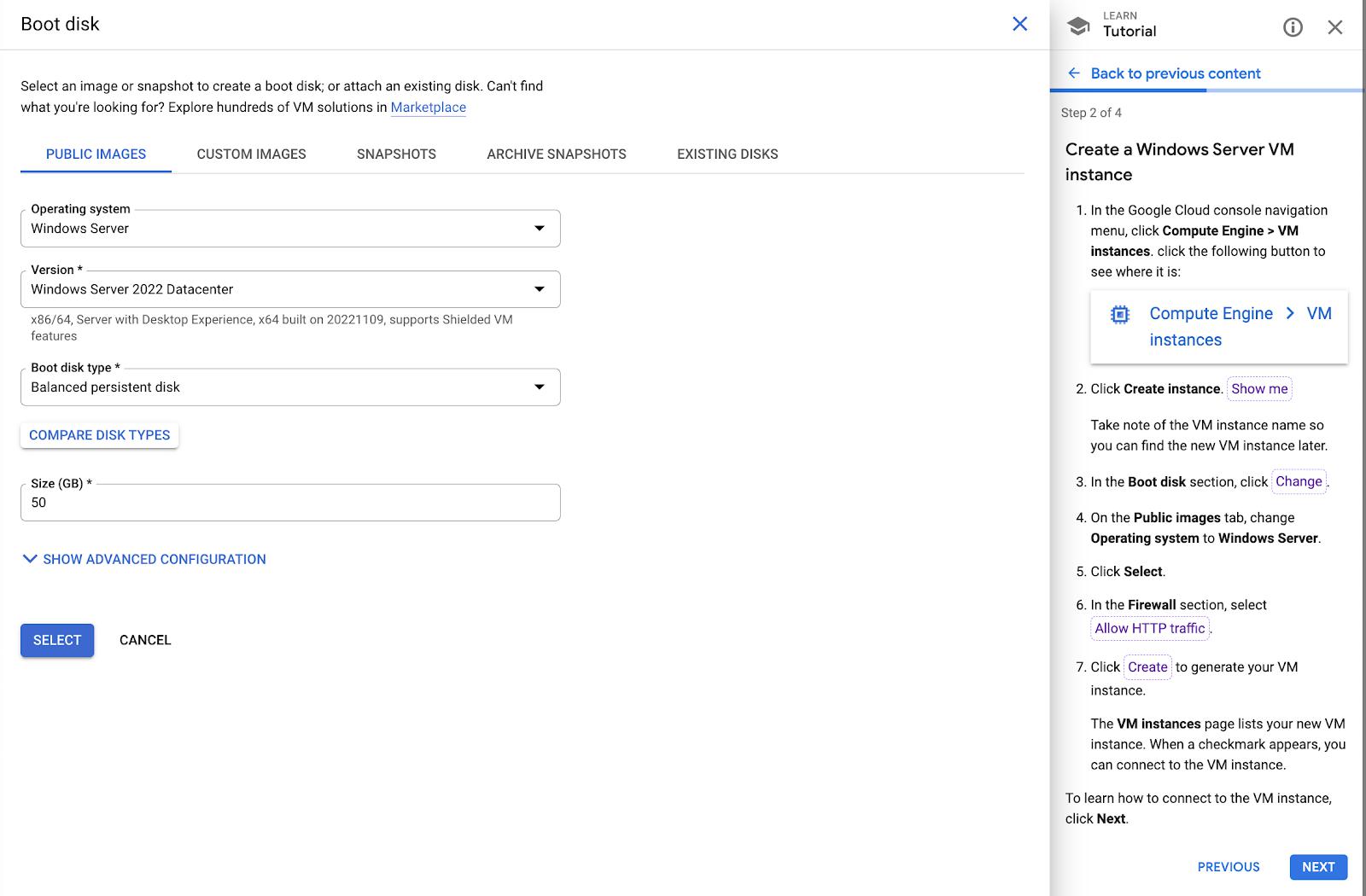
Next step is to change the Boot Disk; we’ll scroll down to the section that has Boot Disk and click the button labeled CHANGE. On the Public images tab, we’ll change the operating system to Windows Server and choose Select. 

Choose Operating System

Read More  Building A Resilient Architecture With Cloud SQL
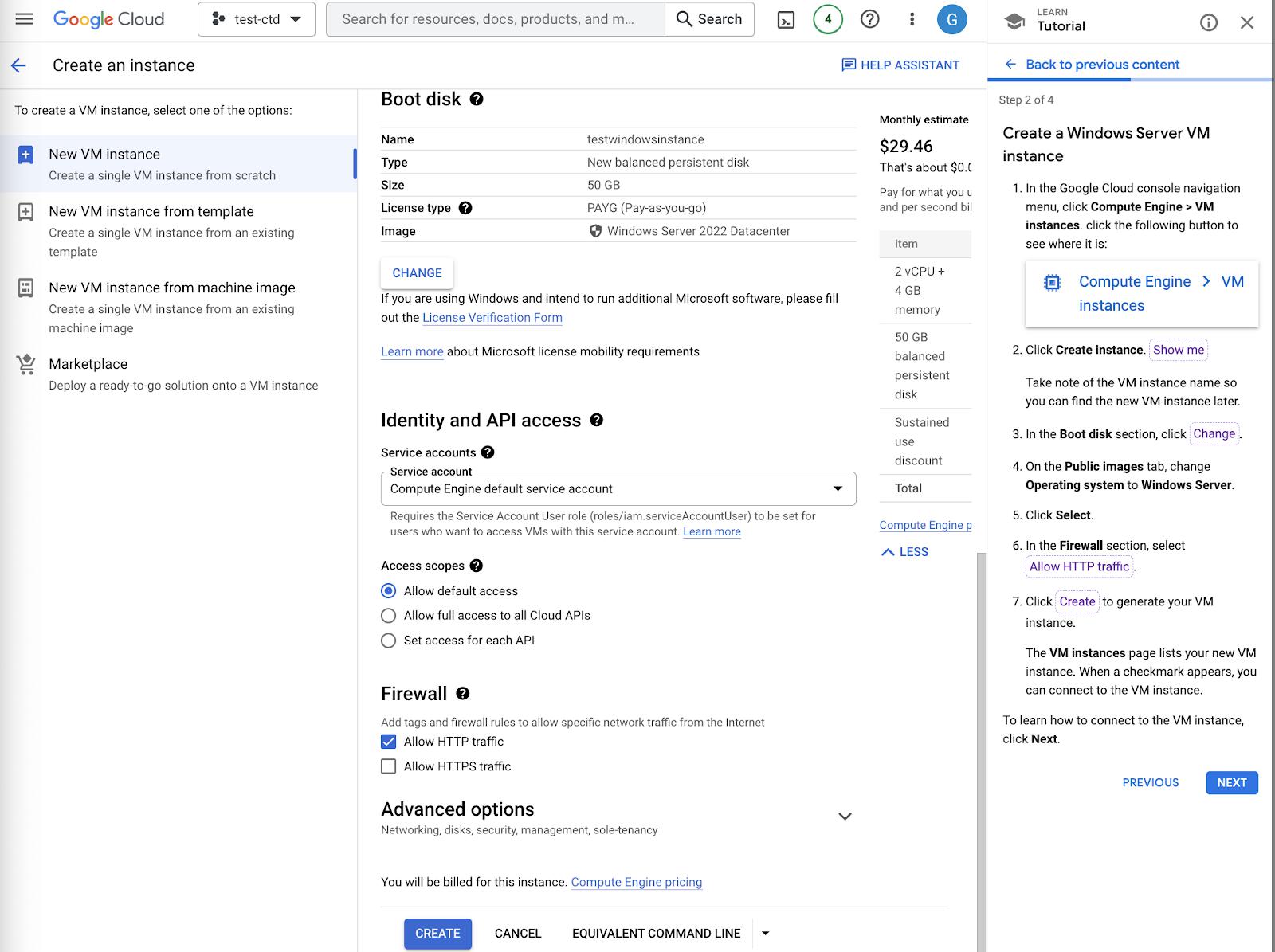
Next we’ll scroll down to the Firewall Section and select Allow HTTP Traffic, this will allow specific network traffic from the Internet. 

Allow HTTP Traffic

Finally, we’ll click the button labeled Create to generate a Windows VM instance.

Step 3

With the Windows Server VM instance created, it’s time to connect to the VM instance. If there is a green check mark next to the Status, this indicates that the VM is running.
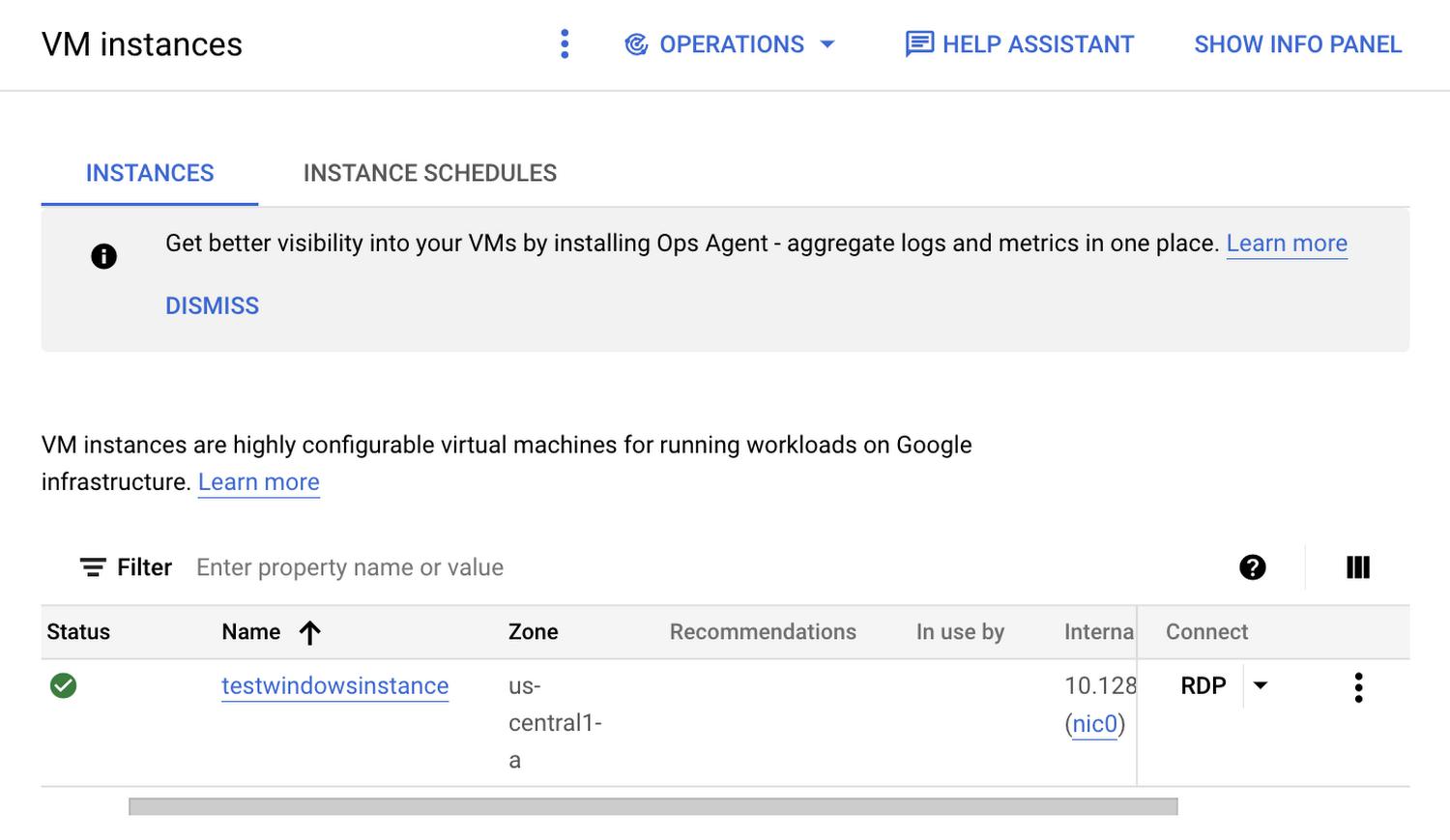
 

VM Instance Running
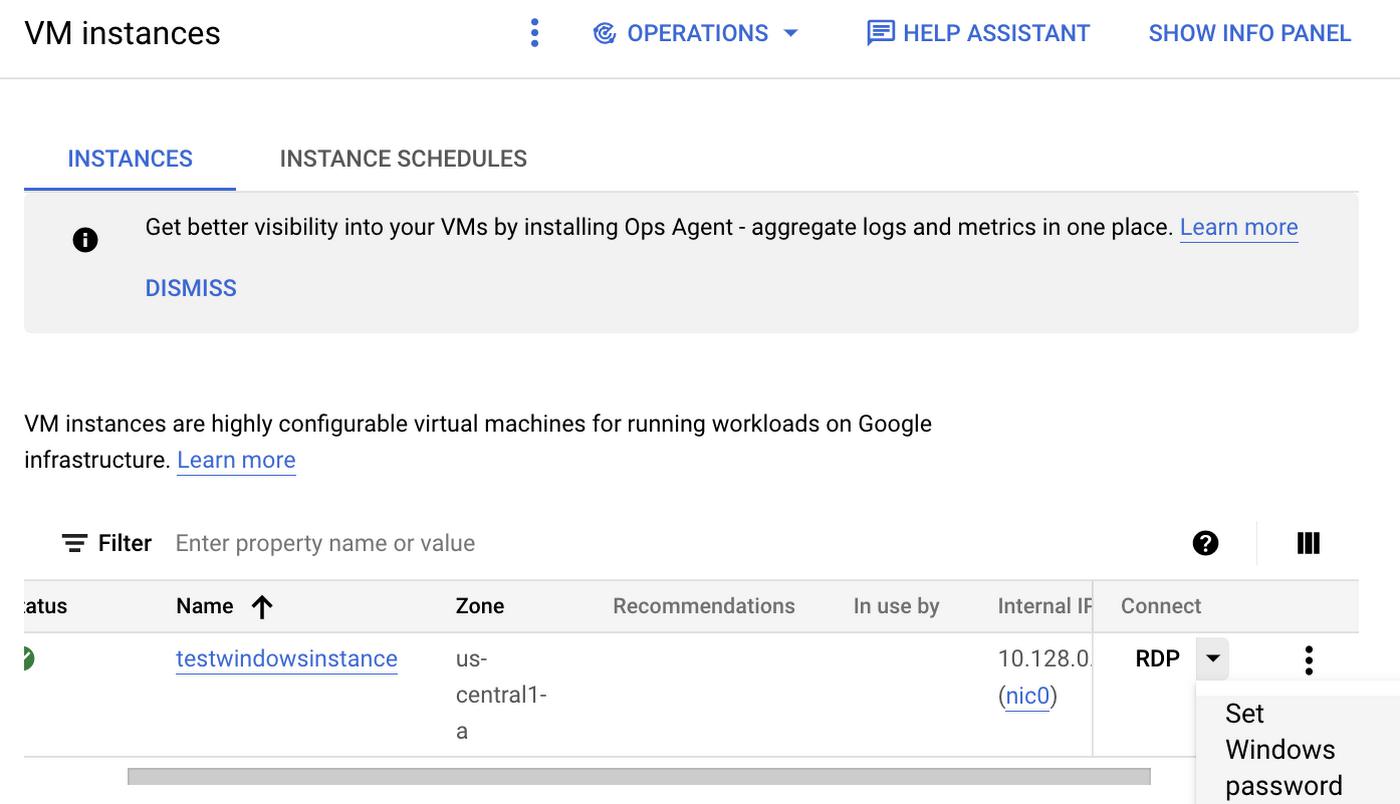
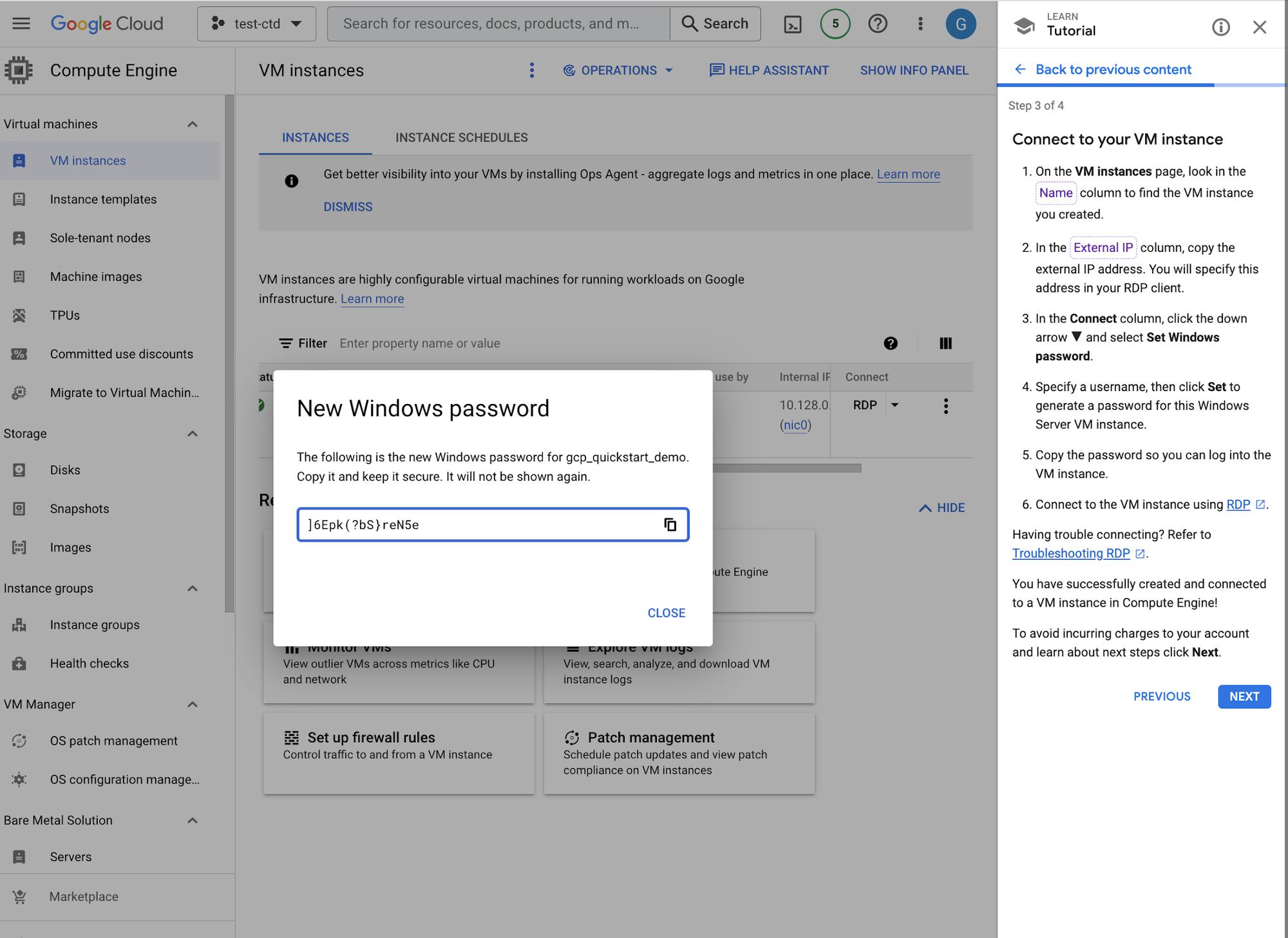
To set a password for the VM, use Remote Desktop Protocol. Navigate to Connect > RDP and choose Set Windows Password. This brings us to a screen where we will choose a username, then a password is automatically generated for this Windows Server VM instance. Make sure to copy the password so you can log into the VM instance. Then you’ll be able to connect to the VM instance using RDP. 

Setting Windows Passwords

Generating Password

Step 4

For the final step, we will delete the VM instance created to prevent incurring charges. Return to Compute Engine > VM Instance to the side of the instance there is a menu icon that will open a menu bar that allows you to delete the instance. Click DELETE to remove the instance.
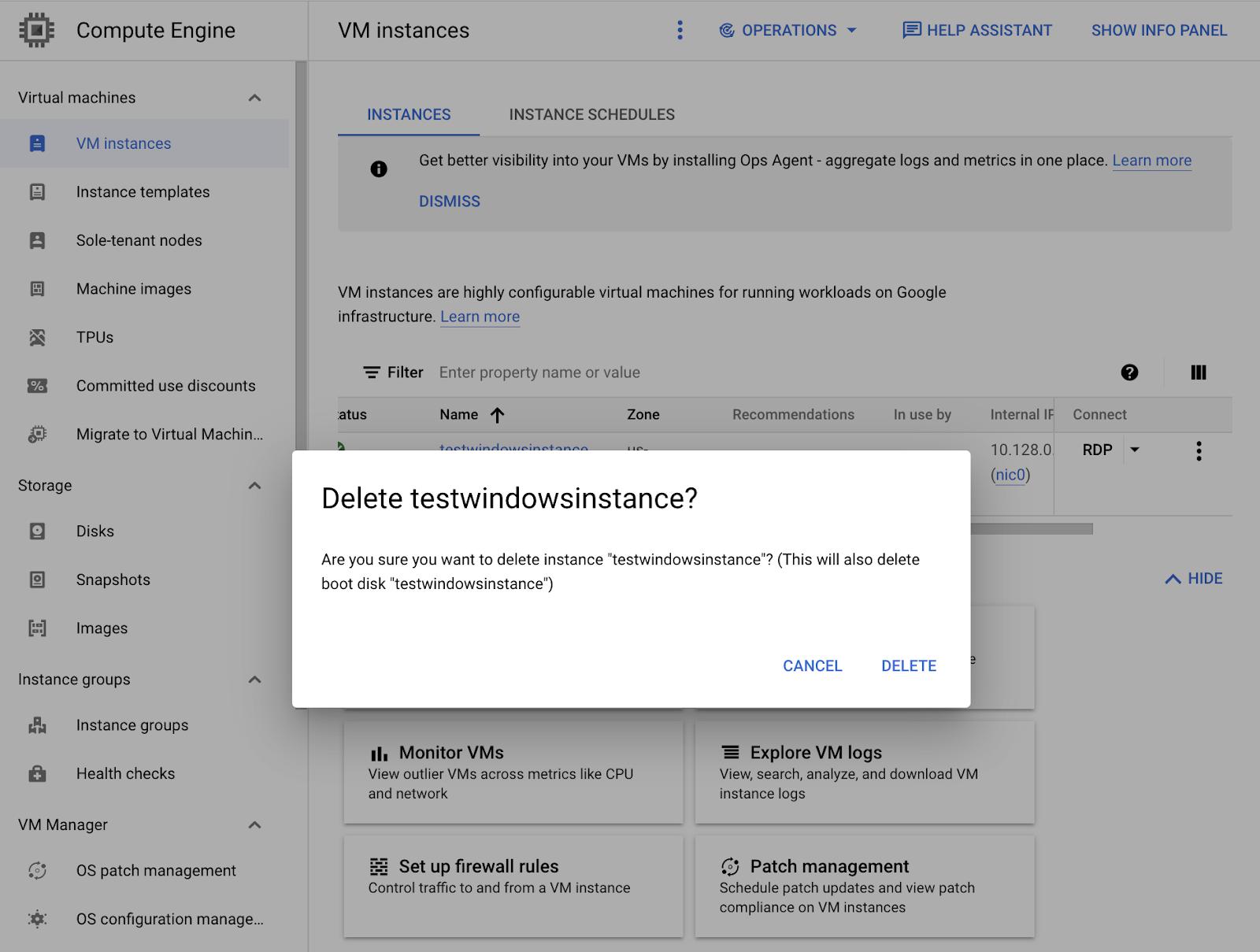
 

Delete Instance

In Conclusion

There you have it! You’ve created a Windows VM Instance in Compute Engine. If you’d like to follow an interactive tutorial, check out this Create a Linux VM instance in Compute Engine tutorial.


By: Bukola Ayodele (Developer Advocate)
Source: Google Cloud Blog


For enquiries, product placements, sponsorships, and collaborations, connect with us at [email protected]. We'd love to hear from you!

Our humans need coffee too! Your support is highly appreciated, thank you!

aster.cloud

Related Topics
  • Compute Engine
  • Google Cloud
  • Tutorials
  • Windows
You May Also Like
View Post
  • Computing
  • Multi-Cloud
  • Technology

Wiz: 80% of cloud breaches are caused by basic mistakes

  • April 13, 2026
View Post
  • Computing
  • Multi-Cloud
  • Technology

Contact center monitoring best practices for CX leaders

  • April 9, 2026
View Post
  • Computing
  • Multi-Cloud
  • Technology

Cloud vs. local backup: Which is right for your organization?

  • April 9, 2026
View Post
  • Computing
  • Multi-Cloud
  • Technology

Why channel partners must design for tech sovereignty

  • April 7, 2026
View Post
  • Computing
  • Multi-Cloud
  • Technology

“A lot of other cloud vendors have been let off the hook”: Oracle leans hard on one-size-fits-all appeal of OCI for enterprises

  • March 30, 2026
View Post
  • Computing
  • Technology

Google Cloud and NVIDIA expand AI innovation across industries at GTC 2026

  • March 17, 2026
View Post
  • Computing
  • Multi-Cloud
  • Technology

Last year in AWS with Corey Quinn

  • March 9, 2026
View Post
  • Computing
  • Multi-Cloud
  • Technology

A guide to contact center security best practices

  • March 6, 2026

Stay Connected!
LATEST
  • 1
    Expectations vs. Reality: The AI We Thought We’d Have in 10 Years
    • June 19, 2026
  • digital-nomad-freelancer-worker-2151205464 2
    One paperwork problem – Get your Digital Nomad Visa employment documents fast from UK, EU or Singapore
    • June 16, 2026
  • 3
    Samsung Art Store Brings Art Basel to Homes Worldwide With New Curated Collection
    • June 15, 2026
  • 4
    You Do Not Need to Invest in the IPO of SpaceX, Anthropic, and OpenAI
    • June 10, 2026
  • 5
    The consequences of relying on AI for accurate news
    • June 10, 2026
  • 6
    Connecting AI agents with unstructured data using Google Cloud Storage MCP Servers
    • June 10, 2026
  • 7
    WWDC26: Apple unveils next generation of Apple Intelligence, Siri AI, powerful parental controls, and an expansive set of software improvements
    • June 8, 2026
  • 8
    IBM and Google Cloud Announce Strategic Partnership to Scale AI with Human Expertise and AI‑Powered Delivery
    • June 4, 2026
  • Data center 9
    Data Sovereignty in Spain. It’s Not Just About the Law, It’s About Efficiency
    • June 3, 2026
  • 10
    Ink vs Pixels. What you miss versus what you are actually missing.
    • June 1, 2026
about
Hello World!

We are aster.cloud. We’re created by programmers for programmers.

Our site aims to provide guides, programming tips, reviews, and interesting materials for tech people and those who want to learn in general.

We would like to hear from you.

If you have any feedback, enquiries, or sponsorship request, kindly reach out to us at:

[email protected]
Most Popular
  • 1
    Banks race to patch new cyber vulnerabilities, and other cybersecurity news
    • May 25, 2026
  • pope-leo-xiv-cq5dam-1500.844 2
    Pope Leo XIV to Publish First Encyclical on Artificial Intelligence and Human Dignity on 25 May
    • May 22, 2026
  • 3
    Portfolio to Clients, and is Strengthened by Ongoing Project Glasswing Work
    • May 20, 2026
  • reMarkable Paper Pure 4
    Everything The reMarkable Paper Pure Actually Does
    • May 14, 2026
  • 5
    Scaling cloud and AI: Microsoft Azure’s commitment to Europe’s digital future
    • May 11, 2026
  • /
  • Technology
  • Tools
  • About
  • Contact Us

Input your search keywords and press Enter.