
aster.cloud aster.cloud
  • /
  • Platforms
    • Public Cloud
    • On-Premise
    • Hybrid Cloud
    • Data
  • Architecture
    • Design
    • Solutions
    • Enterprise
  • Engineering
    • Automation
    • Software Engineering
    • Project Management
    • DevOps
  • Programming
    • Learning
  • Tools
  • About
  • /
  • Platforms
    • Public Cloud
    • On-Premise
    • Hybrid Cloud
    • Data
  • Architecture
    • Design
    • Solutions
    • Enterprise
  • Engineering
    • Automation
    • Software Engineering
    • Project Management
    • DevOps
  • Programming
    • Learning
  • Tools
  • About
aster.cloud aster.cloud
  • /
  • Platforms
    • Public Cloud
    • On-Premise
    • Hybrid Cloud
    • Data
  • Architecture
    • Design
    • Solutions
    • Enterprise
  • Engineering
    • Automation
    • Software Engineering
    • Project Management
    • DevOps
  • Programming
    • Learning
  • Tools
  • About
  • DevOps
  • Programming

How To Install And Configure Vagrant In Ubuntu

  • root
  • June 24, 2019
  • 2 minute read

Overview

This guide contains instructions on how to install and do basic configuration of Vagrant.


Partner with aster.cloud
for your next big idea.
Let us know here.


From our partners:

CITI.IO :: Business. Institutions. Society. Global Political Economy.
CYBERPOGO.COM :: For the Arts, Sciences, and Technology.
DADAHACKS.COM :: Parenting For The Rest Of Us.
ZEDISTA.COM :: Entertainment. Sports. Culture. Escape.
TAKUMAKU.COM :: For The Hearth And Home.
ASTER.CLOUD :: From The Cloud And Beyond.
LIWAIWAI.COM :: Intelligence, Inside and Outside.
GLOBALCLOUDPLATFORMS.COM :: For The World's Computing Needs.
FIREGULAMAN.COM :: For The Fire In The Belly Of The Coder.
ASTERCASTER.COM :: Supra Astra. Beyond The Stars.
BARTDAY.COM :: Prosperity For Everyone.

Prerequisites

  • Operating System: Ubuntu 18.04
  • Access to a Terminal or Shell Console
  • VirtualBox is installed for this guide. But not required if using Cloud Providers.


Installation

01: Open a terminal window
 

02: Make sure that VirtualBox is installed


$ vboxmanage --version
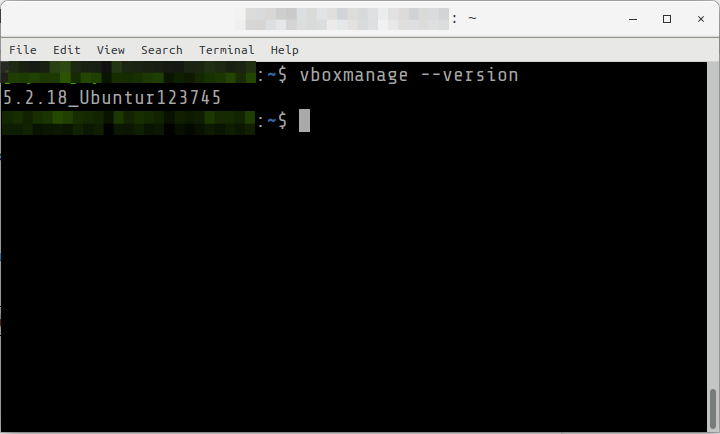
If not yet installed, you can download VirtualBox here first: https://www.virtualbox.org/wiki/Downloads


03: Update the package repository


$ sudo apt update


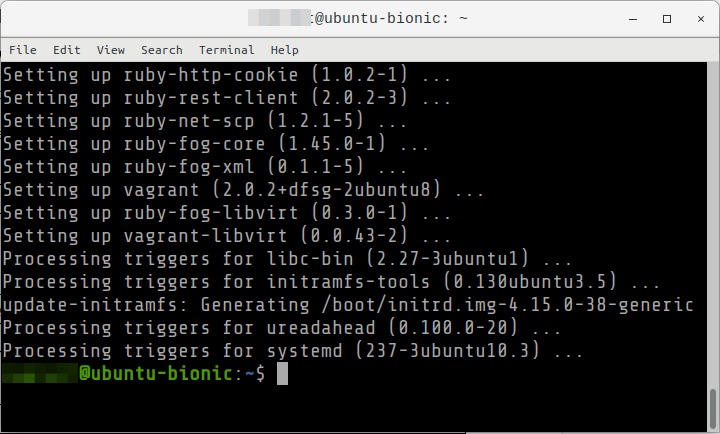
04: Install Vagrant from the package manager. Enter y when asked to confirm.


$ sudo apt install vagrant
 

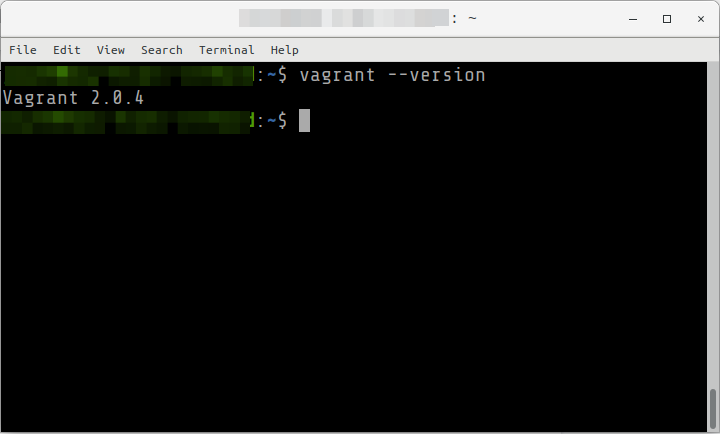
05: Verify that Vagrant has been installed correctly


$ vagrant --version
 

Configuration

Some are basic configuration when using Vagrant with VirtualBox

01: Create a new Vagrant box with an Ubuntu 18.04 OS. The setup will be:

  • Host: Ubuntu 18.04
  • Guest: Ubuntu 18.04 ← This is the Vagrant box we will be creating


02: Navigate or create the directory you want to create the box


$ cd ~

$ mkdir geek-ubuntu-1804

$ cd geek-ubuntu-1804


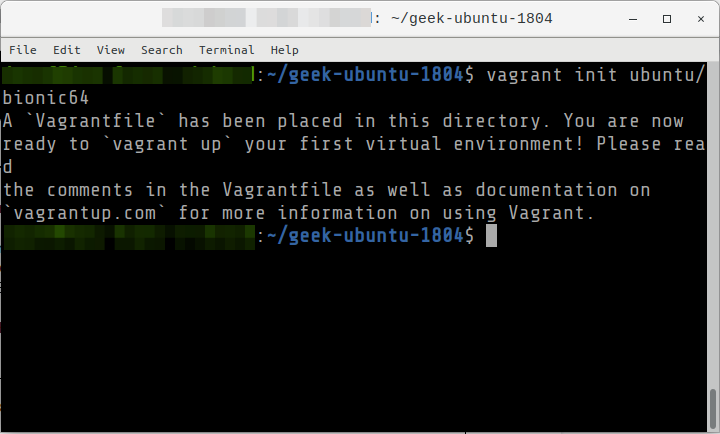
03: Initialize the configuration. This will create a Vagrantfile in the current directory.

$ vagrant init ubuntu/bionic64
 

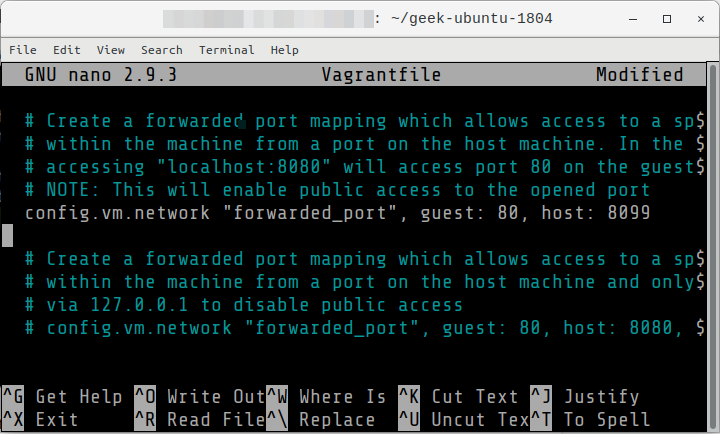
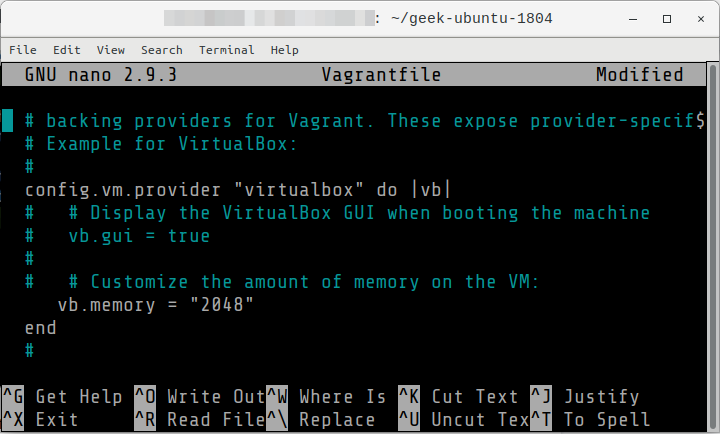
04: Update the Vagrantfile to make the following changes

  • Expose the Guest port 80 to the Host as port 8099
  • Change the RAM to 2 GB

$ nano Vagrantfile


Set the content as follows and save the changes.

...
Vagrant.configure("2") do |config|
  …
  config.vm.network "forwarded_port", guest: 80, host: 8099

  …
  config.vm.provider "virtualbox" do |vb|
    …
    vb.memory = "2048"

  end
 

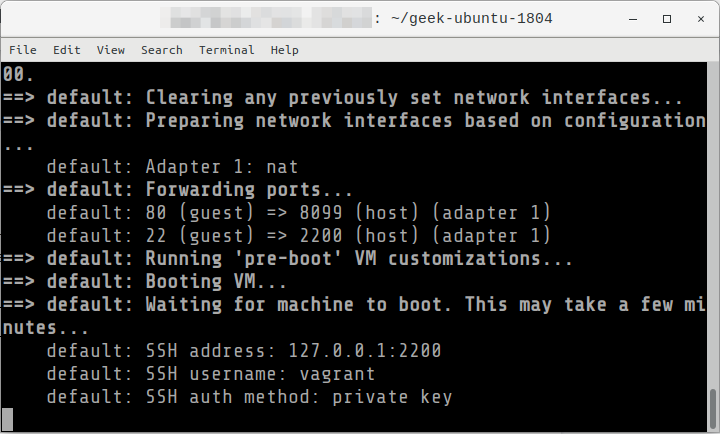
05: Provision the Vagrant box. This might take some time if you are creating a specific OS. But once it has been created, a cache of the OS image is saved locally.


$ vagrant up
 

Read More  PyCon 2019 | Shipping your first Python package and automating future publishing

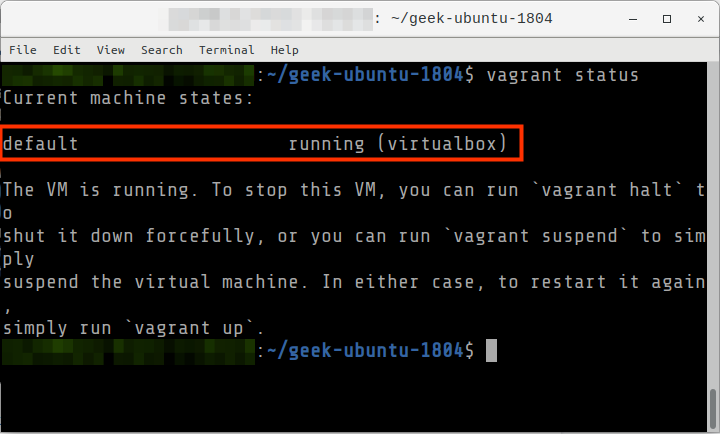
06: Verify the status of the machine


$ vagrant status
 

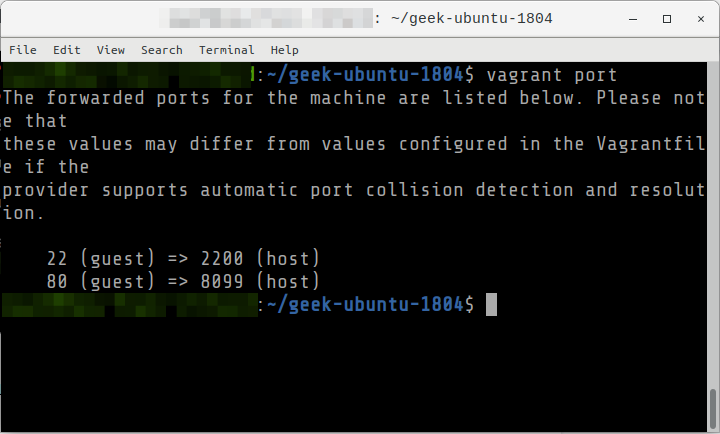
07: Check the accessible/exposed ports to the Host.


$ vagrant port
 

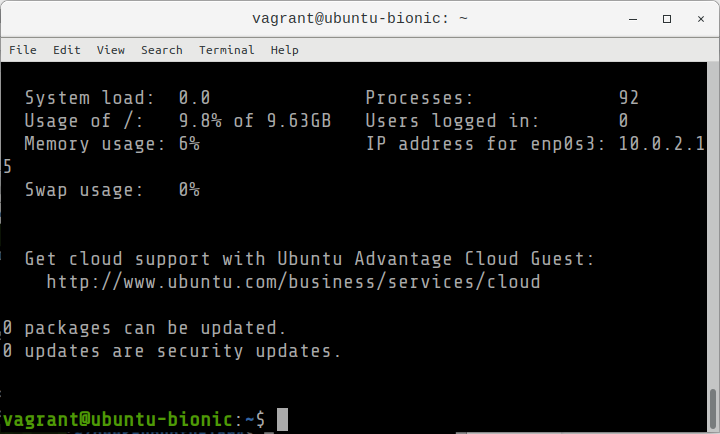
08: Access the server using Vagrant SSH.


$ vagrant ssh
 

09: Exit from the SSH session


$ exit


Commands

Vagrant commands must be executed in the directory where the box has been initialized (vagrant init)

Destroying the box
vagrant destroy
Viewing the exposed ports
vagrant port
Halt or stop the machine. Equal to shutdown.
vagrant halt
Suspends or pause the machine
vagrant suspend
Resumes the machine (when paused via suspend)
vagrant resume
View the status
vagrant status


For enquiries, product placements, sponsorships, and collaborations, connect with us at [email protected]. We'd love to hear from you!

Our humans need coffee too! Your support is highly appreciated, thank you!

root

Related Topics
  • How To
  • Ubuntu
  • Vagrant
  • Virtual Machine
  • VirtualBox
You May Also Like
Users with laptops working with database. Data storage and organization, information access and management, big data protection concept. Vector isolated illustration.
View Post
  • Architecture
  • DevOps
  • Technology

What is application migration? Examples and best practices

  • August 18, 2025
aster-cloud-sms-pexels-tim-samuel-6697306
View Post
  • Programming
  • Software

Send SMS texts with Amazon’s SNS simple notification service

  • July 1, 2025
aster-cloud-website-pexels-goumbik-574069
View Post
  • Programming
  • Software

Host a static website on AWS with Amazon S3 and Route 53

  • June 27, 2025
View Post
  • DevOps
  • Engineering
  • Platforms

How To Fail At Platform Engineering

  • March 11, 2024
View Post
  • Computing
  • DevOps
  • Platforms

The IBM Approach To Reliable Quantum Computing

  • November 28, 2023
DevOps artifact management
View Post
  • Design
  • DevOps
  • Engineering

10 Awesome Benefits Of Artifact Management And Why You Need It

  • August 2, 2023
Automation | Gears
View Post
  • Automation
  • DevOps
  • Engineering

Automating CI/CD With GitHub Actions

  • June 13, 2023
View Post
  • Architecture
  • Data
  • Engineering
  • People
  • Programming
  • Software Engineering
  • Technology
  • Work & Jobs

Predictions: Top 25 Careers Likely In High Demand In The Future

  • June 6, 2023

Stay Connected!
LATEST
  • digital-nomad-freelancer-worker-2151205464 1
    One paperwork problem – Get your Digital Nomad Visa employment documents fast from UK, EU or Singapore
    • June 16, 2026
  • 2
    Samsung Art Store Brings Art Basel to Homes Worldwide With New Curated Collection
    • June 15, 2026
  • 3
    You Do Not Need to Invest in the IPO of SpaceX, Anthropic, and OpenAI
    • June 10, 2026
  • 4
    The consequences of relying on AI for accurate news
    • June 10, 2026
  • 5
    Connecting AI agents with unstructured data using Google Cloud Storage MCP Servers
    • June 10, 2026
  • 6
    WWDC26: Apple unveils next generation of Apple Intelligence, Siri AI, powerful parental controls, and an expansive set of software improvements
    • June 8, 2026
  • 7
    IBM and Google Cloud Announce Strategic Partnership to Scale AI with Human Expertise and AI‑Powered Delivery
    • June 4, 2026
  • Data center 8
    Data Sovereignty in Spain. It’s Not Just About the Law, It’s About Efficiency
    • June 3, 2026
  • 9
    Ink vs Pixels. What you miss versus what you are actually missing.
    • June 1, 2026
  • 10
    Banks race to patch new cyber vulnerabilities, and other cybersecurity news
    • May 25, 2026
about
Hello World!

We are aster.cloud. We’re created by programmers for programmers.

Our site aims to provide guides, programming tips, reviews, and interesting materials for tech people and those who want to learn in general.

We would like to hear from you.

If you have any feedback, enquiries, or sponsorship request, kindly reach out to us at:

[email protected]
Most Popular
  • pope-leo-xiv-cq5dam-1500.844 1
    Pope Leo XIV to Publish First Encyclical on Artificial Intelligence and Human Dignity on 25 May
    • May 22, 2026
  • 2
    Portfolio to Clients, and is Strengthened by Ongoing Project Glasswing Work
    • May 20, 2026
  • reMarkable Paper Pure 3
    Everything The reMarkable Paper Pure Actually Does
    • May 14, 2026
  • 4
    Scaling cloud and AI: Microsoft Azure’s commitment to Europe’s digital future
    • May 11, 2026
  • Anthropic Institute 5
    Introducing The Anthropic Institute
    • March 11, 2026
  • /
  • Technology
  • Tools
  • About
  • Contact Us

Input your search keywords and press Enter.