aster.cloud aster.cloud
  • /
  • Platforms
    • Public Cloud
    • On-Premise
    • Hybrid Cloud
    • Data
  • Architecture
    • Design
    • Solutions
    • Enterprise
  • Engineering
    • Automation
    • Software Engineering
    • Project Management
    • DevOps
  • Programming
    • Learning
  • Tools
  • About
  • /
  • Platforms
    • Public Cloud
    • On-Premise
    • Hybrid Cloud
    • Data
  • Architecture
    • Design
    • Solutions
    • Enterprise
  • Engineering
    • Automation
    • Software Engineering
    • Project Management
    • DevOps
  • Programming
    • Learning
  • Tools
  • About
aster.cloud aster.cloud
  • /
  • Platforms
    • Public Cloud
    • On-Premise
    • Hybrid Cloud
    • Data
  • Architecture
    • Design
    • Solutions
    • Enterprise
  • Engineering
    • Automation
    • Software Engineering
    • Project Management
    • DevOps
  • Programming
    • Learning
  • Tools
  • About
  • Data
  • DevOps

How To Install And Configure MsSQL In Ubuntu

  • root
  • July 7, 2019
  • 2 minute read

Overview

This guide contains instructions on how to install and do basic configuration for MsSQL on an Ubuntu system.


Partner with aster.cloud
for your next big idea.
Let us know here.


From our partners:

CITI.IO :: Business. Institutions. Society. Global Political Economy.
CYBERPOGO.COM :: For the Arts, Sciences, and Technology.
DADAHACKS.COM :: Parenting For The Rest Of Us.
ZEDISTA.COM :: Entertainment. Sports. Culture. Escape.
TAKUMAKU.COM :: For The Hearth And Home.
ASTER.CLOUD :: From The Cloud And Beyond.
LIWAIWAI.COM :: Intelligence, Inside and Outside.
GLOBALCLOUDPLATFORMS.COM :: For The World's Computing Needs.
FIREGULAMAN.COM :: For The Fire In The Belly Of The Coder.
ASTERCASTER.COM :: Supra Astra. Beyond The Stars.
BARTDAY.COM :: Prosperity For Everyone.

Prerequisites

  • Operating System : Ubuntu 18.04 or 16.04
  • Access to a Terminal or Shell Console


Installation

01: Open a terminal window
 

02: Import the public repository GPG keys


$ wget -qO- https://packages.microsoft.com/keys/microsoft.asc | sudo apt-key add -


03: Register the Microsoft SQL server Ubuntu repository


$ sudo add-apt-repository "$(wget -qO- https://packages.microsoft.com/config/ubuntu/16.04/mssql-server-2017.list)"


04: Update the package manager


$ sudo apt update


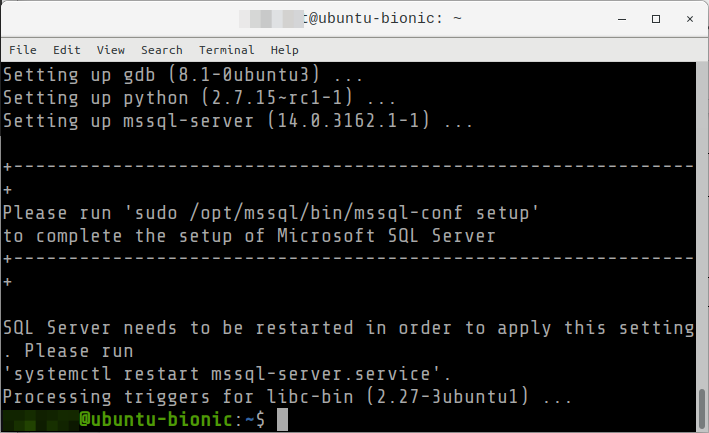
05: Install the SQL Server. Enter y when asked to confirm.


$ sudo apt-get install mssql-server
 

Configuration

06: Run the configuration setup to setup the SQL server edition/license the admin password


$ sudo /opt/mssql/bin/mssql-conf setup


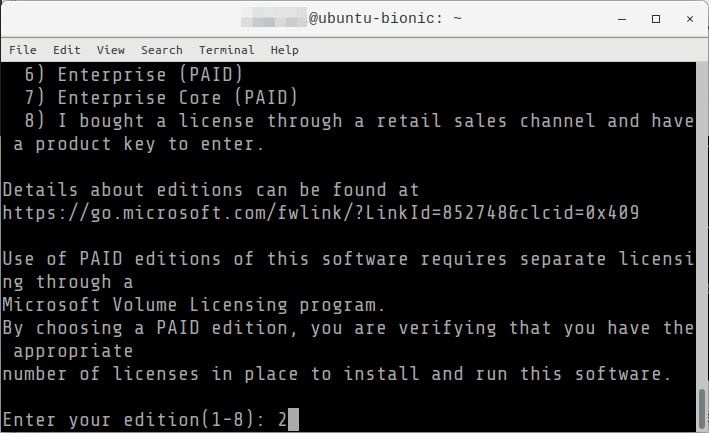
07: Choose an edition of SQL server.

    • 1 – Evaluation
    • 2 – Developer
    • 3 – Express
    • 4 – Web [PAID]
    • 5 – Standard [PAID]
    • 6 – Enterprise [PAID]
    • 7 – Enterprise Core [PAID]
    • 8 – If you have your own license key

For Development purpose, select 2
 

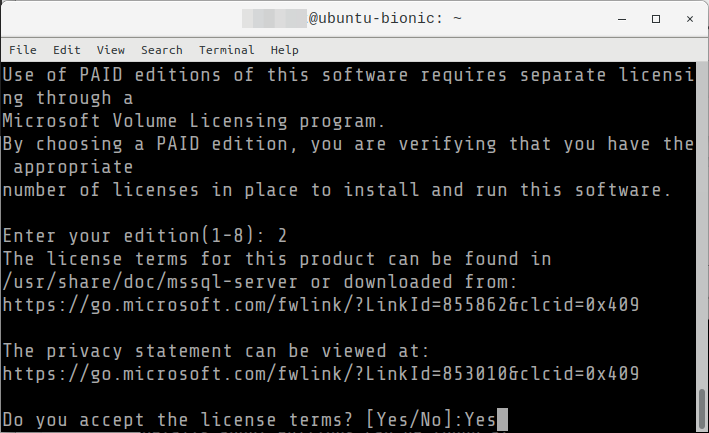
08: Accept the license terms be entering Yes.
 

09: Select the Administrator password, in this example, GeekPassword42
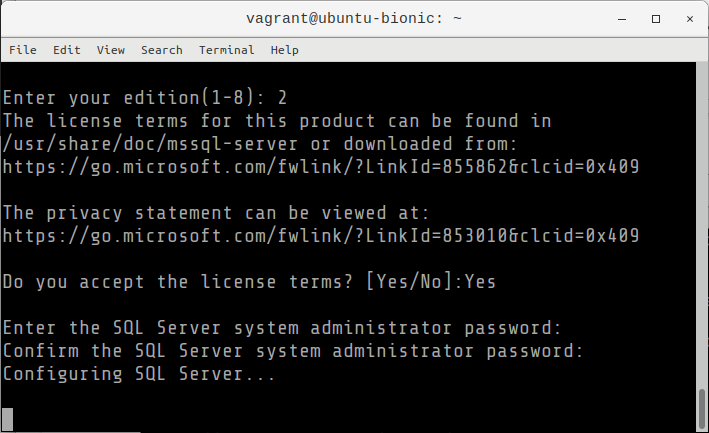
 

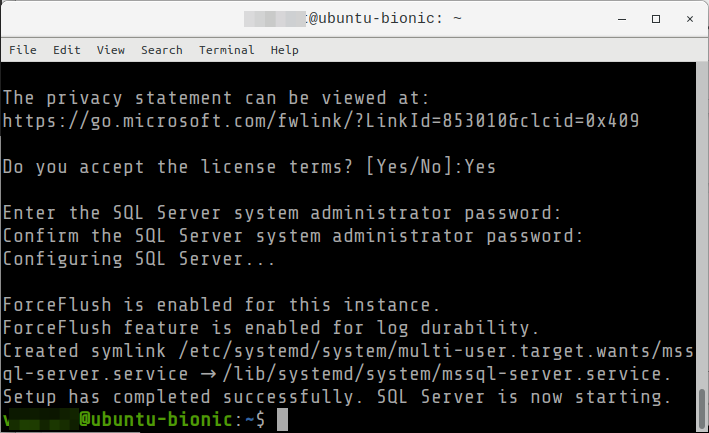
It will continue with the process after the password has been entered and confirmed.
 

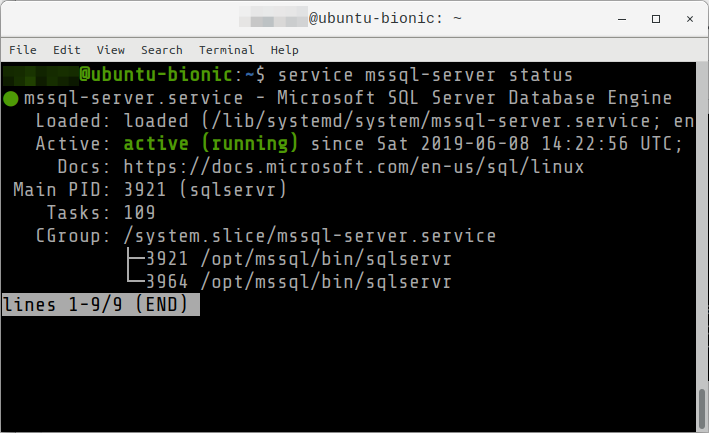
10: Verify that the service is running


$ systemctl status mssql-server --no-pager

or

$ service msqsql-server status
 

Installing the SQL Server CLI tools

11: Install the tools. Enter y when asked to confirm.

Note that you need to import the public keys and add the Microsoft Ubuntu repository to continue. If you followed the steps in the Installation section, you can continue with the following command. Refer to step #02 and #03.


$ sudo apt-get install mssql-tools unixodbc-dev


Read More  PrestoMall Banks On Alibaba Cloud’s PolarDB For Its Next Phase Of Growth

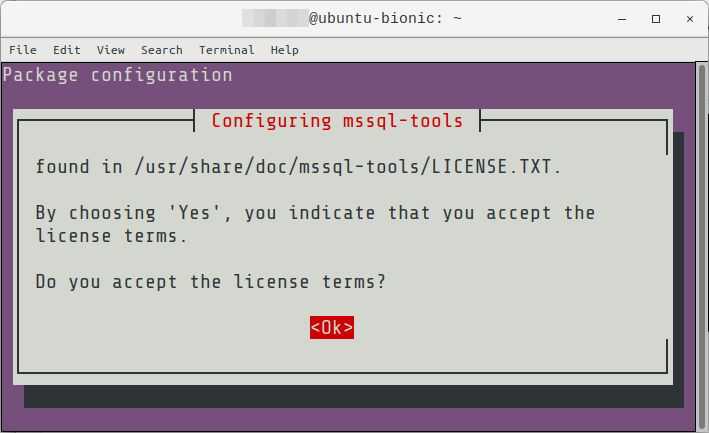
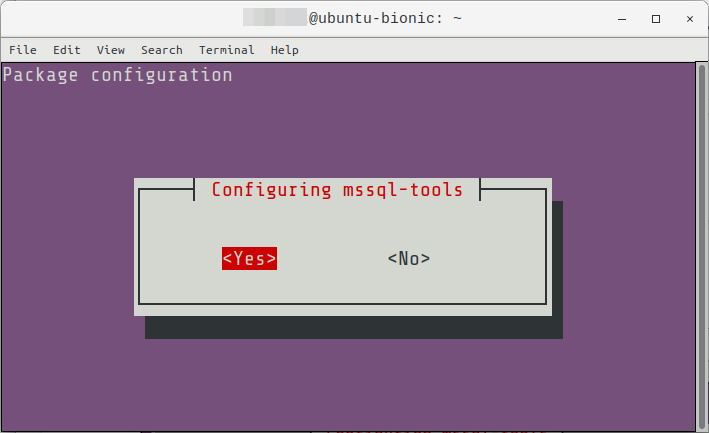
12: A confirmation message will be shown. Confirm by selecting <Ok> using the tab key to highlight it, then Enter.
 

Select <Yes> to confirm.
 

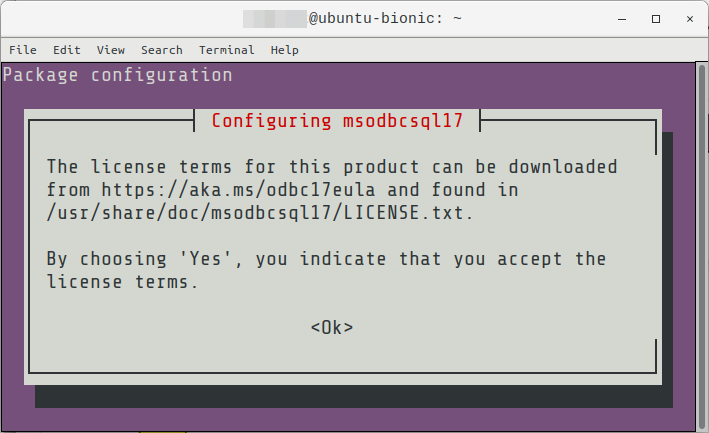
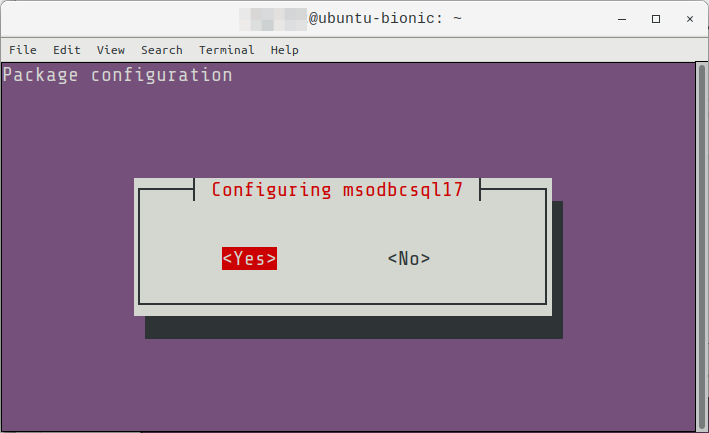
13: Confirm by selecting <Ok>
 

Select <Yes> to confirm.
 

14: Add /opt/mssql-tools/bin/ to your PATH environment variable in a bash shell.


$ echo 'export PATH="$PATH:/opt/mssql-tools/bin"' >> ~/.bash_profile

$ echo 'export PATH="$PATH:/opt/mssql-tools/bin"' >> ~/.bashrc

source ~/.bashrc

15: Connect locally using the <b>sqlcmd</b>


$ sqlcmd -S localhost -U SA


Then enter your password, example, GeekPassword42
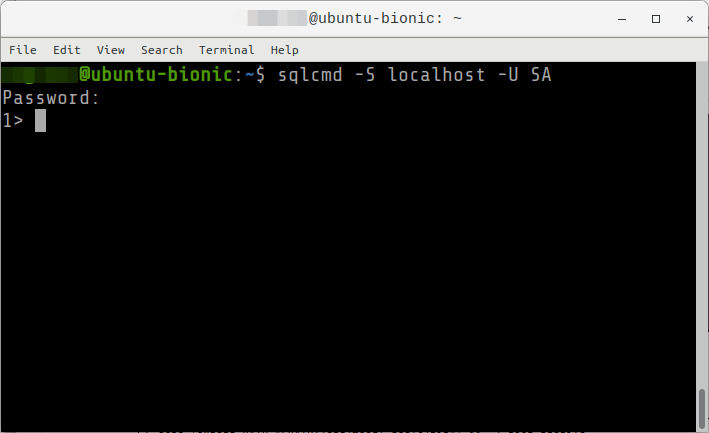
 

16: The prompt will change to 1> when successful. Type QUIT to exit.


For enquiries, product placements, sponsorships, and collaborations, connect with us at [email protected]. We'd love to hear from you!

Our humans need coffee too! Your support is highly appreciated, thank you!

root

Related Topics
  • Database
  • How To
  • Installation
  • MsSQL
  • Ubuntu
You May Also Like
Data center
View Post
  • Data
  • Public Cloud

Data Sovereignty in Spain. It’s Not Just About the Law, It’s About Efficiency

  • June 3, 2026
View Post
  • Data
  • Platforms
  • Technology

Scaling cloud and AI: Microsoft Azure’s commitment to Europe’s digital future

  • May 11, 2026
View Post
  • Data

Streamline read scalability with Cloud SQL autoscaling read pools

  • March 23, 2026
View Post
  • Data
  • Platforms
  • Public Cloud

PayPal’s historically large data migration is the foundation for its gen AI innovation

  • March 4, 2026
View Post
  • Data
  • Technology

3 obstacles to agentic AI adoption and how to overcome them

  • December 22, 2025
Users with laptops working with database. Data storage and organization, information access and management, big data protection concept. Vector isolated illustration.
View Post
  • Architecture
  • DevOps
  • Technology

What is application migration? Examples and best practices

  • August 18, 2025
Getting things done makes her feel amazing
View Post
  • Computing
  • Data
  • Featured
  • Learning
  • Tech
  • Technology

Nurturing Minds in the Digital Revolution

  • April 25, 2025
View Post
  • Data
  • Engineering

Hiding in Plain Site: Attackers Sneaking Malware into Images on Websites

  • January 16, 2025

Stay Connected!
LATEST
  • digital-nomad-freelancer-worker-2151205464 1
    One paperwork problem – Get your Digital Nomad Visa employment documents fast from UK, EU or Singapore
    • June 16, 2026
  • 2
    Samsung Art Store Brings Art Basel to Homes Worldwide With New Curated Collection
    • June 15, 2026
  • 3
    You Do Not Need to Invest in the IPO of SpaceX, Anthropic, and OpenAI
    • June 10, 2026
  • 4
    The consequences of relying on AI for accurate news
    • June 10, 2026
  • 5
    Connecting AI agents with unstructured data using Google Cloud Storage MCP Servers
    • June 10, 2026
  • 6
    WWDC26: Apple unveils next generation of Apple Intelligence, Siri AI, powerful parental controls, and an expansive set of software improvements
    • June 8, 2026
  • 7
    IBM and Google Cloud Announce Strategic Partnership to Scale AI with Human Expertise and AI‑Powered Delivery
    • June 4, 2026
  • Data center 8
    Data Sovereignty in Spain. It’s Not Just About the Law, It’s About Efficiency
    • June 3, 2026
  • 9
    Ink vs Pixels. What you miss versus what you are actually missing.
    • June 1, 2026
  • 10
    Banks race to patch new cyber vulnerabilities, and other cybersecurity news
    • May 25, 2026
about
Hello World!

We are aster.cloud. We’re created by programmers for programmers.

Our site aims to provide guides, programming tips, reviews, and interesting materials for tech people and those who want to learn in general.

We would like to hear from you.

If you have any feedback, enquiries, or sponsorship request, kindly reach out to us at:

[email protected]
Most Popular
  • pope-leo-xiv-cq5dam-1500.844 1
    Pope Leo XIV to Publish First Encyclical on Artificial Intelligence and Human Dignity on 25 May
    • May 22, 2026
  • 2
    Portfolio to Clients, and is Strengthened by Ongoing Project Glasswing Work
    • May 20, 2026
  • reMarkable Paper Pure 3
    Everything The reMarkable Paper Pure Actually Does
    • May 14, 2026
  • 4
    Scaling cloud and AI: Microsoft Azure’s commitment to Europe’s digital future
    • May 11, 2026
  • Anthropic Institute 5
    Introducing The Anthropic Institute
    • March 11, 2026
  • /
  • Technology
  • Tools
  • About
  • Contact Us

Input your search keywords and press Enter.