aster.cloud aster.cloud
  • /
  • Platforms
    • Public Cloud
    • On-Premise
    • Hybrid Cloud
    • Data
  • Architecture
    • Design
    • Solutions
    • Enterprise
  • Engineering
    • Automation
    • Software Engineering
    • Project Management
    • DevOps
  • Programming
    • Learning
  • Tools
  • About
  • /
  • Platforms
    • Public Cloud
    • On-Premise
    • Hybrid Cloud
    • Data
  • Architecture
    • Design
    • Solutions
    • Enterprise
  • Engineering
    • Automation
    • Software Engineering
    • Project Management
    • DevOps
  • Programming
    • Learning
  • Tools
  • About
aster.cloud aster.cloud
  • /
  • Platforms
    • Public Cloud
    • On-Premise
    • Hybrid Cloud
    • Data
  • Architecture
    • Design
    • Solutions
    • Enterprise
  • Engineering
    • Automation
    • Software Engineering
    • Project Management
    • DevOps
  • Programming
    • Learning
  • Tools
  • About
  • Programming
  • Tech

How To: Pop!_OS Installation

  • root
  • July 8, 2019
  • 3 minute read

Overview

This guide contains the step-by-step installation of Pop!_OS 18.04 (LTS) on your machine.

Pop!_OS is an Ubuntu-based Linux distribution featuring a custom GNOME desktop. Pop!_OS is designed to have a minimal amount of clutter on the desktop without distractions in order to allow the user to focus on work. The distribution is developed by Linux computer retailer System76.


Partner with aster.cloud
for your next big idea.
Let us know here.


From our partners:

CITI.IO :: Business. Institutions. Society. Global Political Economy.
CYBERPOGO.COM :: For the Arts, Sciences, and Technology.
DADAHACKS.COM :: Parenting For The Rest Of Us.
ZEDISTA.COM :: Entertainment. Sports. Culture. Escape.
TAKUMAKU.COM :: For The Hearth And Home.
ASTER.CLOUD :: From The Cloud And Beyond.
LIWAIWAI.COM :: Intelligence, Inside and Outside.
GLOBALCLOUDPLATFORMS.COM :: For The World's Computing Needs.
FIREGULAMAN.COM :: For The Fire In The Belly Of The Coder.
ASTERCASTER.COM :: Supra Astra. Beyond The Stars.
BARTDAY.COM :: Prosperity For Everyone.


Machine specs

Minimum

  • 2 GB RAM
  • 16 GB Storage
  • 64-bit processor

Recommended

  • 4 GB RAM
  • 16 GB Storage
  • 64-bit processor


Installation

01: Mount the USB containing the Pop! OS 18.04 ISO.

To download the ISO file, click here: https://system76.com/pop


02: Restart your machine


03: The first step you will encounter will be the language selection. Choose your preferred setting, in this example, English.
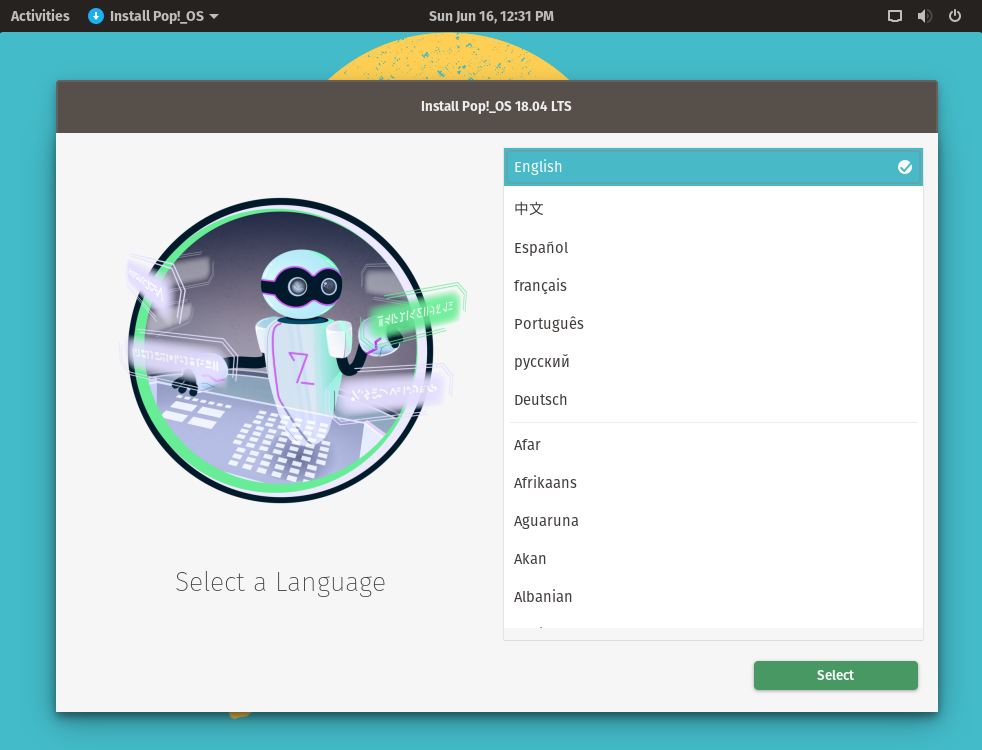
 

An additional option to choose which version of the language will be shown.
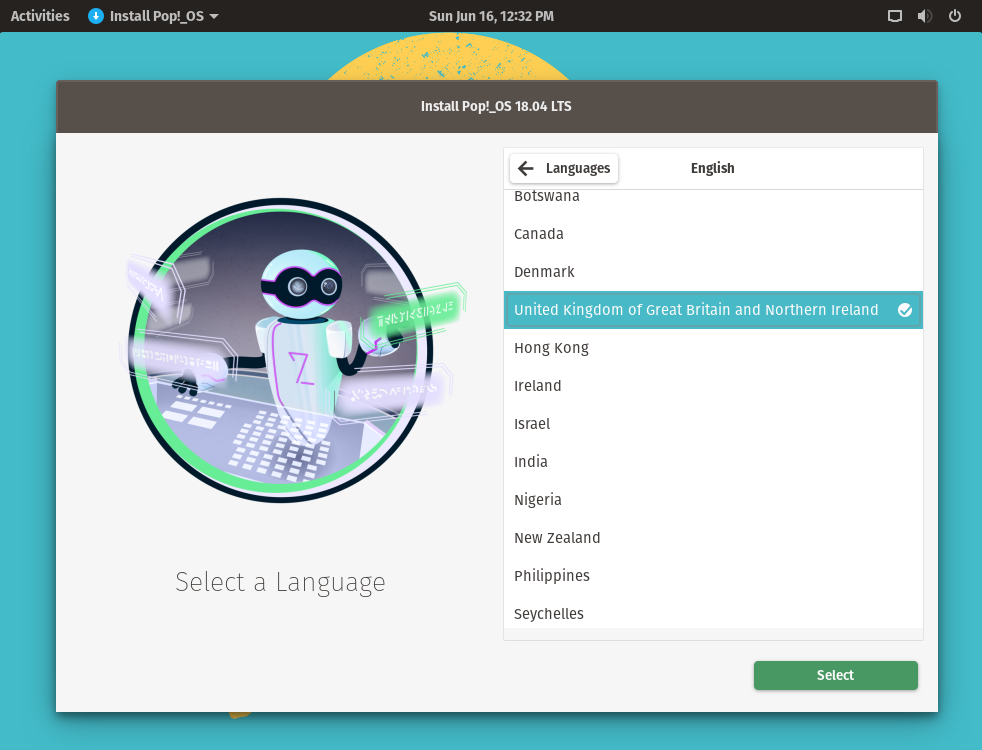
 

04: Select the Keyboard Layout
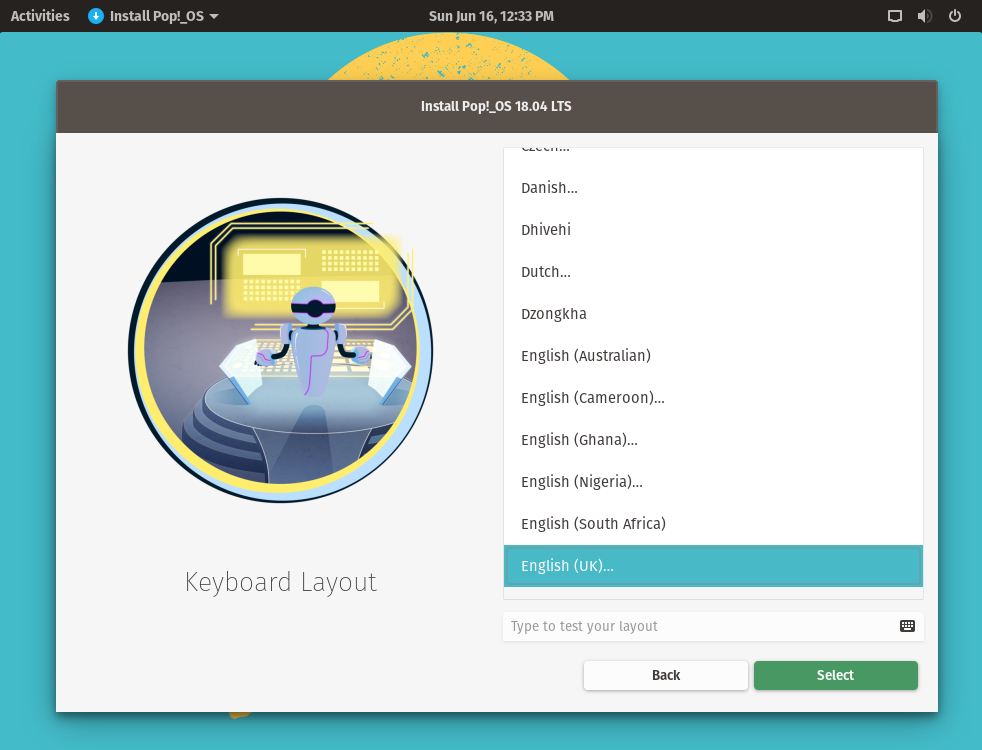
 

You can type something to test if the keyboard layout fits with your choice, then choose the Select button.
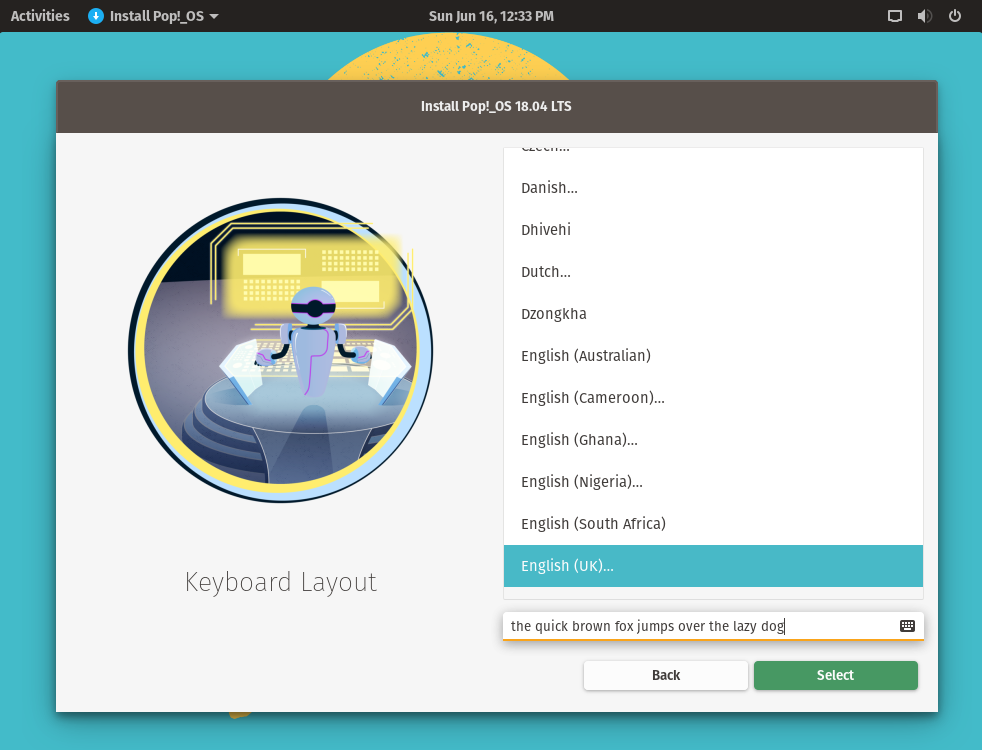
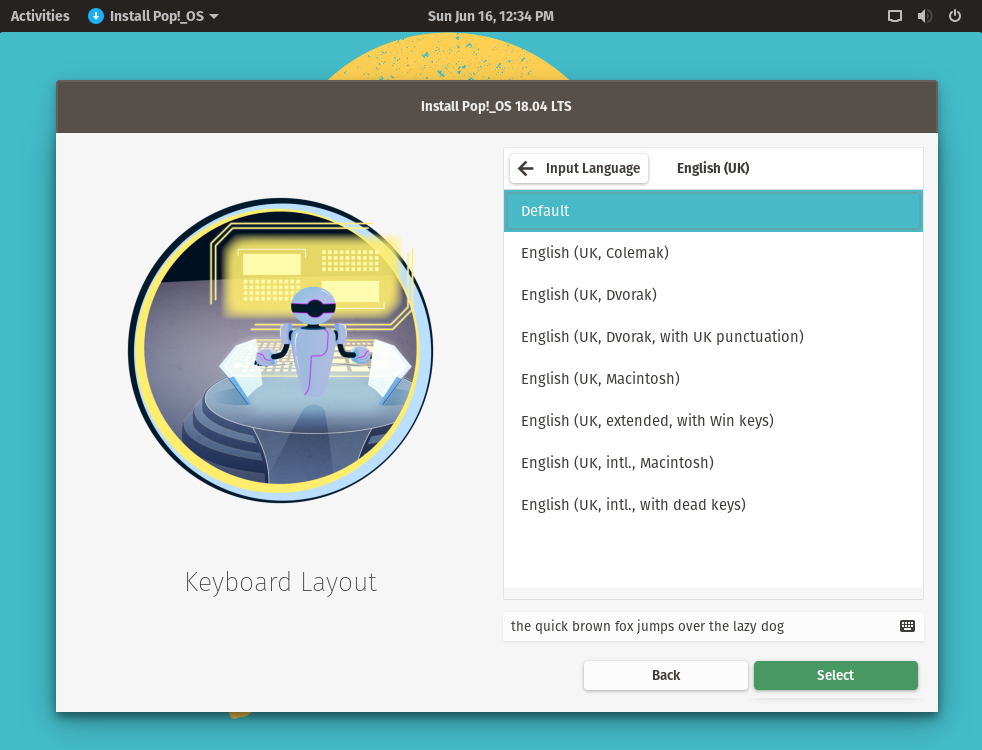
 

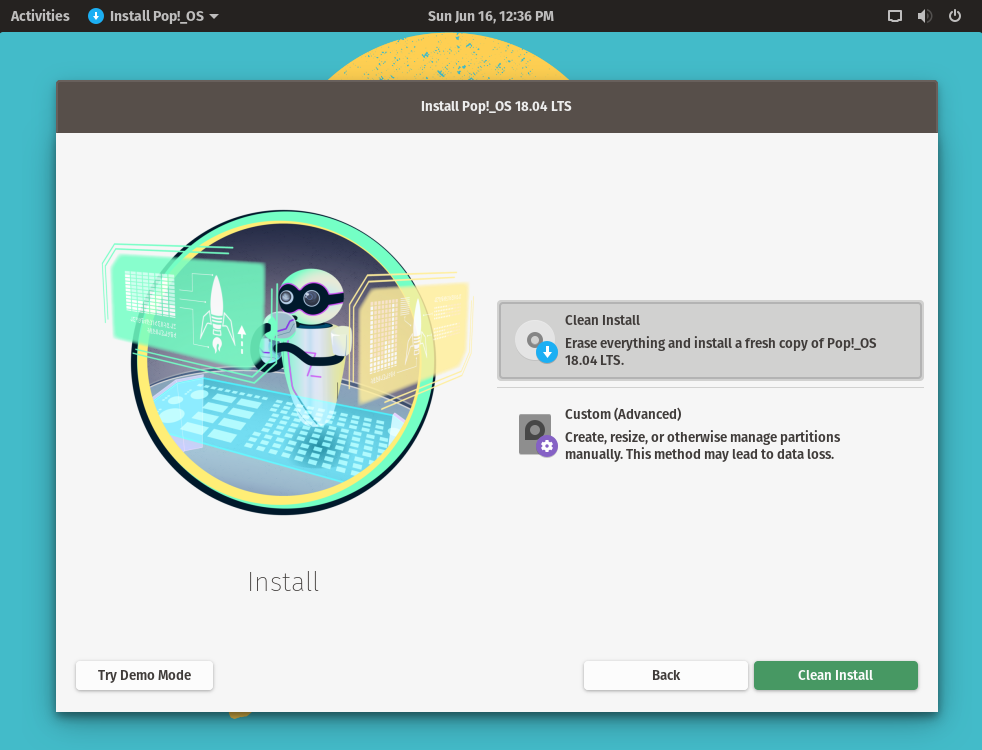
05: For fresh install, select the Clean Install option. An additional option for customized disk size and partition is also available. In this example, Clean Install option is used.
 

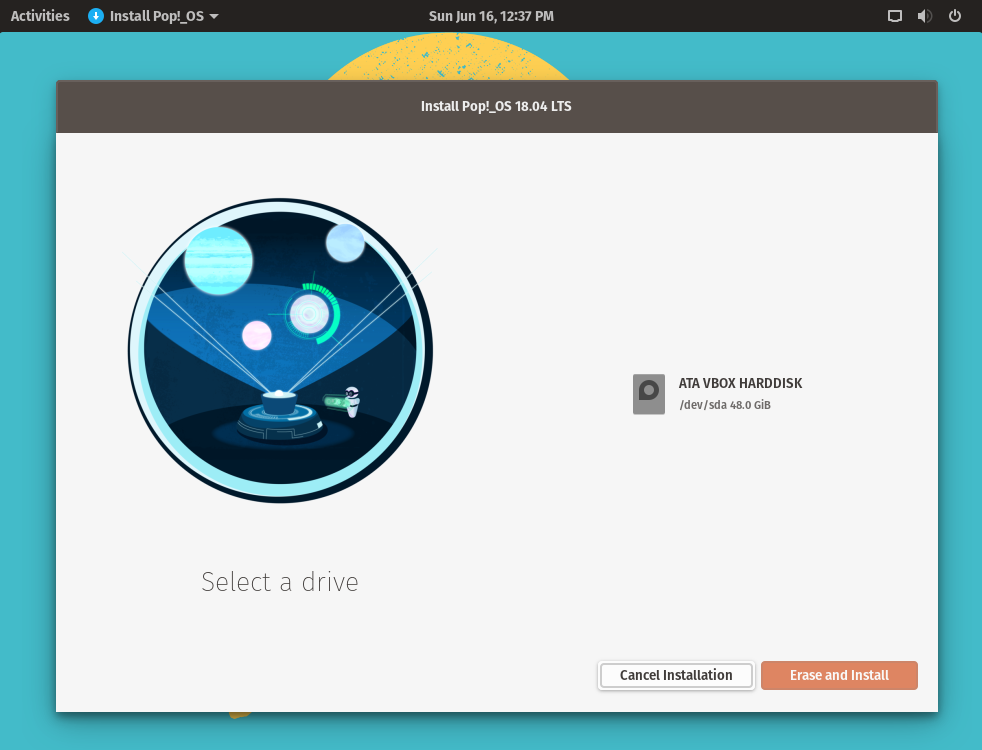
06: You will be asked to select the physical disk drive to install. Select the drive then click the Erase and Install button.
 

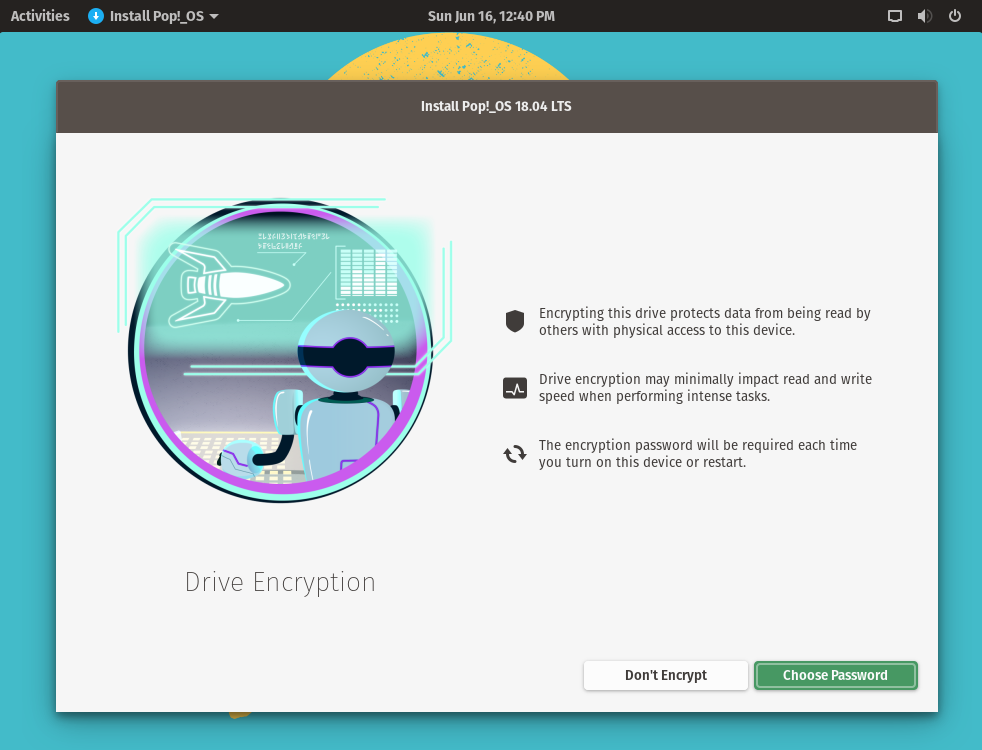
07: Next is the Encryption options. By default Encryption is enabled when you choose the Choose Password button. Select the Don’t Encrypt button if you don’t want the drive to be encrypted.
 

Read More  How To: Install & Run Kotlin In Ubuntu

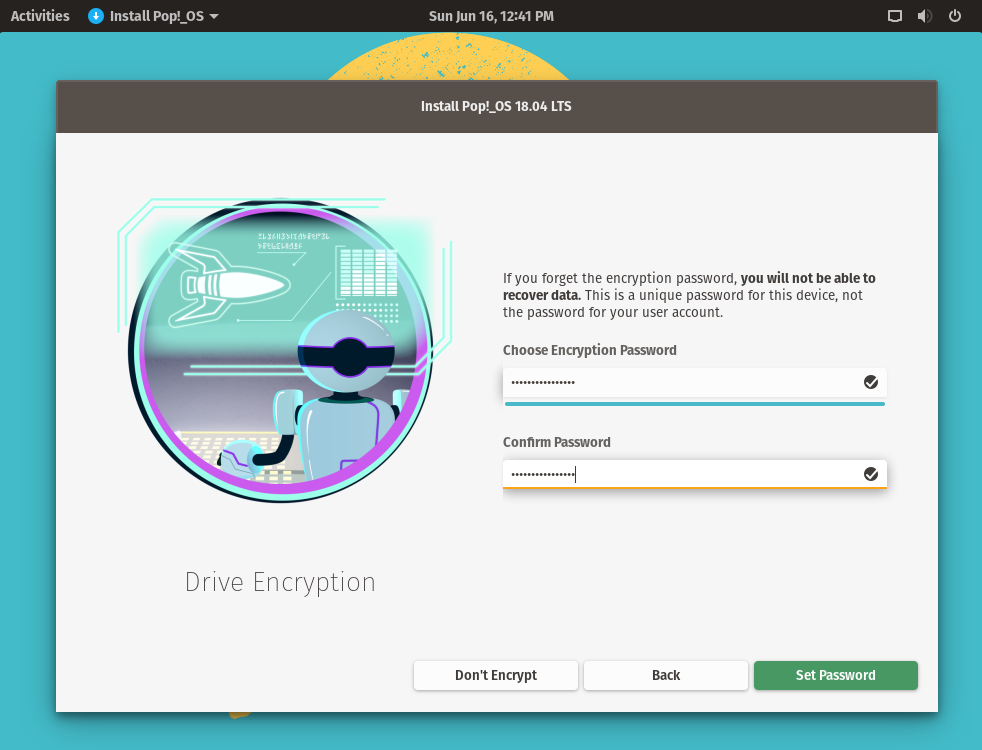
08: Enter your password and select the Set Password button. Note that this is not the OS User password but the password for the encrypted drive if enabled. The OS User will be configured later after installation and first start of the system.
 

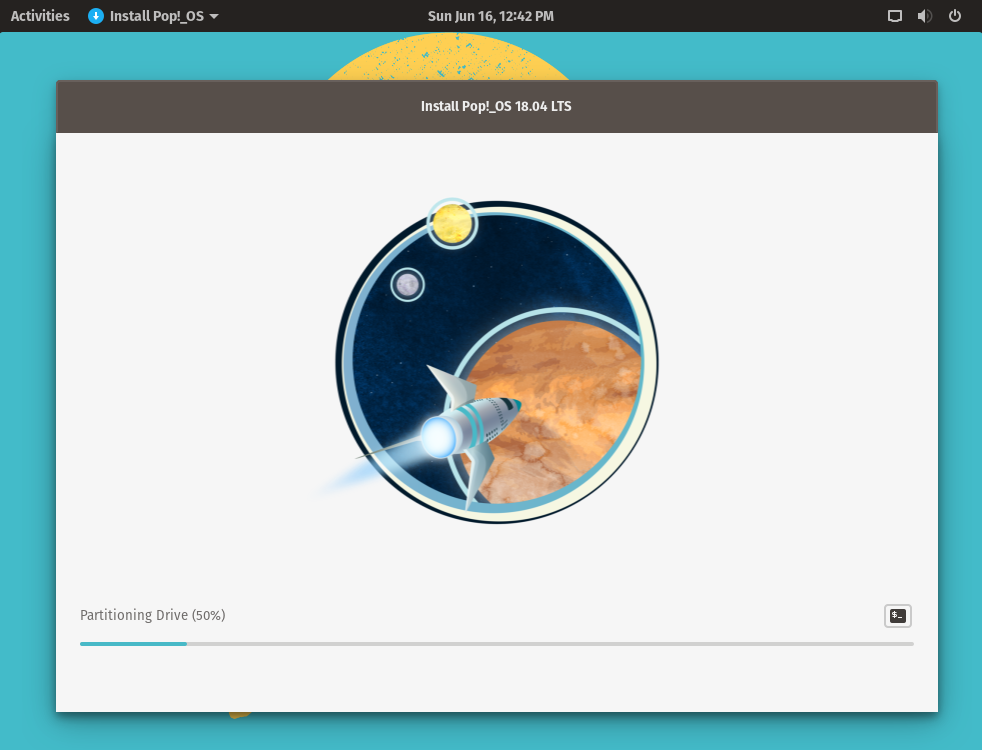
09: Wait for the installation to finish.
 

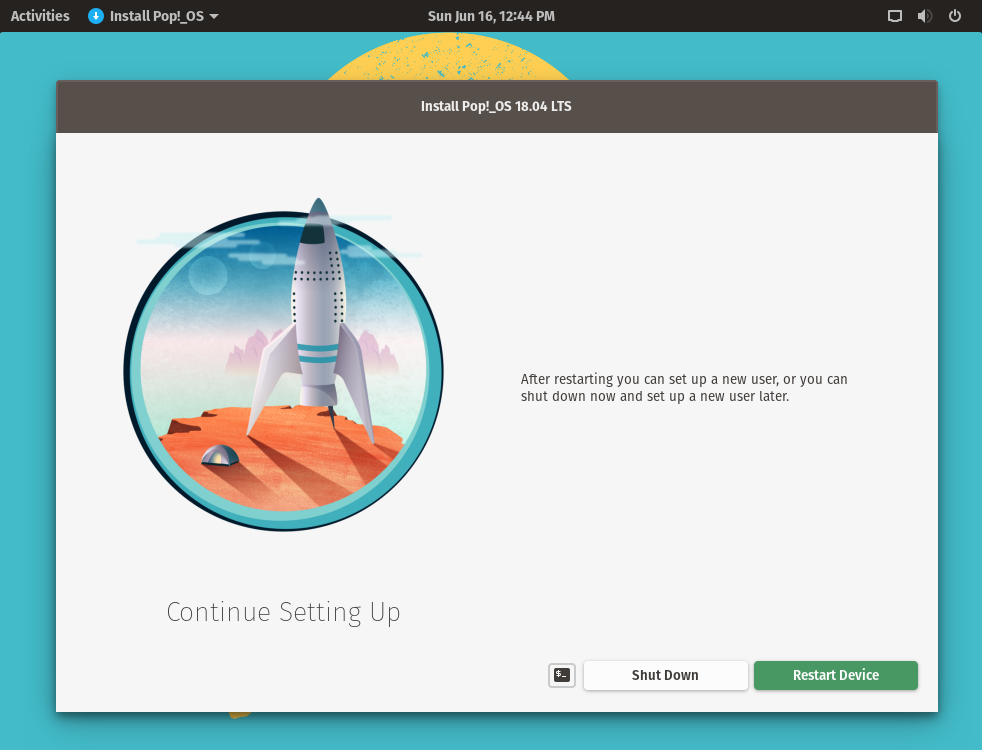
10: Once the installation is complete you will be asked to restart the system. Select the Restart Device button.
 

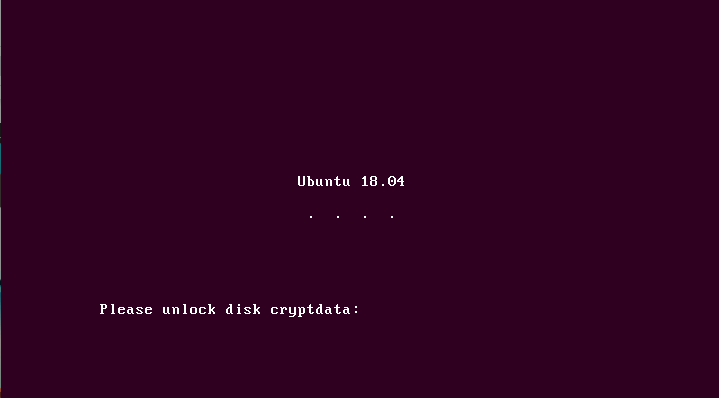
11: (Optional) encryption is enabled. If you’ve chosen to encrypt the data, the encrypted drive password is required to be entered before proceeding further.
 

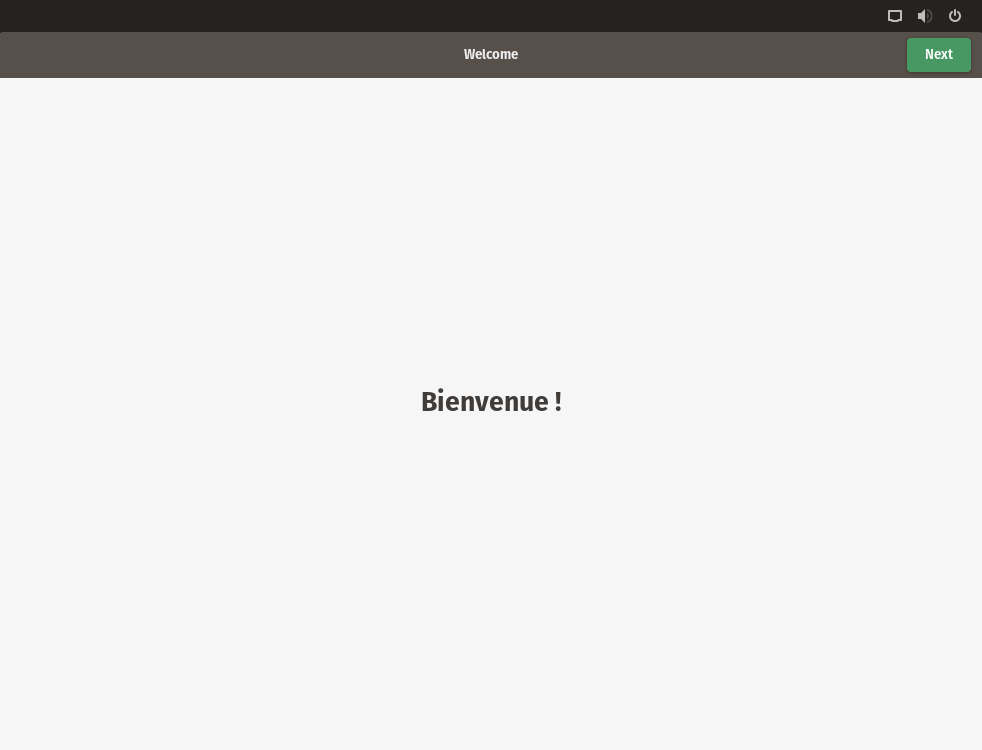
12: The word Welcome will be shown in different language until you select the Next button.
 

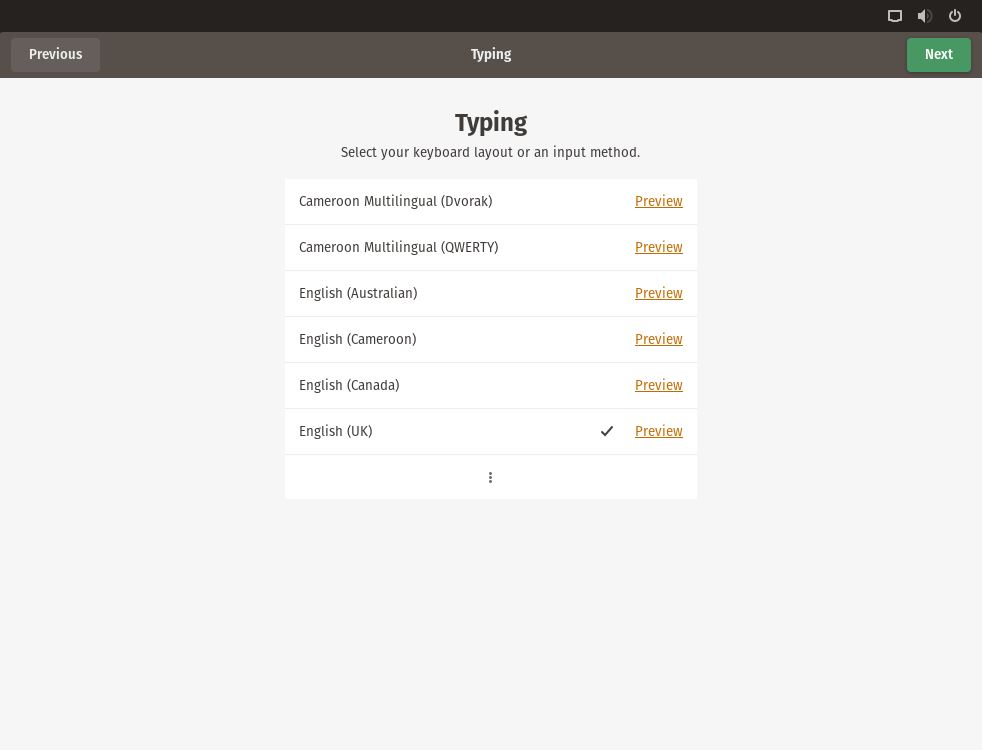
13: Confirm the keyboard layout, then select the Next button.
 

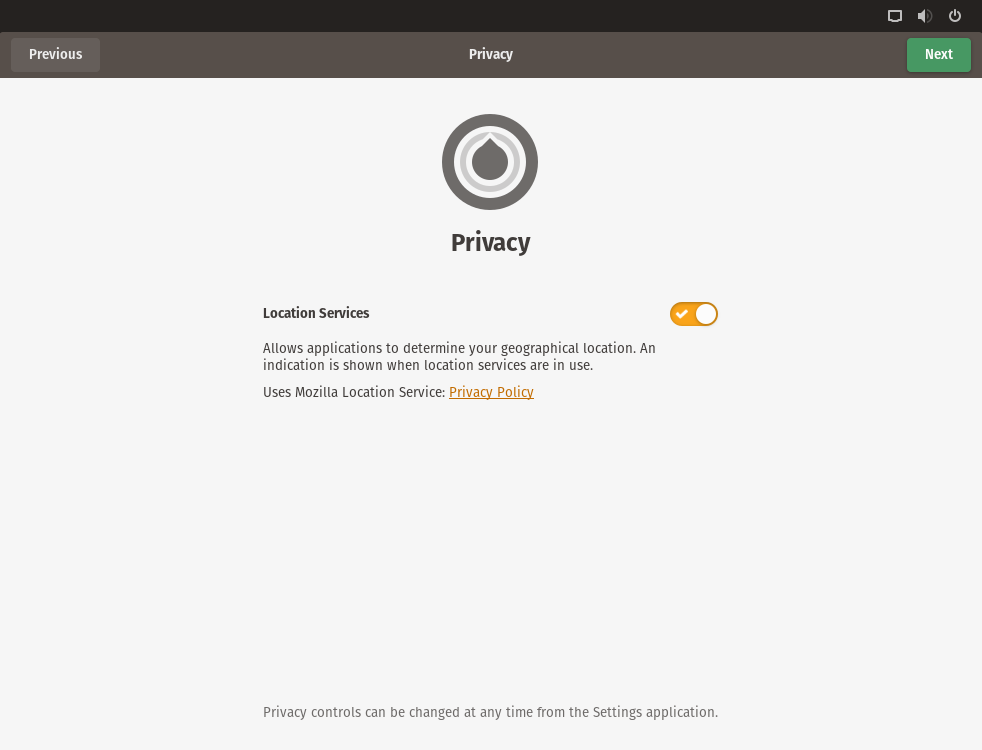
14: You can opt to enable Privacy and Location settings, then select Next button. This can be changed later.
 

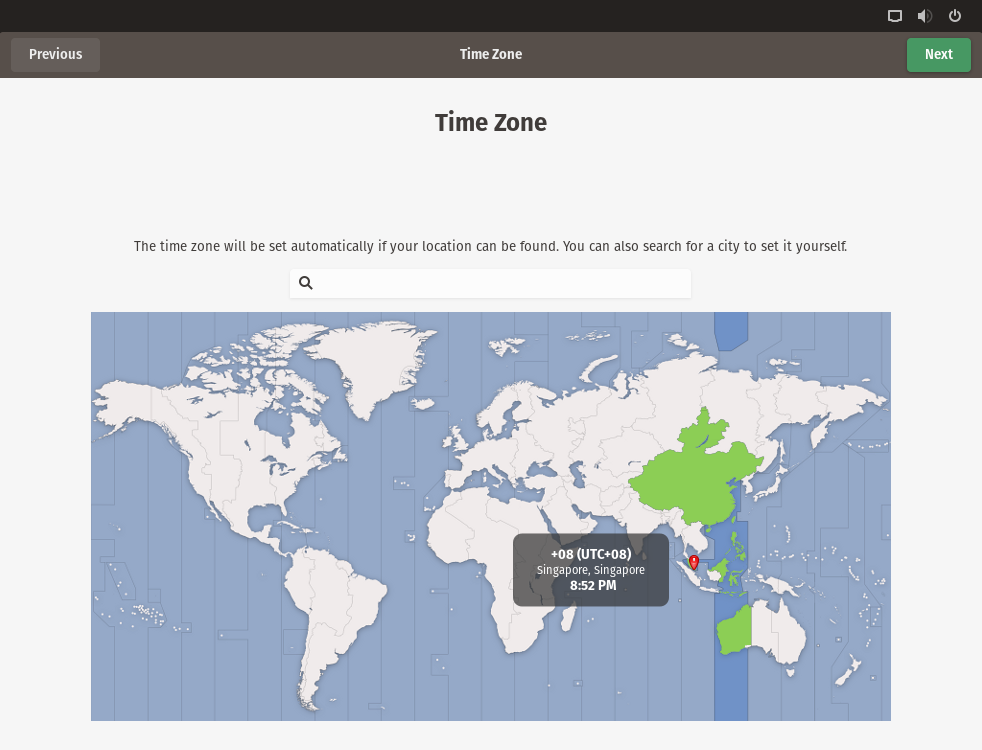
15: Select the preferred Time Zone.
 

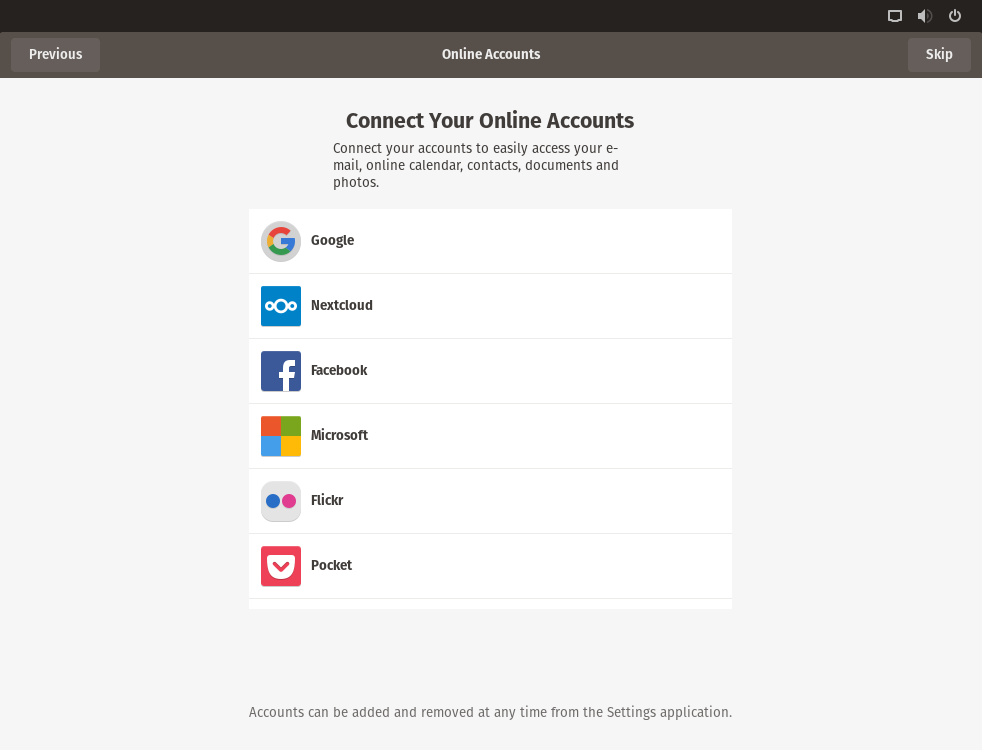
16: Next is the option to add accounts, such as Google, NextCloud, Facebook, Microsoft, Flickr and Pocket. Or add them later by selecting the Skip button.
 

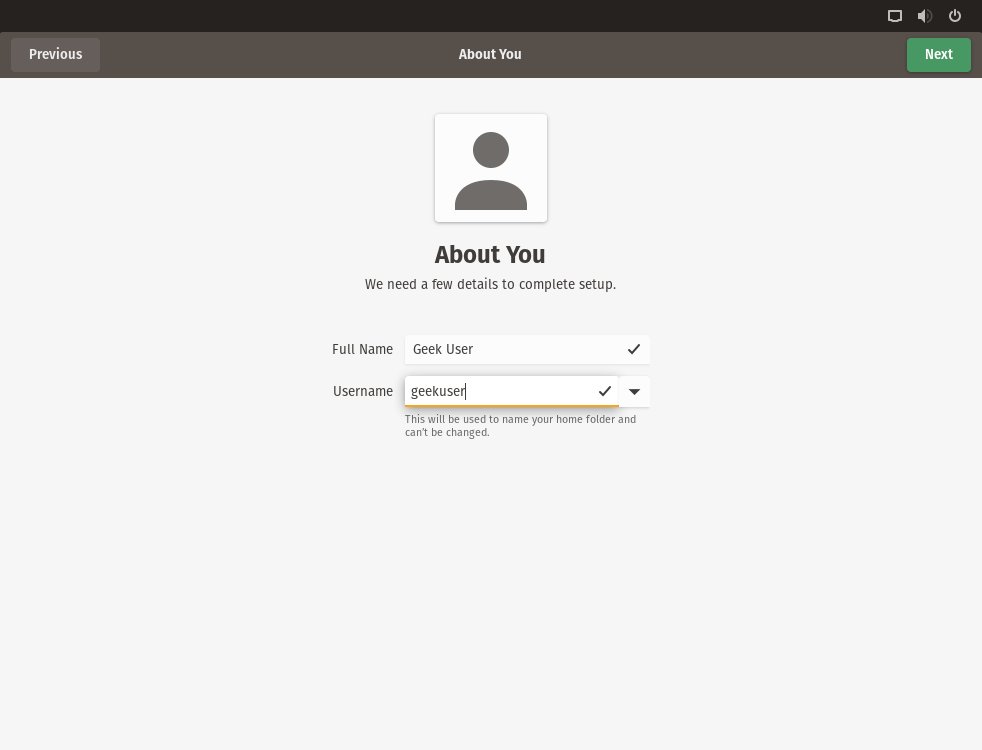
17: This is where the OS user will be created. Select your Full Name and Username. Then select the Next button.
 

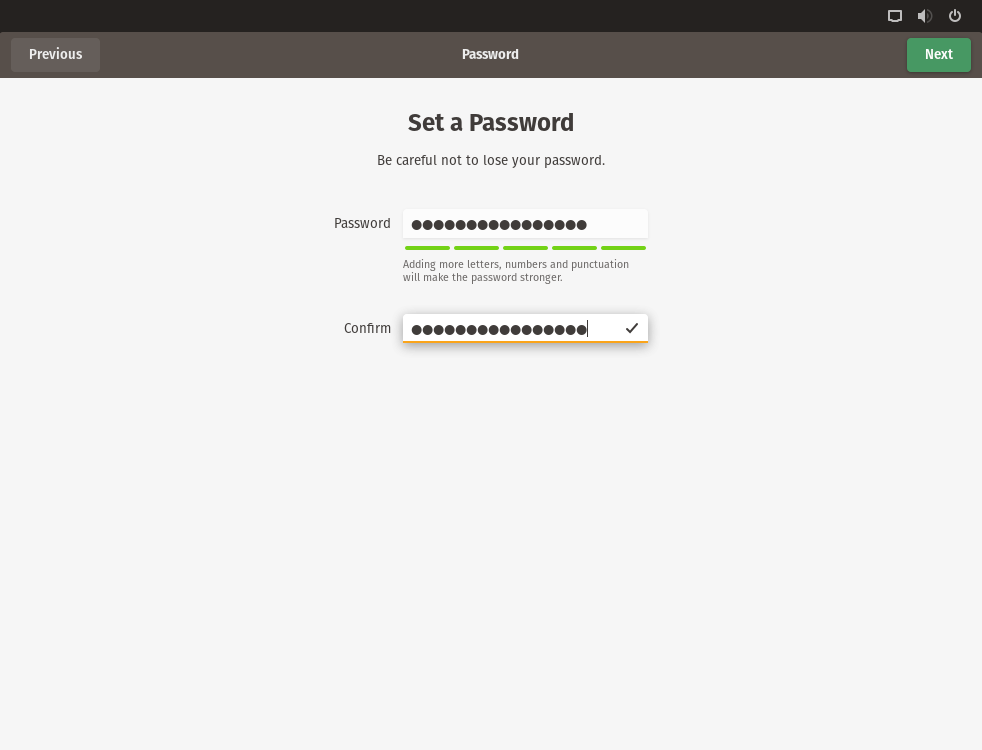
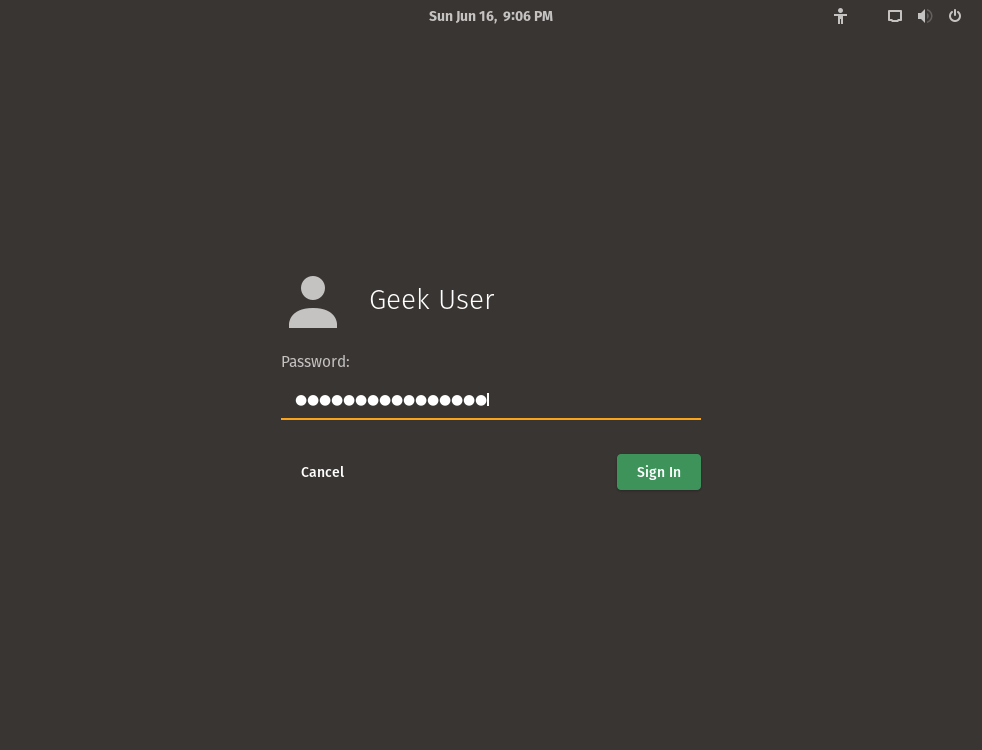
18: Set the password and confirmation password. It is recommended to include an uppercase and lowercase character, and also make your password longer. The longer the better, but choose something you can remember. Then select the Next button.
 

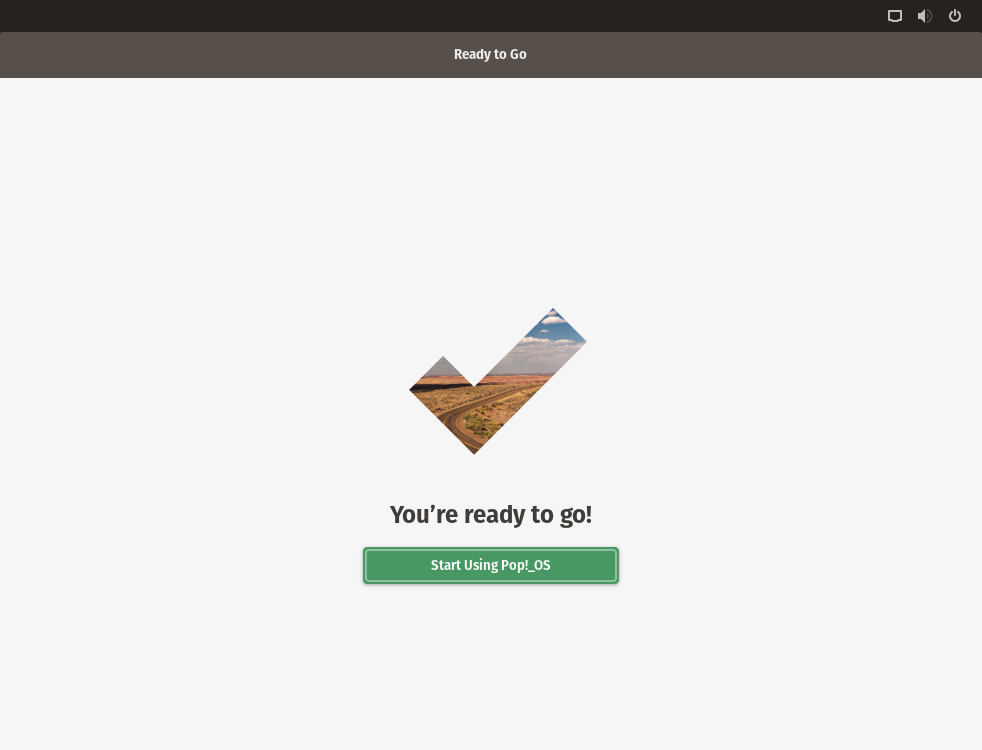
19: You’ve now completed the installation. Hooray! Now enjoy the fruits of your labor and start exploring or using Pop! OS. Select the Start Using Pop!_OS button.
Read More  4 Linux Tools To Erase Your Data


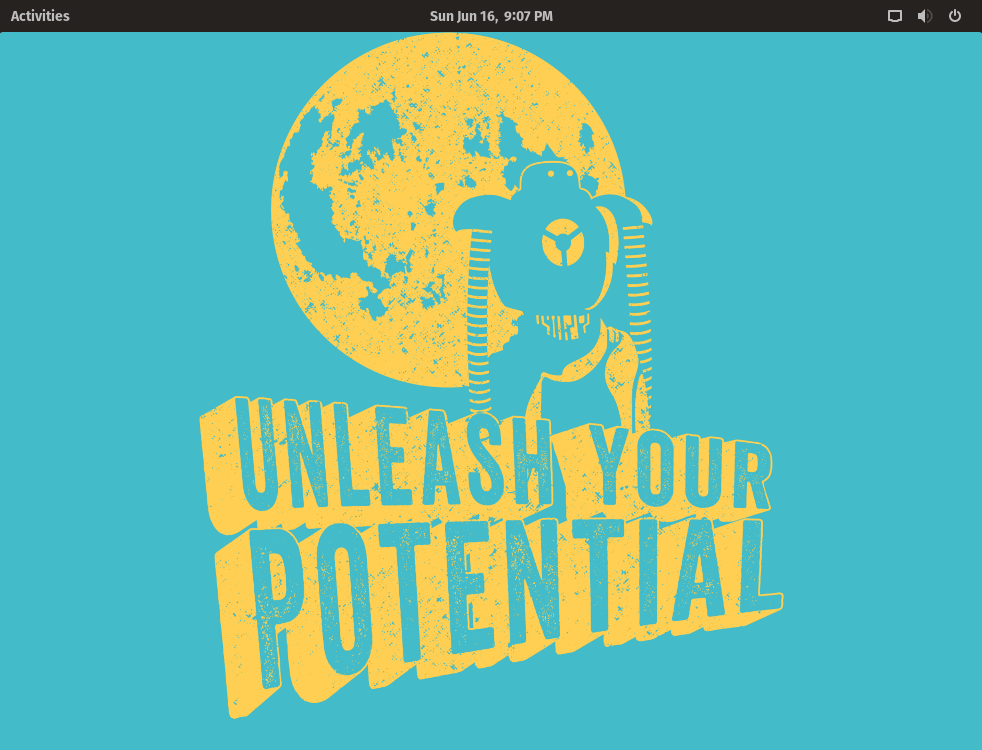
20: Unleash your potential and start using Pop!_OS.


For enquiries, product placements, sponsorships, and collaborations, connect with us at [email protected]. We'd love to hear from you!

Our humans need coffee too! Your support is highly appreciated, thank you!

root

Related Topics
  • How To
  • Installation
  • Linux
  • Pop!_OS
You May Also Like
Smartphone hero image
View Post
  • Gears
  • Tech

Zed Approves | Smartphones for Every Budget Range

  • January 29, 2026
Early Black Friday Gears
View Post
  • Tech

Friday Deals – And It’s Not Even Black Friday Yet

  • November 13, 2025
aster-cloud-sms-pexels-tim-samuel-6697306
View Post
  • Programming
  • Software

Send SMS texts with Amazon’s SNS simple notification service

  • July 1, 2025
aster-cloud-website-pexels-goumbik-574069
View Post
  • Programming
  • Software

Host a static website on AWS with Amazon S3 and Route 53

  • June 27, 2025
Getting things done makes her feel amazing
View Post
  • Computing
  • Data
  • Featured
  • Learning
  • Tech
  • Technology

Nurturing Minds in the Digital Revolution

  • April 25, 2025
View Post
  • Tech

Deep dive into AI with Google Cloud’s global generative AI roadshow

  • February 18, 2025
Volvo Group: Confidently ahead at CES
View Post
  • Tech

Volvo Group: Confidently ahead at CES

  • January 8, 2025
zedreviews-ces-2025-social-meta
View Post
  • Featured
  • Gears
  • Tech
  • Technology

What Not to Miss at CES 2025

  • January 6, 2025

Stay Connected!
LATEST
  • 1
    IBM Study: One in Four Malicious Breaches are AI-Enabled, Costing Companies $6 Million on Average
    • July 29, 2026
  • 2
    Accelerating the frontiers of scientific discovery: Google’s $40M commitment to the Genesis Mission
    • July 26, 2026
  • 3
    3 Questions: Neural transparency and the future of AI design
    • July 17, 2026
  • 4
    Intel Invests €5 Billion to Expand Manufacturing in Europe
    • July 13, 2026
  • 5
    IBM and Red Hat Expand Lightwell with New Offerings to Build the Trust Infrastructure for AI-Era Open Source
    • July 8, 2026
  • 6
    When I Was Young
    • July 4, 2026
  • 7
    The Fastest AI Fried Chicken In The World
    • June 29, 2026
  • 8
    Zed Approves | How to Stay Cool in Extreme Heat
    • June 29, 2026
  • 9
    The AI investment surge hasn’t produced the expected results yet. That could change in 2026
    • June 26, 2026
  • 10
    Zed Approves | It’s Prime Day 2026! Time to Upgrade Your World Cup Viewing Setup and Beat the Heat
    • June 25, 2026
about
Hello World!

We are aster.cloud. We’re created by programmers for programmers.

Our site aims to provide guides, programming tips, reviews, and interesting materials for tech people and those who want to learn in general.

We would like to hear from you.

If you have any feedback, enquiries, or sponsorship request, kindly reach out to us at:

[email protected]
Most Popular
  • 1
    Zed Approves | The Best Prime Day PC Deals: Top Gaming Rigs, Workstations, and Everyday Laptops
    • June 24, 2026
  • neon-cart 2
    Zed Approves: How to Gear Up for GTA 6 This Amazon Prime Day (2026 Quick Guide)
    • June 22, 2026
  • zedreviews-valerion 3
    Father’s Day Outdoors – Build Dad the Ultimate Backyard Watch Party
    • June 20, 2026
  • zedreviews-fathers-day-50830 4
    Father’s Day Outdoors, Round Two – Gear for the Action, the Tailgate, and Beating the Heat
    • June 20, 2026
  • zedreviews-fathers-day-2147684744 5
    The Ultimate Father’s Day Gift Guide – Home Entertainment Upgrades Dad Actually Wants
    • June 20, 2026
  • /
  • Technology
  • Tools
  • About
  • Contact Us

Input your search keywords and press Enter.