aster.cloud aster.cloud
  • /
  • Platforms
    • Public Cloud
    • On-Premise
    • Hybrid Cloud
    • Data
  • Architecture
    • Design
    • Solutions
    • Enterprise
  • Engineering
    • Automation
    • Software Engineering
    • Project Management
    • DevOps
  • Programming
    • Learning
  • Tools
  • About
  • /
  • Platforms
    • Public Cloud
    • On-Premise
    • Hybrid Cloud
    • Data
  • Architecture
    • Design
    • Solutions
    • Enterprise
  • Engineering
    • Automation
    • Software Engineering
    • Project Management
    • DevOps
  • Programming
    • Learning
  • Tools
  • About
aster.cloud aster.cloud
  • /
  • Platforms
    • Public Cloud
    • On-Premise
    • Hybrid Cloud
    • Data
  • Architecture
    • Design
    • Solutions
    • Enterprise
  • Engineering
    • Automation
    • Software Engineering
    • Project Management
    • DevOps
  • Programming
    • Learning
  • Tools
  • About
  • Software

How To Install Ubuntu Studio 19.10

  • root
  • November 12, 2019
  • 2 minute read

Overview

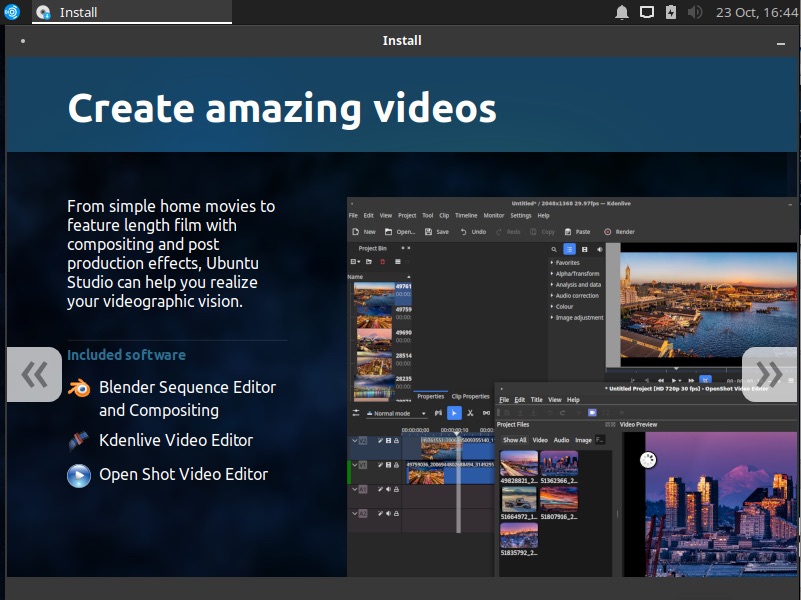
This guide shows how to install Ubuntu Studio 19.10 on a new machine.


Partner with aster.cloud
for your next big idea.
Let us know here.


From our partners:

CITI.IO :: Business. Institutions. Society. Global Political Economy.
CYBERPOGO.COM :: For the Arts, Sciences, and Technology.
DADAHACKS.COM :: Parenting For The Rest Of Us.
ZEDISTA.COM :: Entertainment. Sports. Culture. Escape.
TAKUMAKU.COM :: For The Hearth And Home.
ASTER.CLOUD :: From The Cloud And Beyond.
LIWAIWAI.COM :: Intelligence, Inside and Outside.
GLOBALCLOUDPLATFORMS.COM :: For The World's Computing Needs.
FIREGULAMAN.COM :: For The Fire In The Belly Of The Coder.
ASTERCASTER.COM :: Supra Astra. Beyond The Stars.
BARTDAY.COM :: Prosperity For Everyone.

Prerequisites

  • A disk or USB drive with a bootable Ubuntu Studio 19.10
    • Link to Ubuntu Studio 19.10 Desktop
  • Recommended Machine Requirements
    • 1 GiB RAM minimum, 4 GiB RAM recommended
    • 10 GB of hard-drive space (or USB stick, memory card or external drive but see LiveCD for an alternative approach) for the OS installation only


Installation

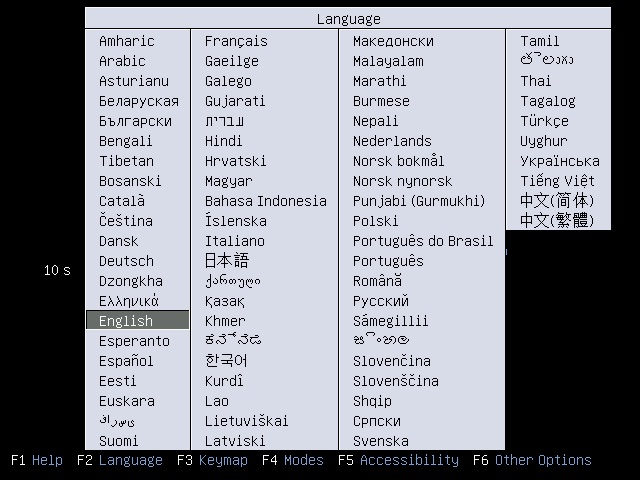
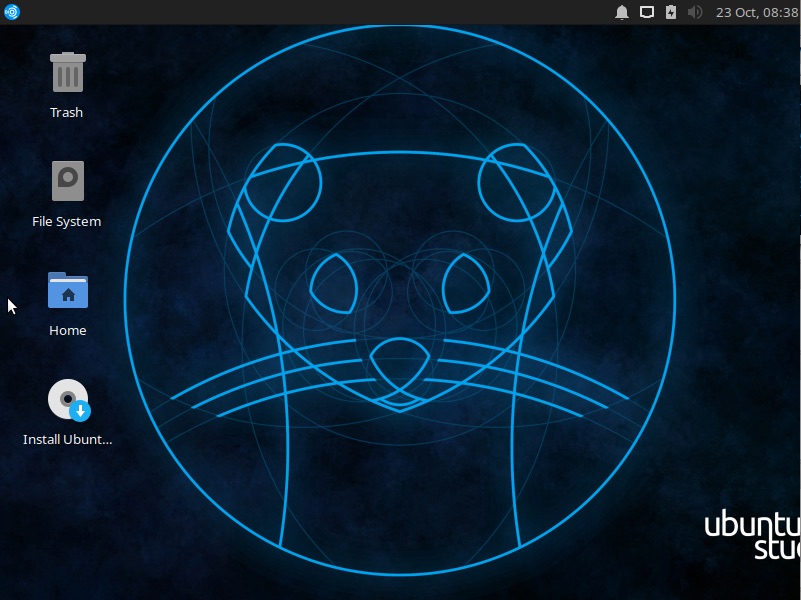
01. Plug the media (disk or USB). You will be shown the language selection. Then the desktop will be shown. Select the “Install Ubuntu” icon on the desktop.
 

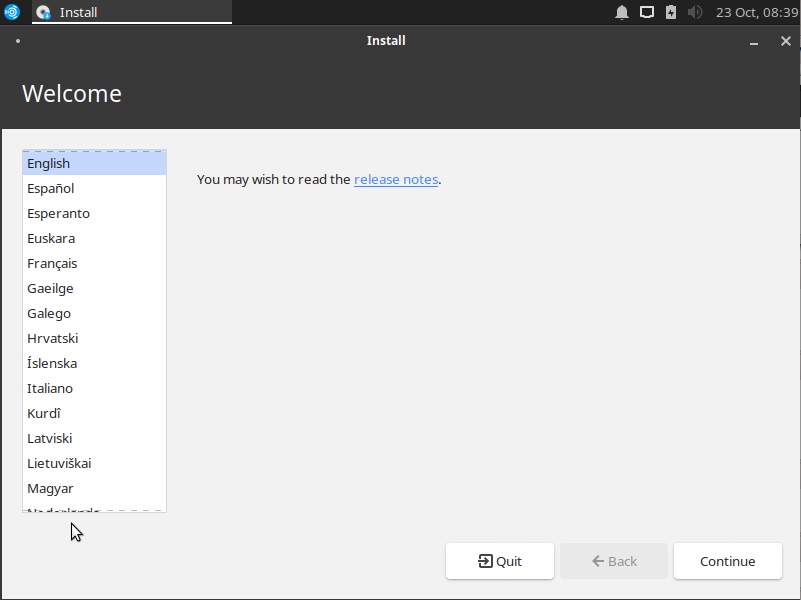
02. The installation will start and the language selection will be shown. Select your preferred language, then click on the “Continue” button.
 

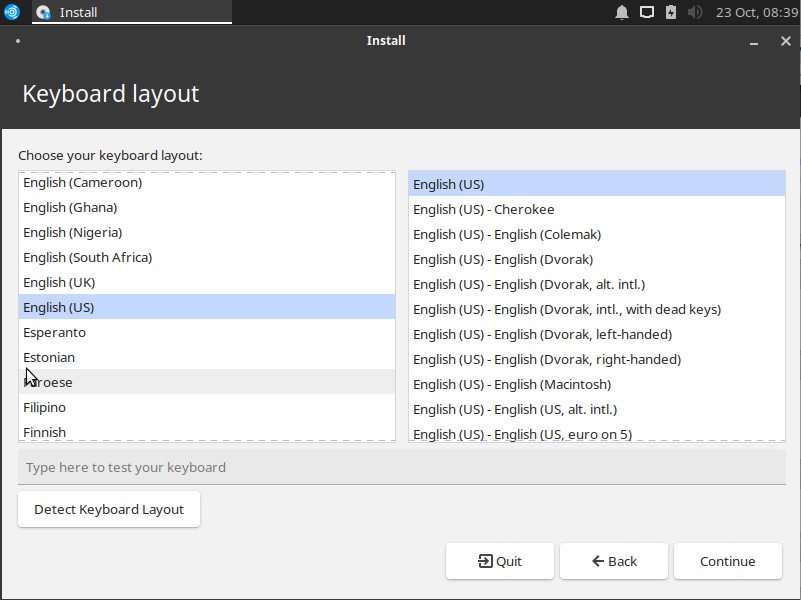
03. The next step allows you to select the keyboard layout. It tries to detect this and but you choose your preferred option. Then click on the “Continue” button.
 

04. Tick the checkbox if you want to download updates from the internet and 3rd party software. Then click on the “Continue” button.
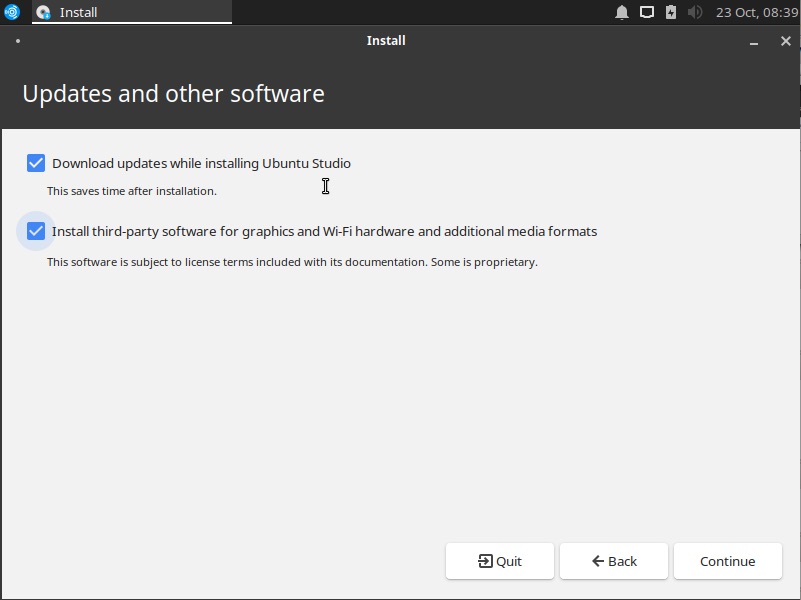
 

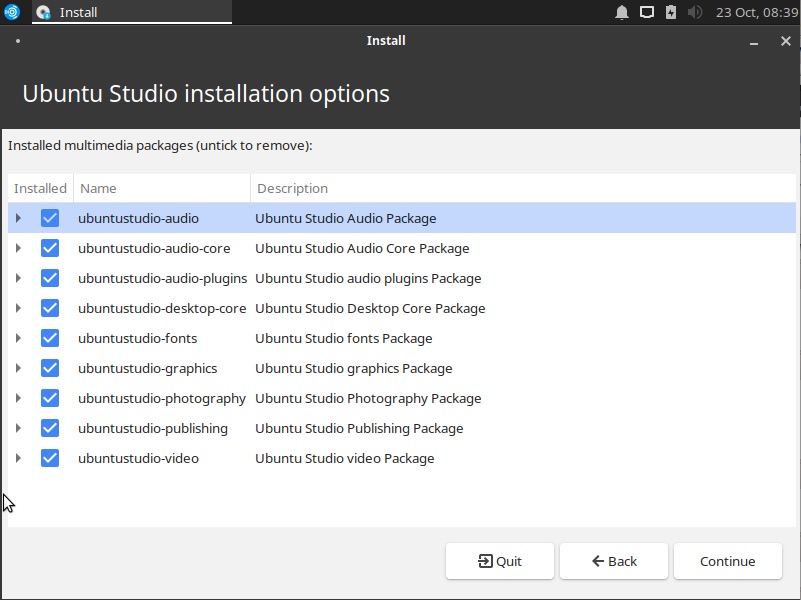
05. In this step you can select which additional multimedia packages you can install. Select the checkbox depending on your preference.
 

06. In the Installation type screen, you are given the option “Erase disk and install Ubuntu Studio” which will provide a clean install, removing any files you have on disk. Another option is in the “Something else” option which will let you manage the disk and create multiple partitions for Ubuntu.
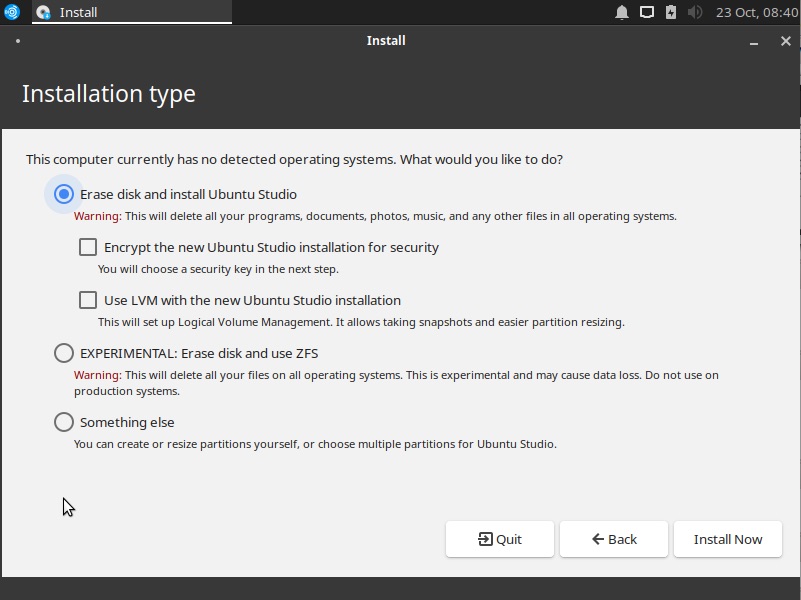
 

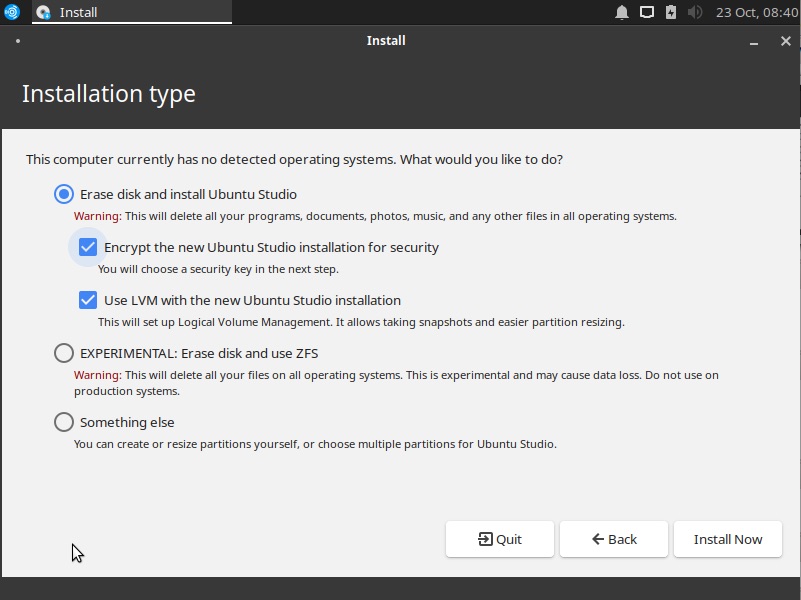
07. Optional. There is also the option for Encryption and LVM (Logical Volume Management). Opting to Encrypt will require you later to provide a security key (or password). This will later require you to enter the security key before even logging to your Ubuntu user account.
Read More  How To Install Azure PowerShell On Ubuntu


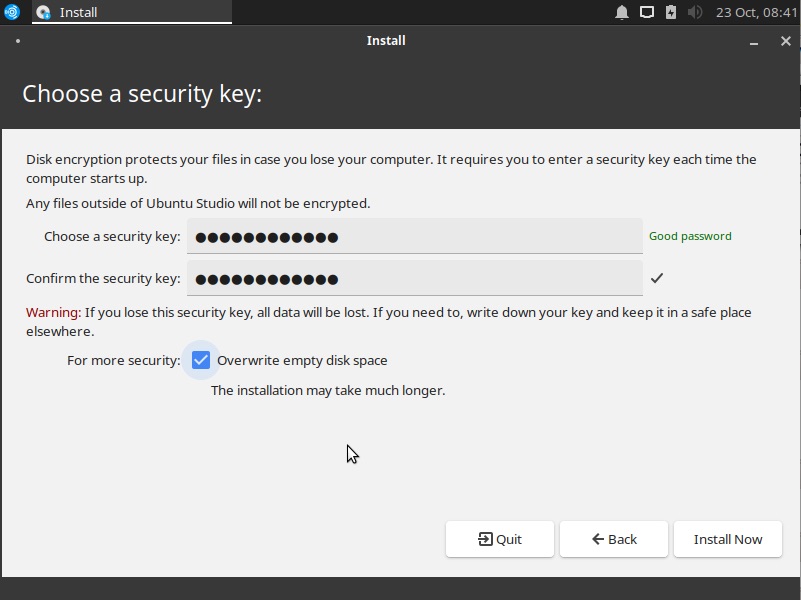
08. Optional if you selected to encrypt the Ubuntu installation, skip to the next step if not selected. Enter the security key and confirm it. Choose a good password (lengthy enough but one that you can remember).
 

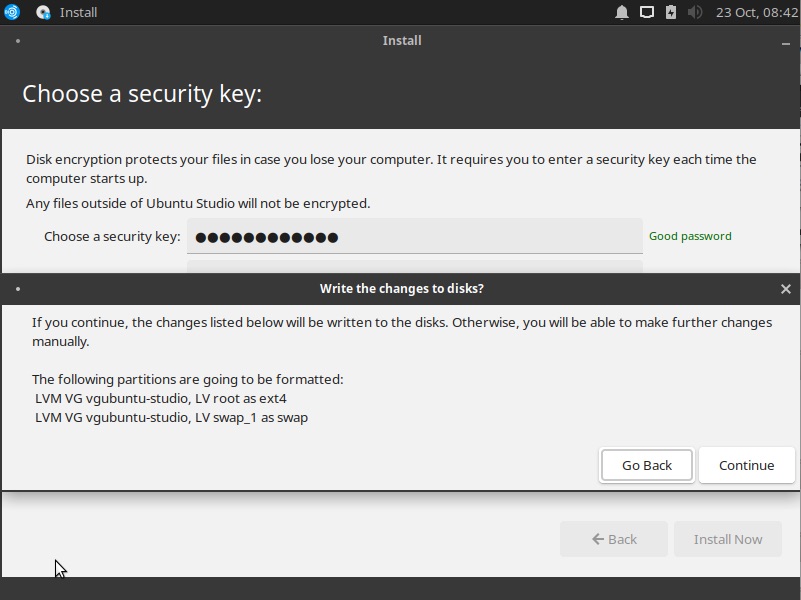
09. Confirm the changes to the disk, then select “Continue”.
 

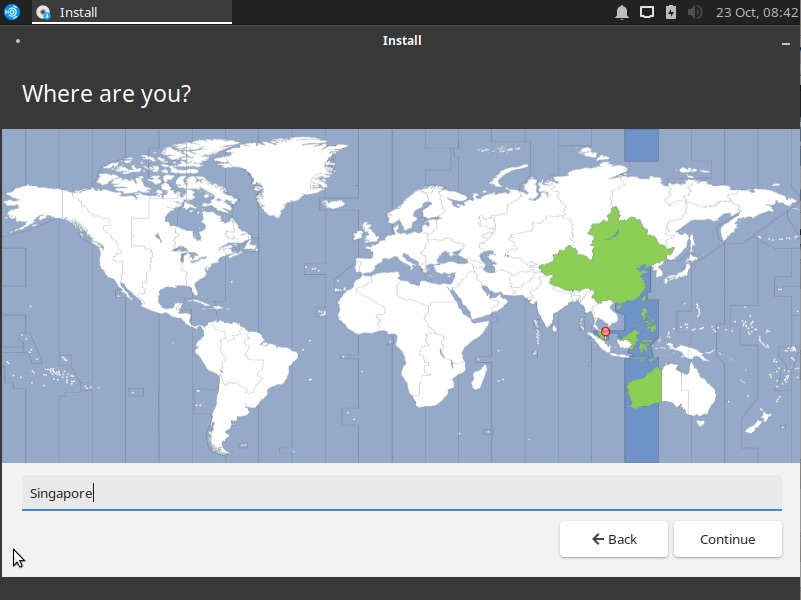
10. Choose from the map or use the textbox to search for your preferred Timezone.
 

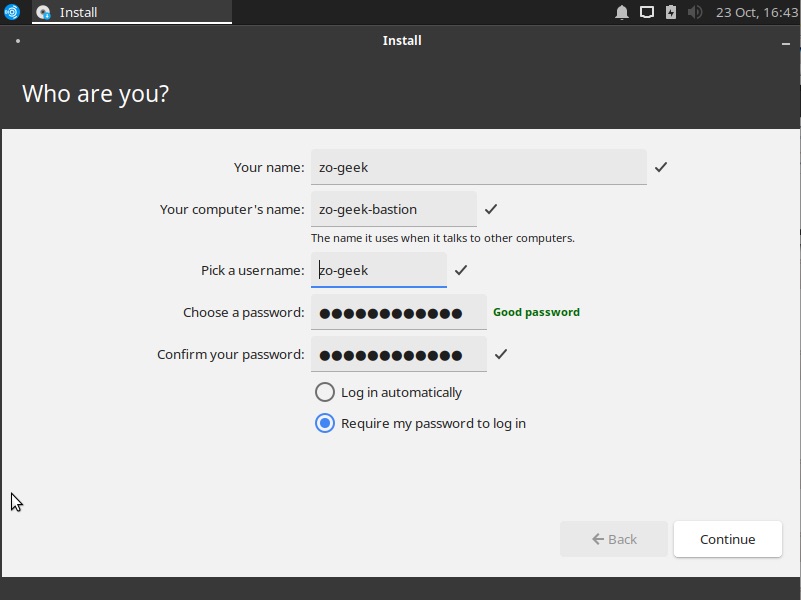
11. Choose your name, computer name, username and password. Note: the “Name” and “Username” does not necessarily have to be the same, this is just an example.
 

12. Wait until the installation is completed. This might take longer if you opted to encrypt the Ubuntu installation.
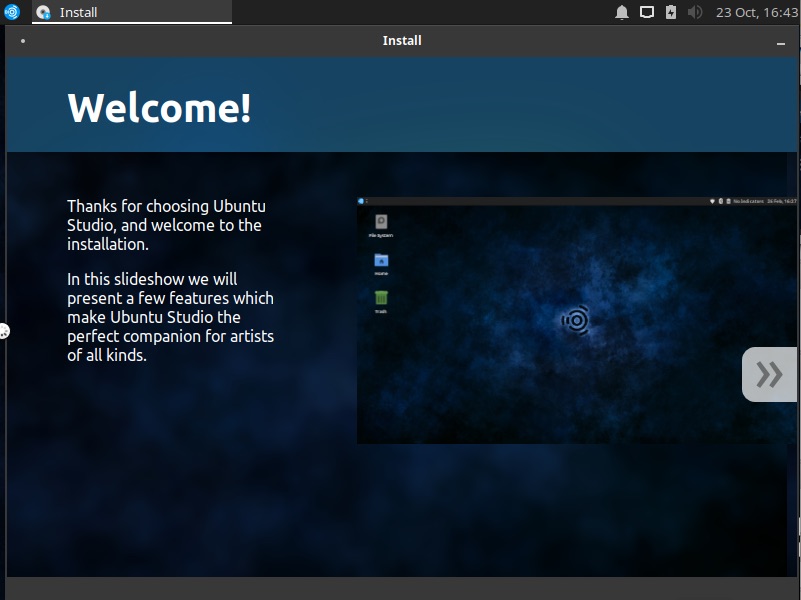
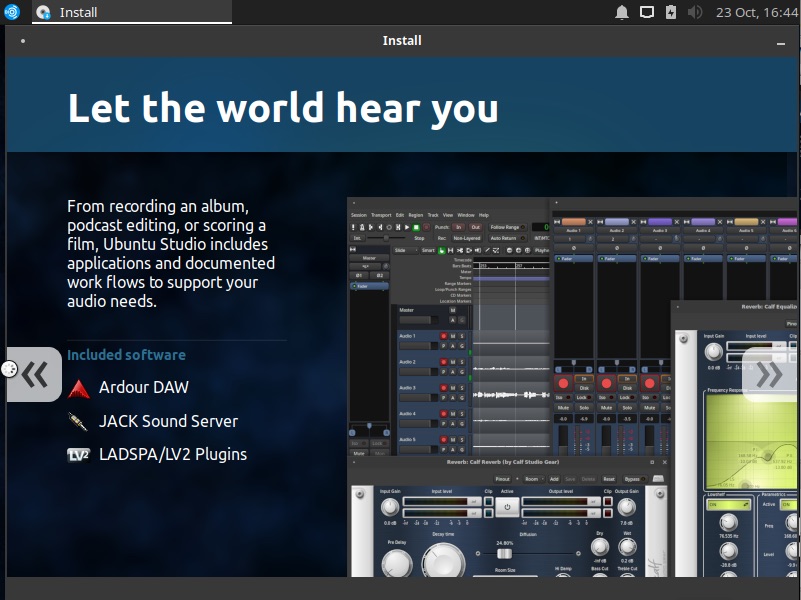
 

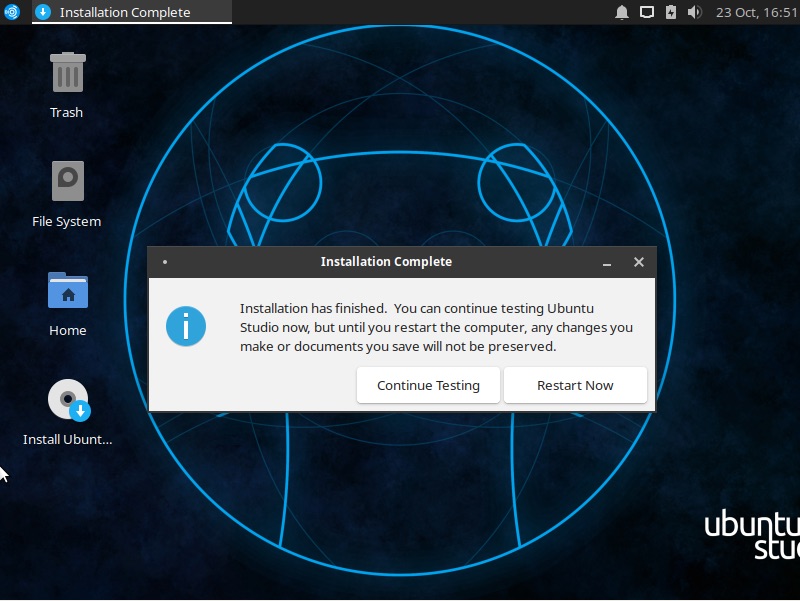
13. Click on the “Restart Now” button once finished.
 

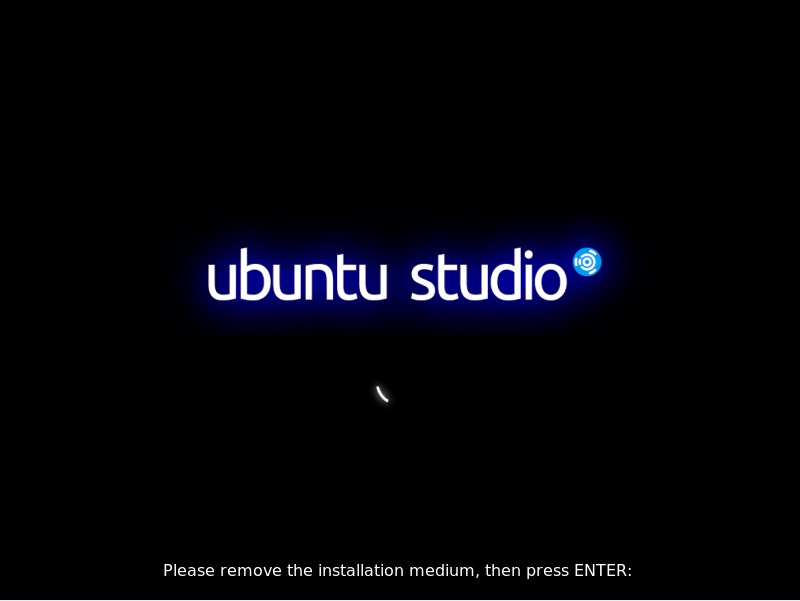
14. A prompt to remove the installation medium will be shown. Remove the disk or USB drive, then press “Enter”.
 

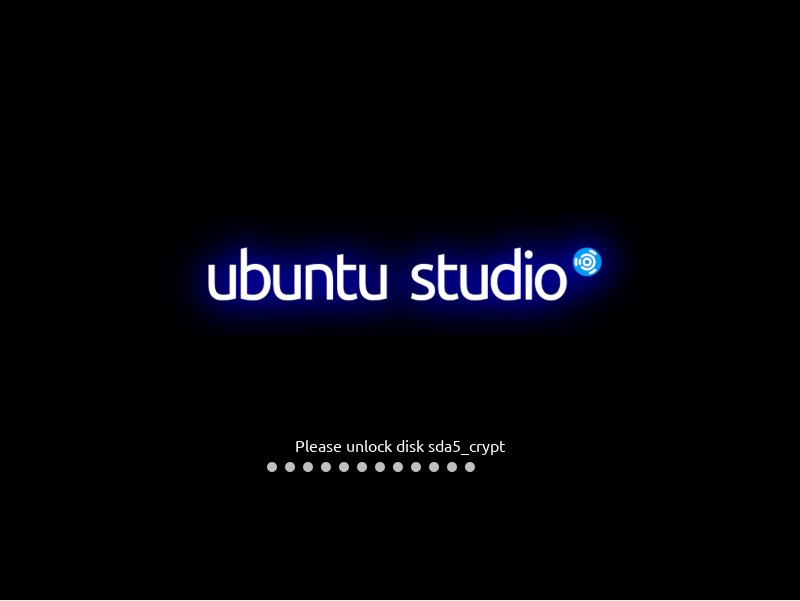
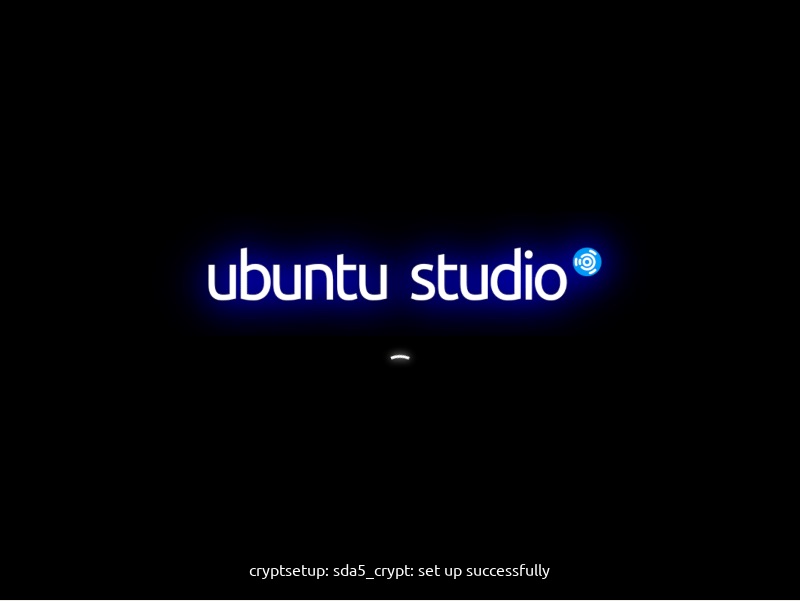
15. Optional if you opted to encrypt the Ubuntu Studio installation. On every boot, you will be asked to enter the encryption key. Supply the key/password then press “Enter” key on the keyboard.
 

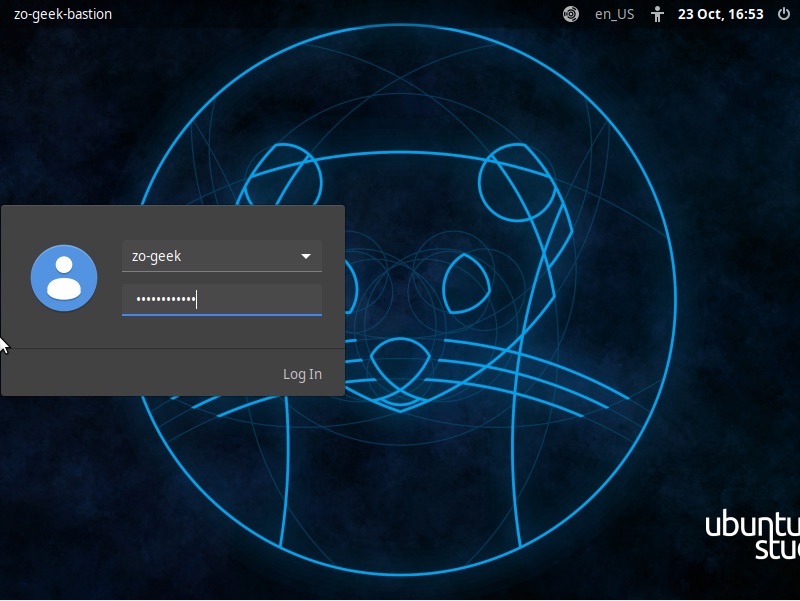
16. The list of users will be shown, select the user with your mouse or keyboard. Enter the user password then click on the “Log In” button (or press the “Enter” key).
 

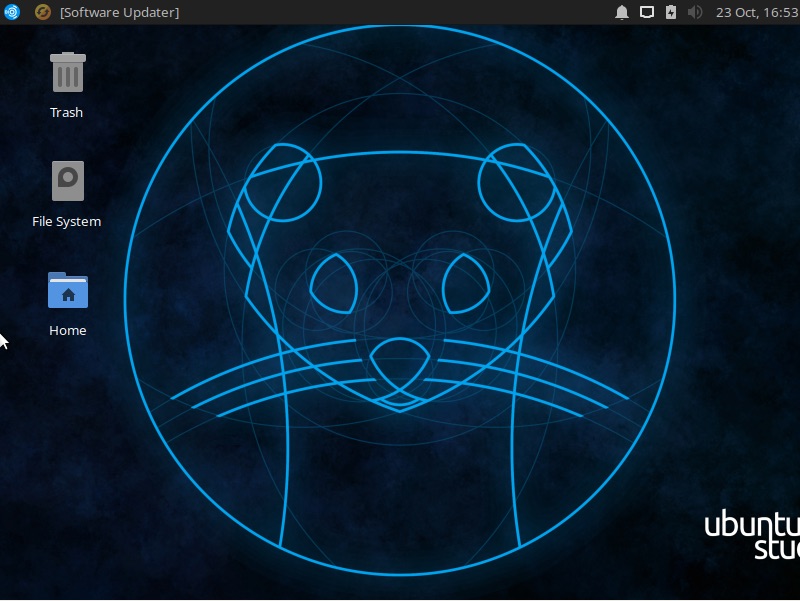
17. Congratulations you’ve successfully installed Ubuntu Studio 19.10!

For enquiries, product placements, sponsorships, and collaborations, connect with us at [email protected]. We'd love to hear from you!

Our humans need coffee too! Your support is highly appreciated, thank you!

root

Related Topics
  • Installation
  • Ubuntu Studio
You May Also Like
men with computer website information and chat bubbles vector illustration
View Post
  • Software
  • Software Engineering

What is an ISV (independent software vendor)?

  • August 27, 2025
aster-cloud-erp-bill_of_materials_2
View Post
  • Software
  • Software Engineering

What is an SBOM (software bill of materials)?

  • July 2, 2025
aster-cloud-sms-pexels-tim-samuel-6697306
View Post
  • Programming
  • Software

Send SMS texts with Amazon’s SNS simple notification service

  • July 1, 2025
aster-cloud-website-pexels-goumbik-574069
View Post
  • Programming
  • Software

Host a static website on AWS with Amazon S3 and Route 53

  • June 27, 2025
View Post
  • Software
  • Technology

Canonical Releases Ubuntu 25.04 Plucky Puffin

  • April 17, 2025
View Post
  • Software
  • Technology

IBM Accelerates Momentum in the as a Service Space with Growing Portfolio of Tools Simplifying Infrastructure Management

  • March 27, 2025
Vehicle manufacturing
View Post
  • Software

IBM Study: Vehicles Believed to be Software Defined and AI Powered by 2035

  • December 12, 2024
aster-cloud-tux-gaming
View Post
  • Computing
  • Gears
  • Software

5 best Linux distributions for gamers in 2024

  • September 11, 2024

Stay Connected!
LATEST
  • 1
    IBM Study: One in Four Malicious Breaches are AI-Enabled, Costing Companies $6 Million on Average
    • July 29, 2026
  • 2
    Accelerating the frontiers of scientific discovery: Google’s $40M commitment to the Genesis Mission
    • July 26, 2026
  • 3
    3 Questions: Neural transparency and the future of AI design
    • July 17, 2026
  • 4
    Intel Invests €5 Billion to Expand Manufacturing in Europe
    • July 13, 2026
  • 5
    IBM and Red Hat Expand Lightwell with New Offerings to Build the Trust Infrastructure for AI-Era Open Source
    • July 8, 2026
  • 6
    When I Was Young
    • July 4, 2026
  • 7
    The Fastest AI Fried Chicken In The World
    • June 29, 2026
  • 8
    Zed Approves | How to Stay Cool in Extreme Heat
    • June 29, 2026
  • 9
    The AI investment surge hasn’t produced the expected results yet. That could change in 2026
    • June 26, 2026
  • 10
    Zed Approves | It’s Prime Day 2026! Time to Upgrade Your World Cup Viewing Setup and Beat the Heat
    • June 25, 2026
about
Hello World!

We are aster.cloud. We’re created by programmers for programmers.

Our site aims to provide guides, programming tips, reviews, and interesting materials for tech people and those who want to learn in general.

We would like to hear from you.

If you have any feedback, enquiries, or sponsorship request, kindly reach out to us at:

[email protected]
Most Popular
  • 1
    Zed Approves | The Best Prime Day PC Deals: Top Gaming Rigs, Workstations, and Everyday Laptops
    • June 24, 2026
  • neon-cart 2
    Zed Approves: How to Gear Up for GTA 6 This Amazon Prime Day (2026 Quick Guide)
    • June 22, 2026
  • zedreviews-valerion 3
    Father’s Day Outdoors – Build Dad the Ultimate Backyard Watch Party
    • June 20, 2026
  • zedreviews-fathers-day-50830 4
    Father’s Day Outdoors, Round Two – Gear for the Action, the Tailgate, and Beating the Heat
    • June 20, 2026
  • zedreviews-fathers-day-2147684744 5
    The Ultimate Father’s Day Gift Guide – Home Entertainment Upgrades Dad Actually Wants
    • June 20, 2026
  • /
  • Technology
  • Tools
  • About
  • Contact Us

Input your search keywords and press Enter.