
aster.cloud aster.cloud
  • /
  • Platforms
    • Public Cloud
    • On-Premise
    • Hybrid Cloud
    • Data
  • Architecture
    • Design
    • Solutions
    • Enterprise
  • Engineering
    • Automation
    • Software Engineering
    • Project Management
    • DevOps
  • Programming
    • Learning
  • Tools
  • About
  • /
  • Platforms
    • Public Cloud
    • On-Premise
    • Hybrid Cloud
    • Data
  • Architecture
    • Design
    • Solutions
    • Enterprise
  • Engineering
    • Automation
    • Software Engineering
    • Project Management
    • DevOps
  • Programming
    • Learning
  • Tools
  • About
aster.cloud aster.cloud
  • /
  • Platforms
    • Public Cloud
    • On-Premise
    • Hybrid Cloud
    • Data
  • Architecture
    • Design
    • Solutions
    • Enterprise
  • Engineering
    • Automation
    • Software Engineering
    • Project Management
    • DevOps
  • Programming
    • Learning
  • Tools
  • About
  • Programming
  • Tech

How To: Pop!_OS Installation

  • root
  • July 8, 2019
  • 3 minute read

Overview

This guide contains the step-by-step installation of Pop!_OS 18.04 (LTS) on your machine.

Pop!_OS is an Ubuntu-based Linux distribution featuring a custom GNOME desktop. Pop!_OS is designed to have a minimal amount of clutter on the desktop without distractions in order to allow the user to focus on work. The distribution is developed by Linux computer retailer System76.


Partner with aster.cloud
for your next big idea.
Let us know here.


From our partners:

CITI.IO :: Business. Institutions. Society. Global Political Economy.
CYBERPOGO.COM :: For the Arts, Sciences, and Technology.
DADAHACKS.COM :: Parenting For The Rest Of Us.
ZEDISTA.COM :: Entertainment. Sports. Culture. Escape.
TAKUMAKU.COM :: For The Hearth And Home.
ASTER.CLOUD :: From The Cloud And Beyond.
LIWAIWAI.COM :: Intelligence, Inside and Outside.
GLOBALCLOUDPLATFORMS.COM :: For The World's Computing Needs.
FIREGULAMAN.COM :: For The Fire In The Belly Of The Coder.
ASTERCASTER.COM :: Supra Astra. Beyond The Stars.
BARTDAY.COM :: Prosperity For Everyone.


Machine specs

Minimum

  • 2 GB RAM
  • 16 GB Storage
  • 64-bit processor

Recommended

  • 4 GB RAM
  • 16 GB Storage
  • 64-bit processor


Installation

01: Mount the USB containing the Pop! OS 18.04 ISO.

To download the ISO file, click here: https://system76.com/pop


02: Restart your machine


03: The first step you will encounter will be the language selection. Choose your preferred setting, in this example, English.
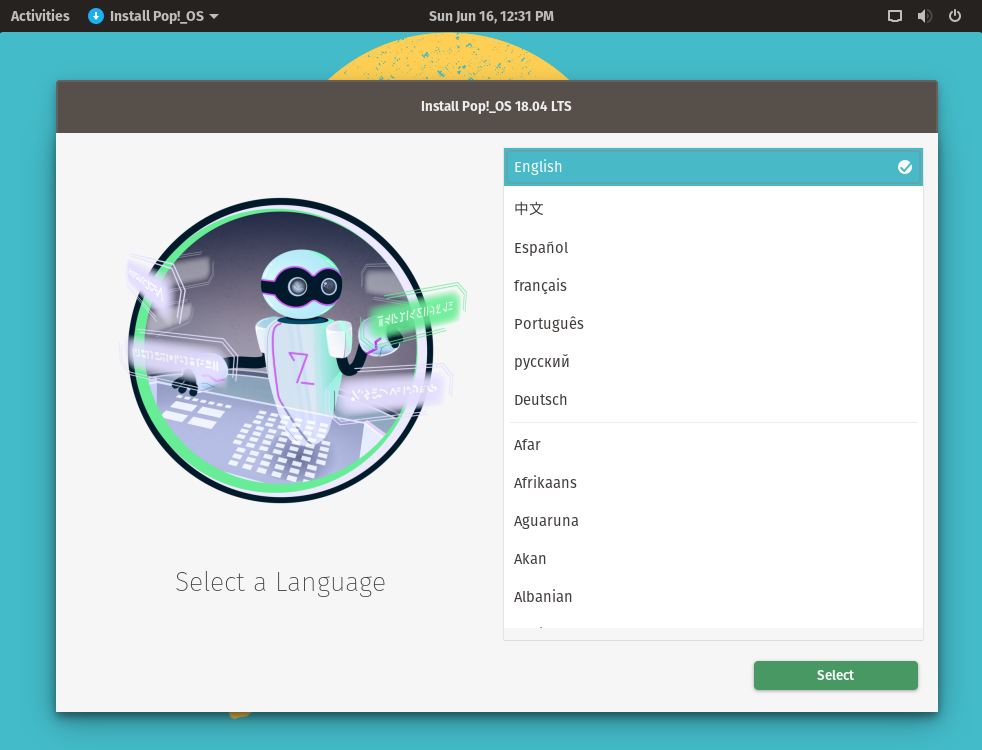
 

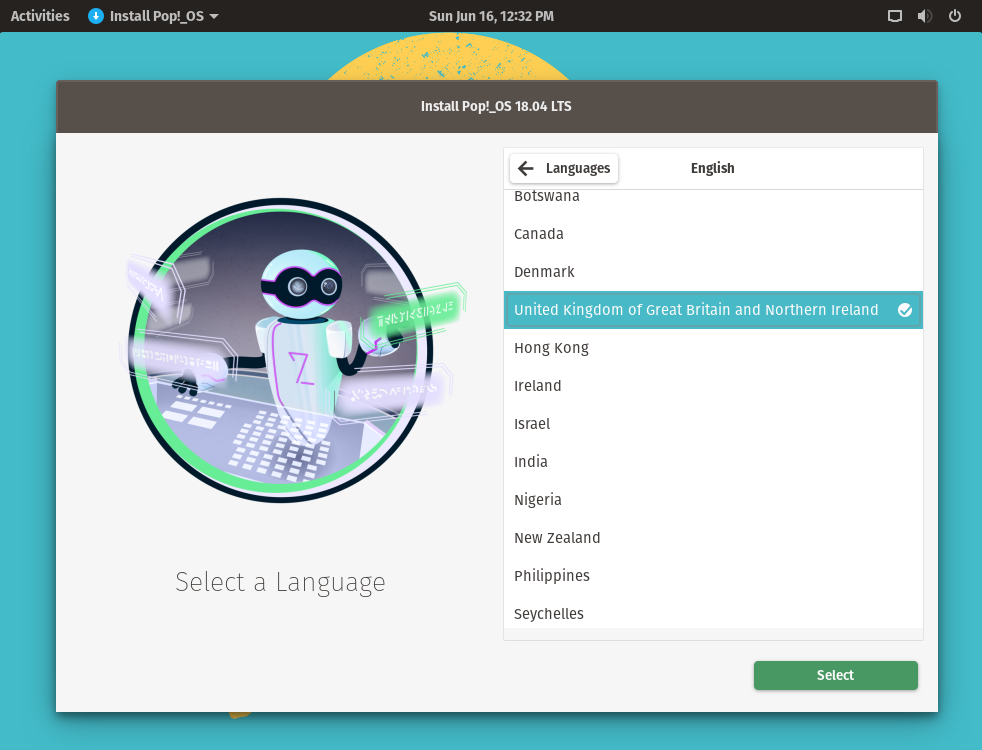
An additional option to choose which version of the language will be shown.
 

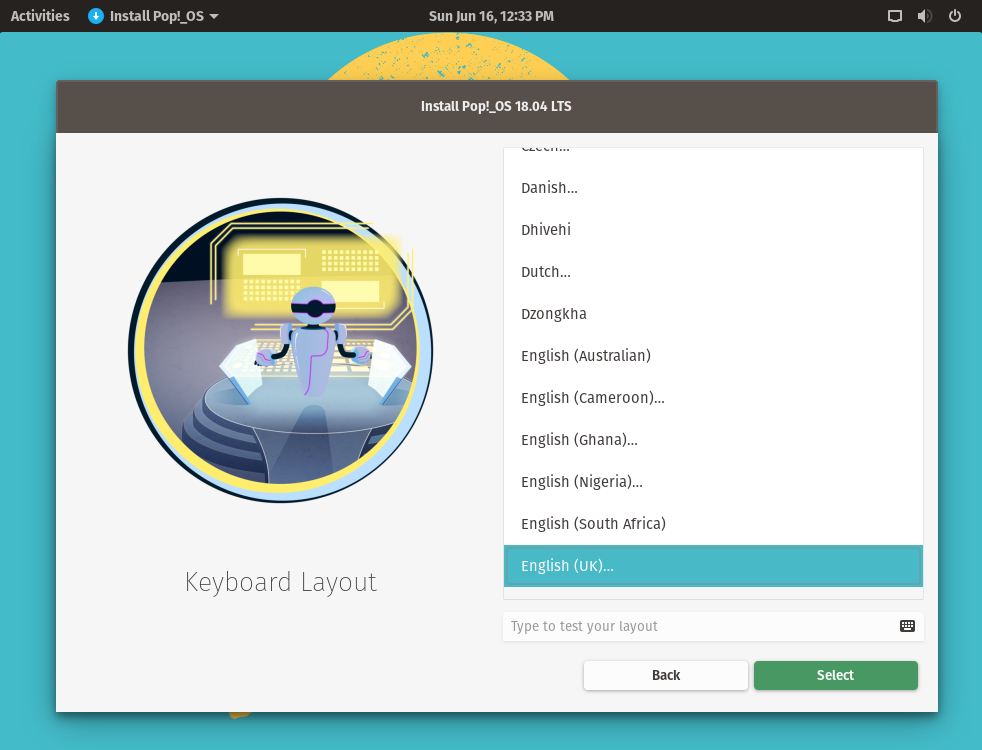
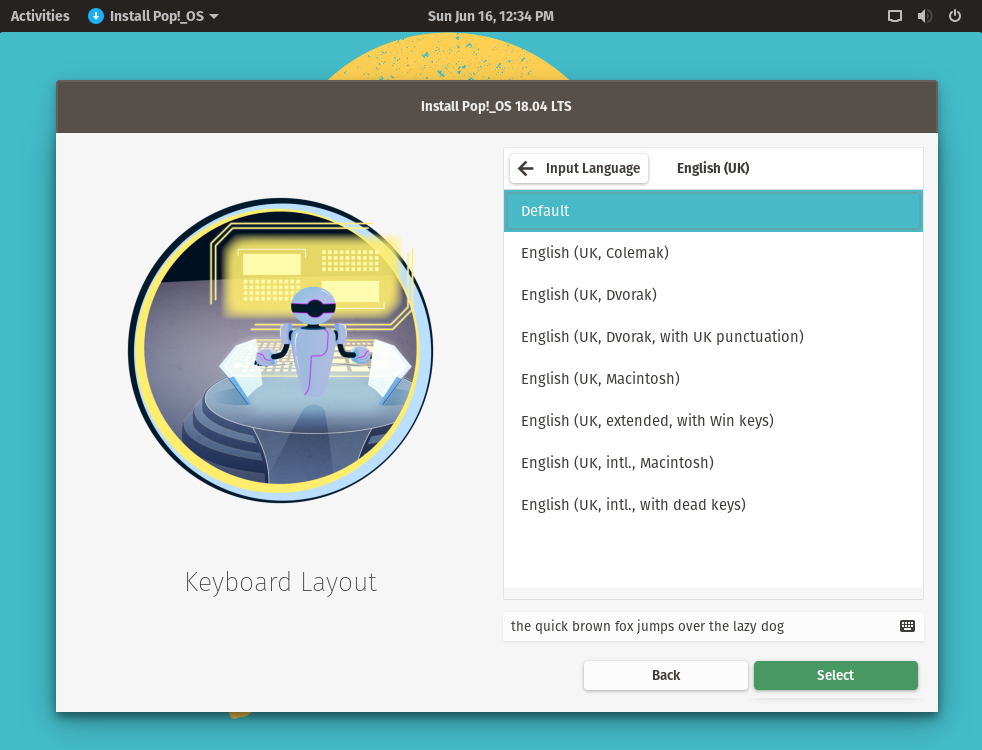
04: Select the Keyboard Layout
 

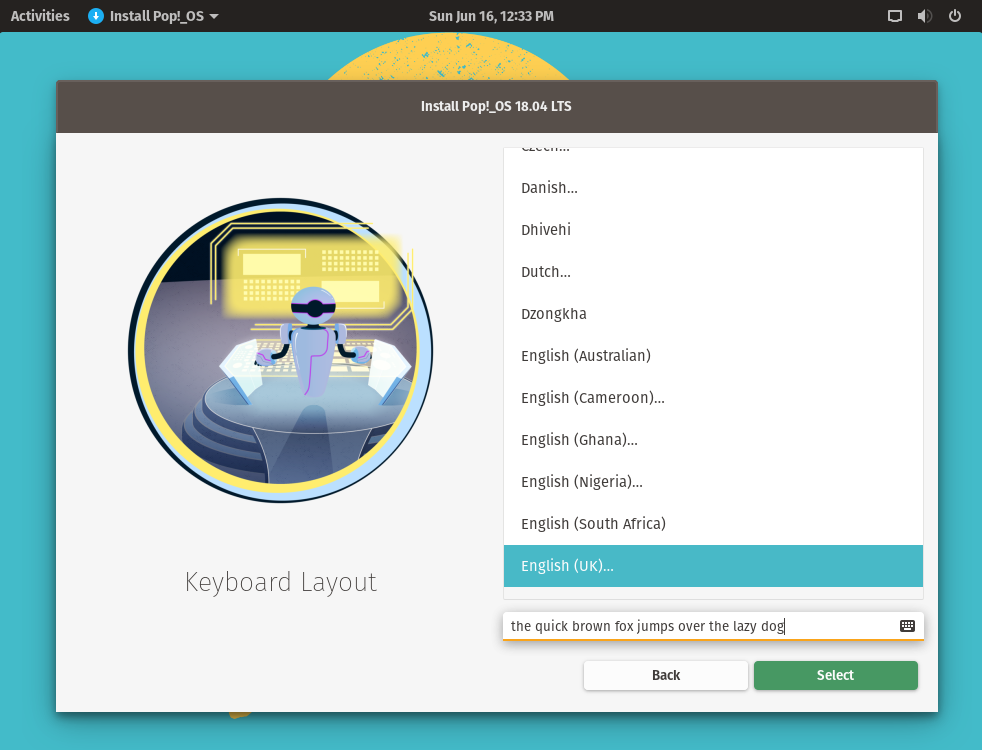
You can type something to test if the keyboard layout fits with your choice, then choose the Select button.
 

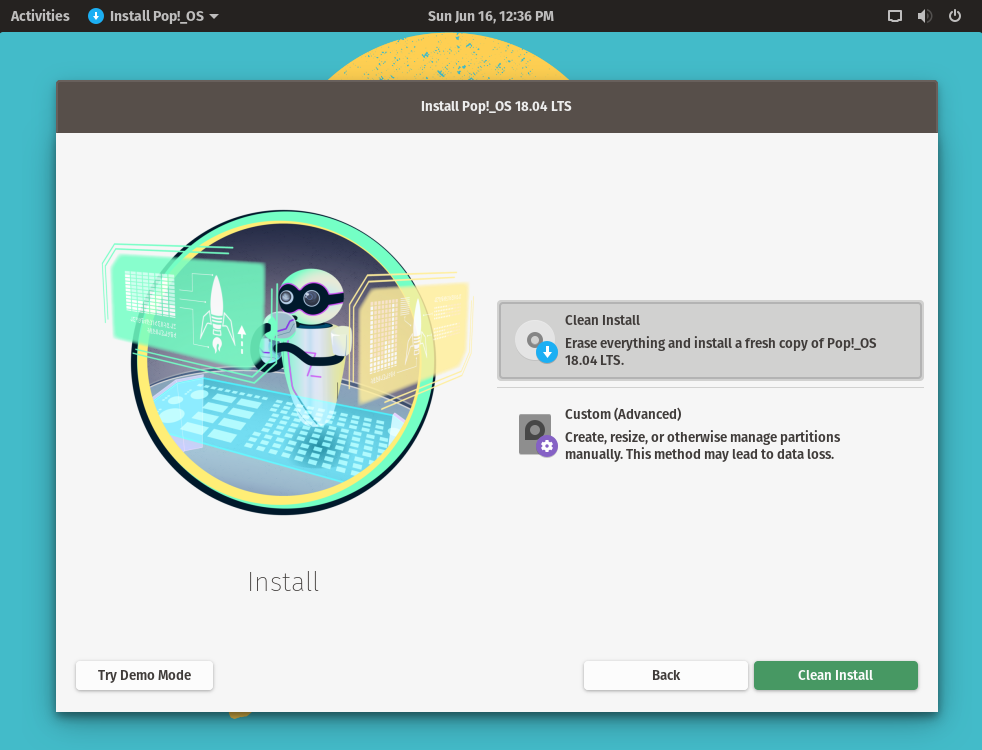
05: For fresh install, select the Clean Install option. An additional option for customized disk size and partition is also available. In this example, Clean Install option is used.
 

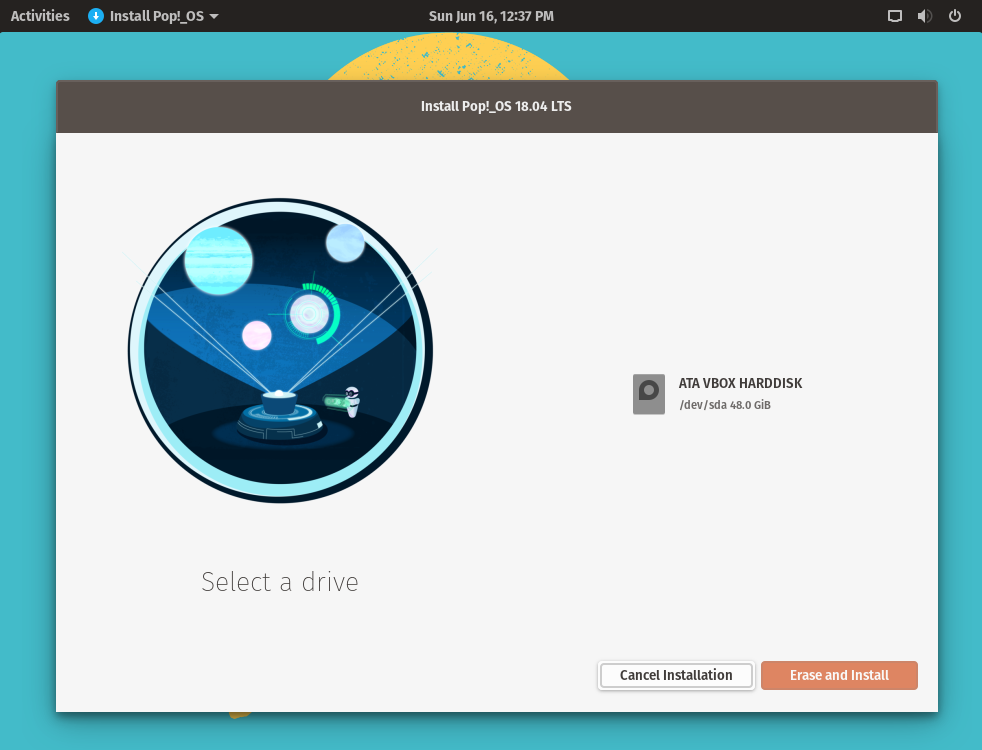
06: You will be asked to select the physical disk drive to install. Select the drive then click the Erase and Install button.
 

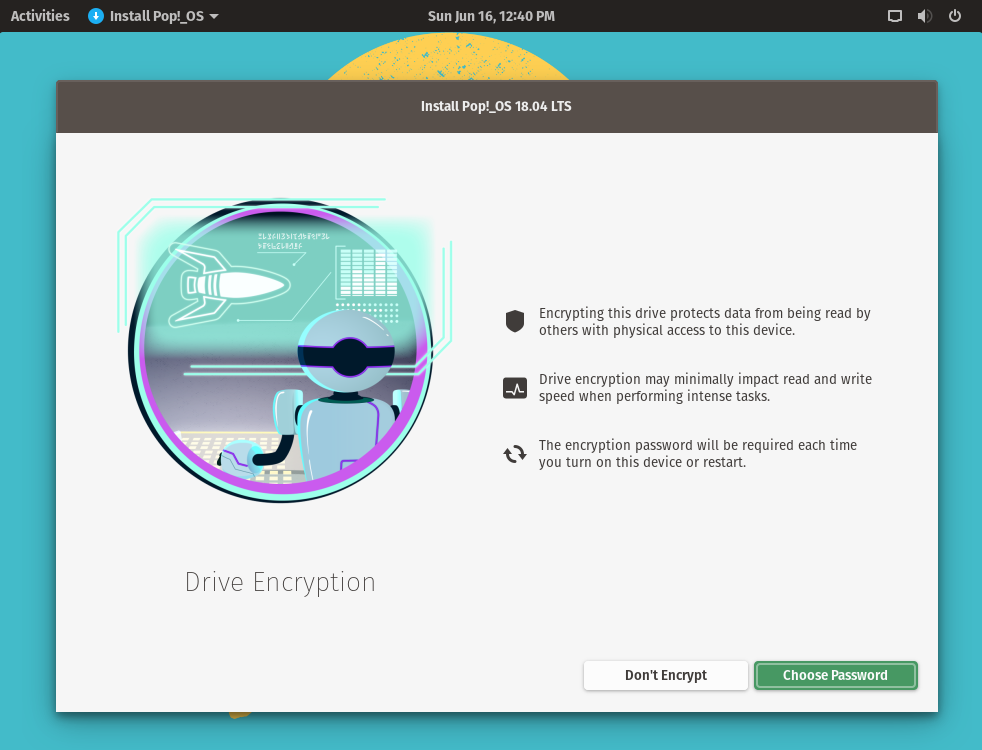
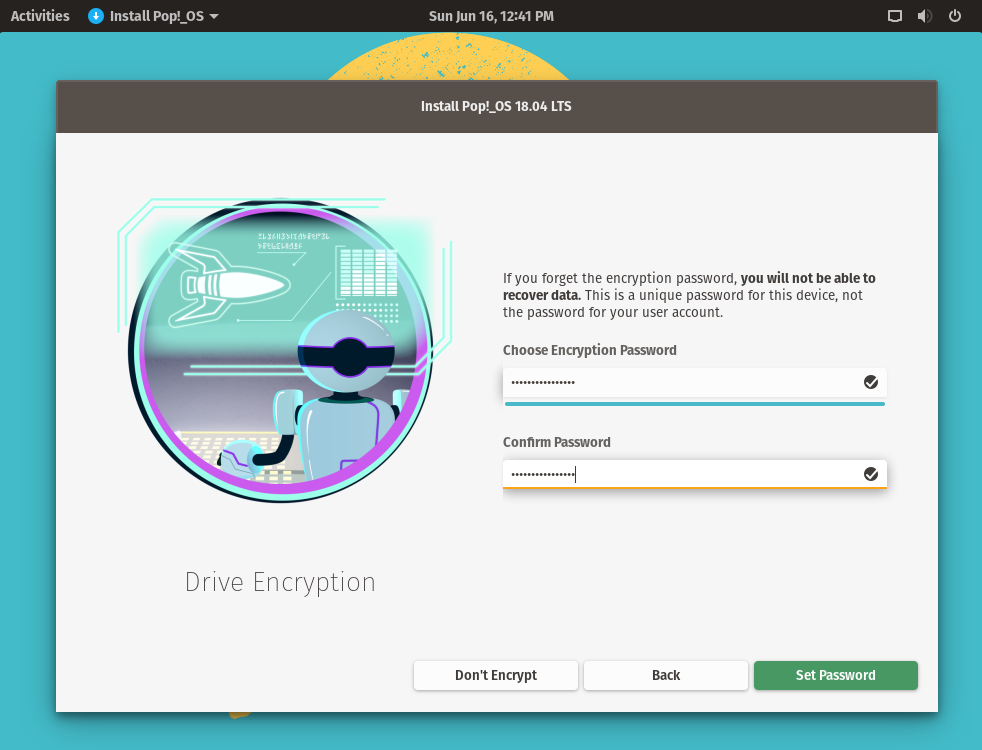
07: Next is the Encryption options. By default Encryption is enabled when you choose the Choose Password button. Select the Don’t Encrypt button if you don’t want the drive to be encrypted.
 

Read More  How To Create A Simple Python Web App Using NGINX, uWSGI, And Flask - Part 02 of 03

08: Enter your password and select the Set Password button. Note that this is not the OS User password but the password for the encrypted drive if enabled. The OS User will be configured later after installation and first start of the system.
 

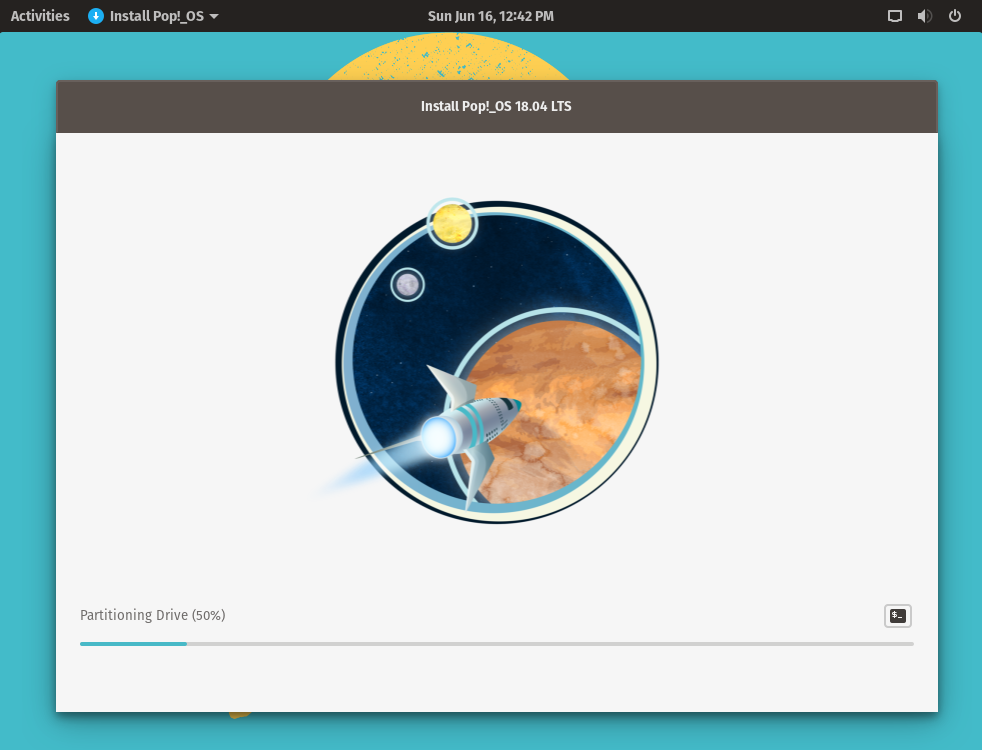
09: Wait for the installation to finish.
 

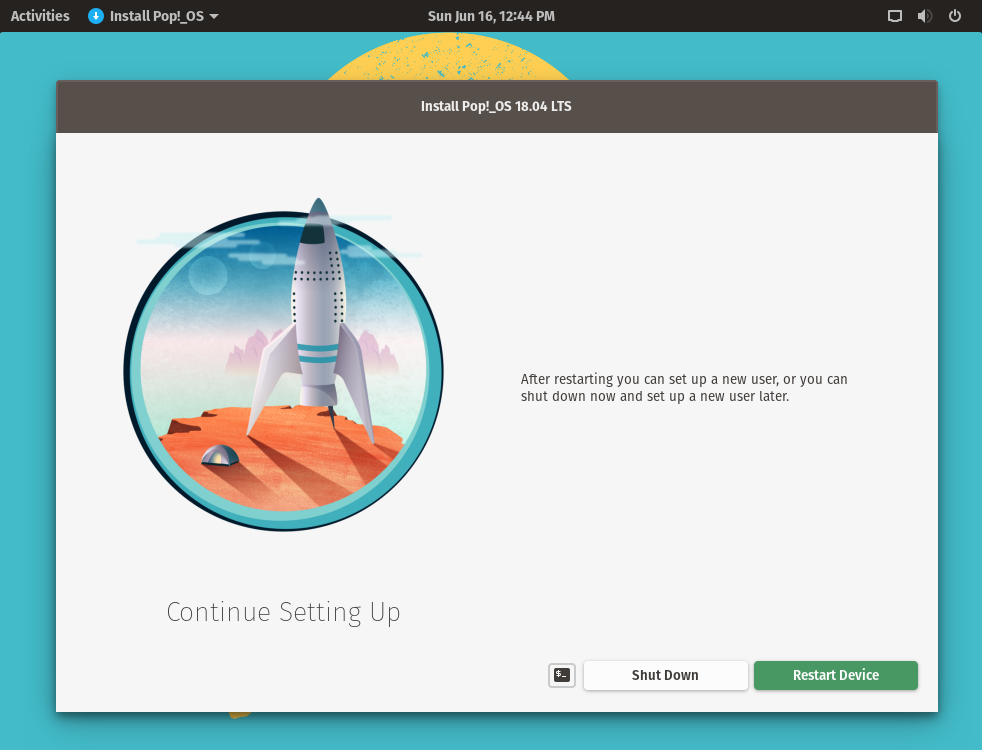
10: Once the installation is complete you will be asked to restart the system. Select the Restart Device button.
 

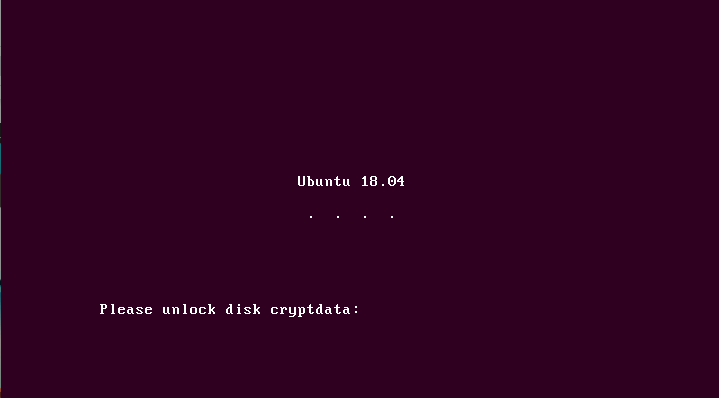
11: (Optional) encryption is enabled. If you’ve chosen to encrypt the data, the encrypted drive password is required to be entered before proceeding further.
 

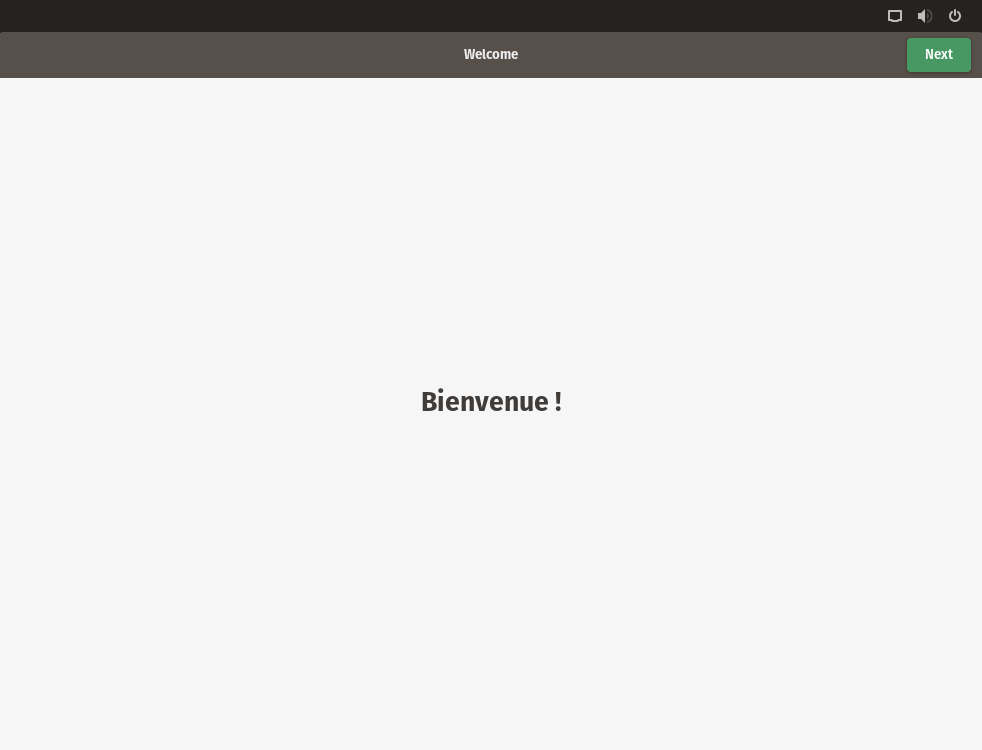
12: The word Welcome will be shown in different language until you select the Next button.
 

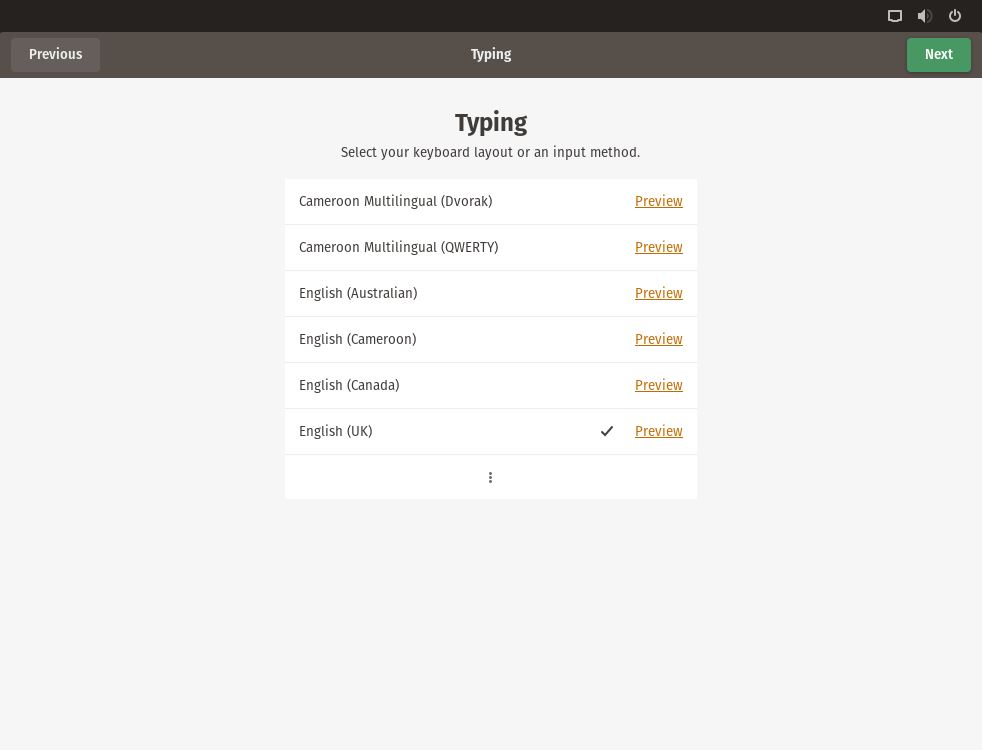
13: Confirm the keyboard layout, then select the Next button.
 

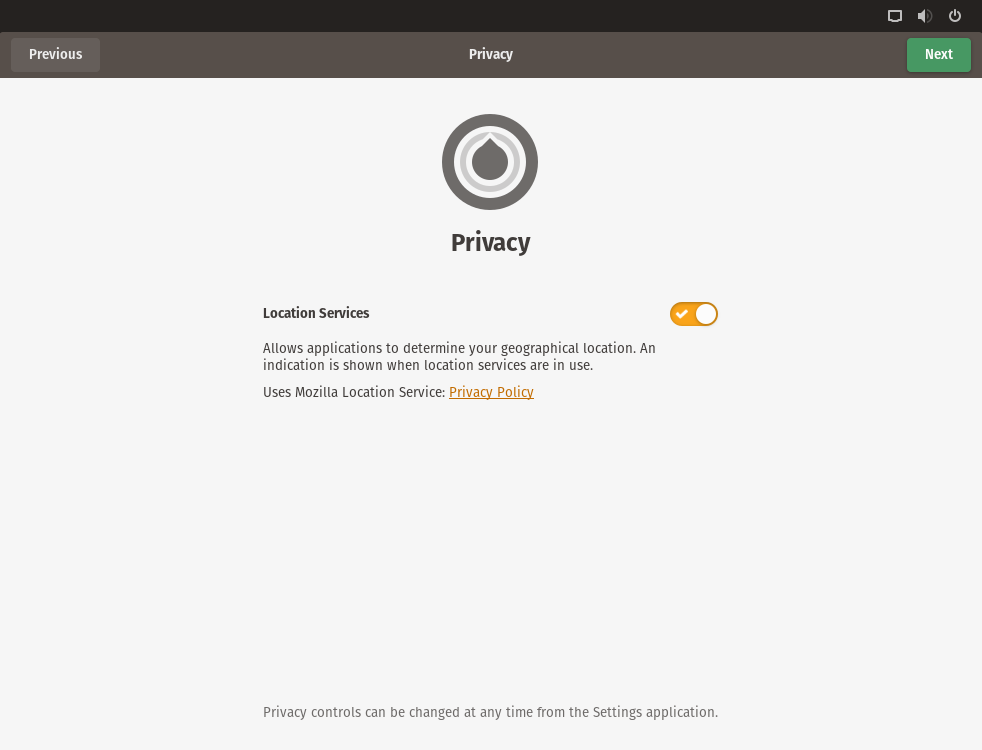
14: You can opt to enable Privacy and Location settings, then select Next button. This can be changed later.
 

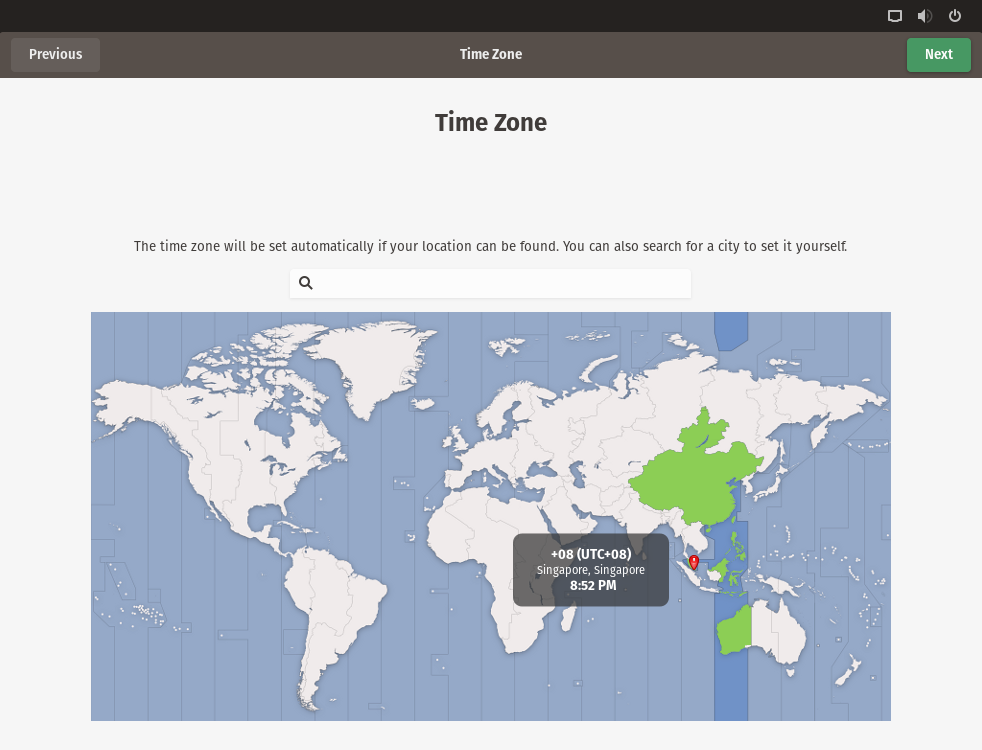
15: Select the preferred Time Zone.
 

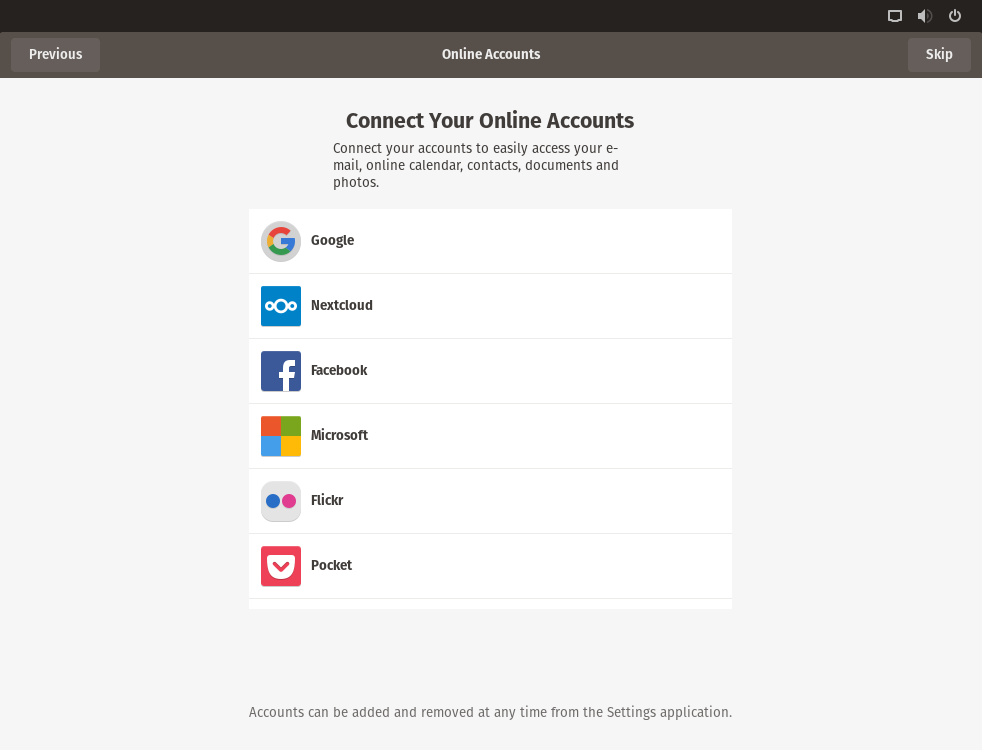
16: Next is the option to add accounts, such as Google, NextCloud, Facebook, Microsoft, Flickr and Pocket. Or add them later by selecting the Skip button.
 

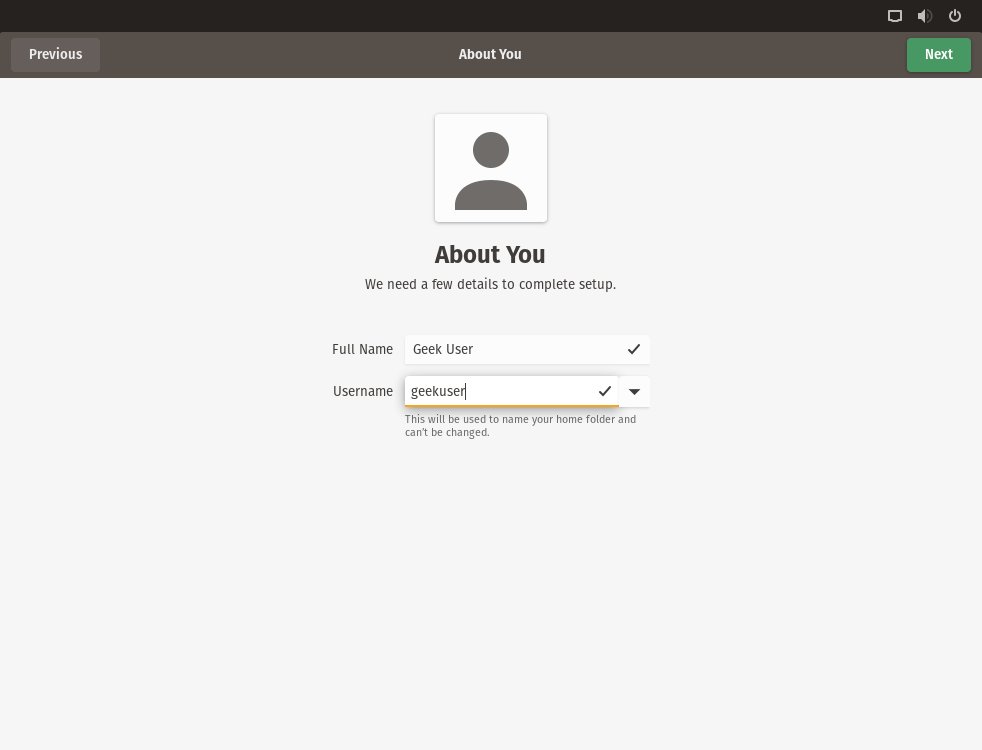
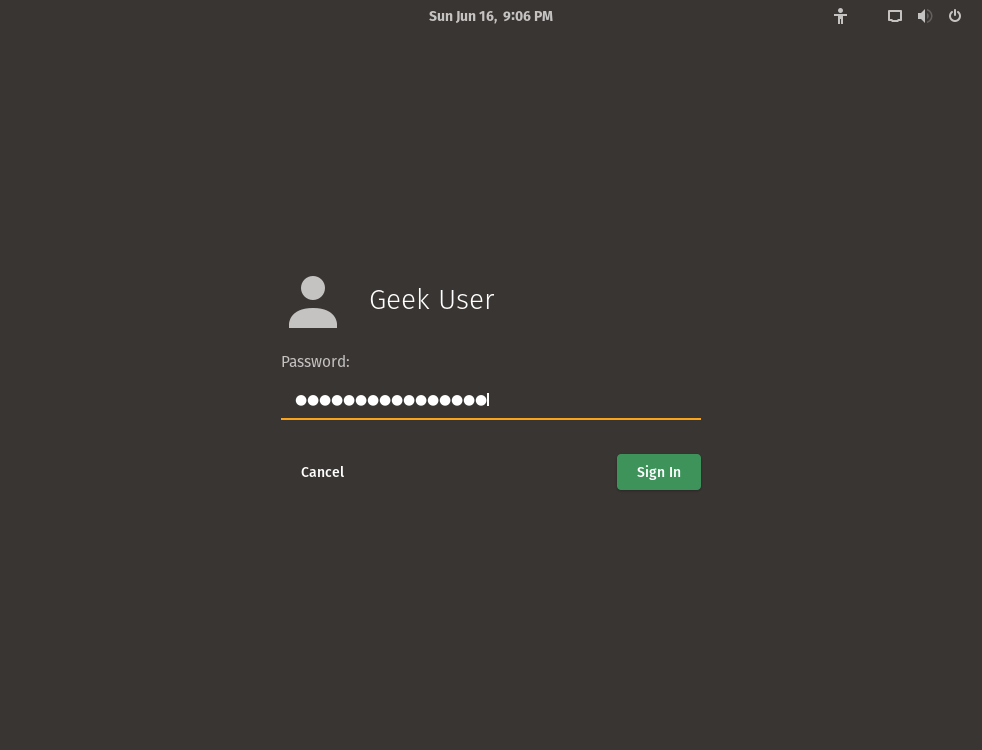
17: This is where the OS user will be created. Select your Full Name and Username. Then select the Next button.
 

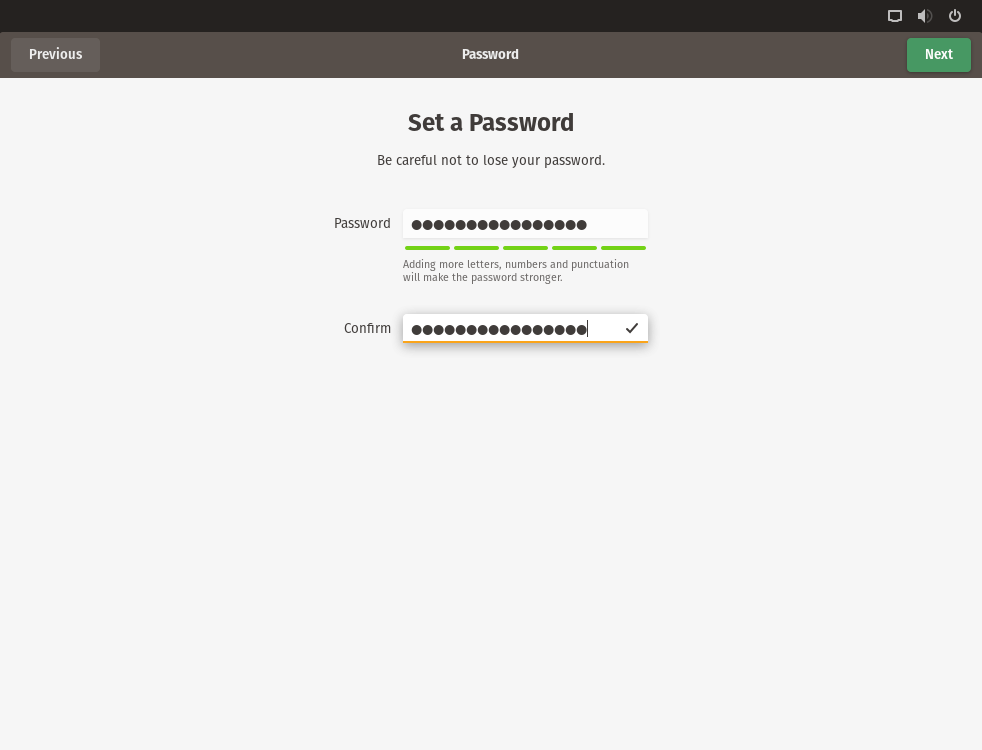
18: Set the password and confirmation password. It is recommended to include an uppercase and lowercase character, and also make your password longer. The longer the better, but choose something you can remember. Then select the Next button.
 

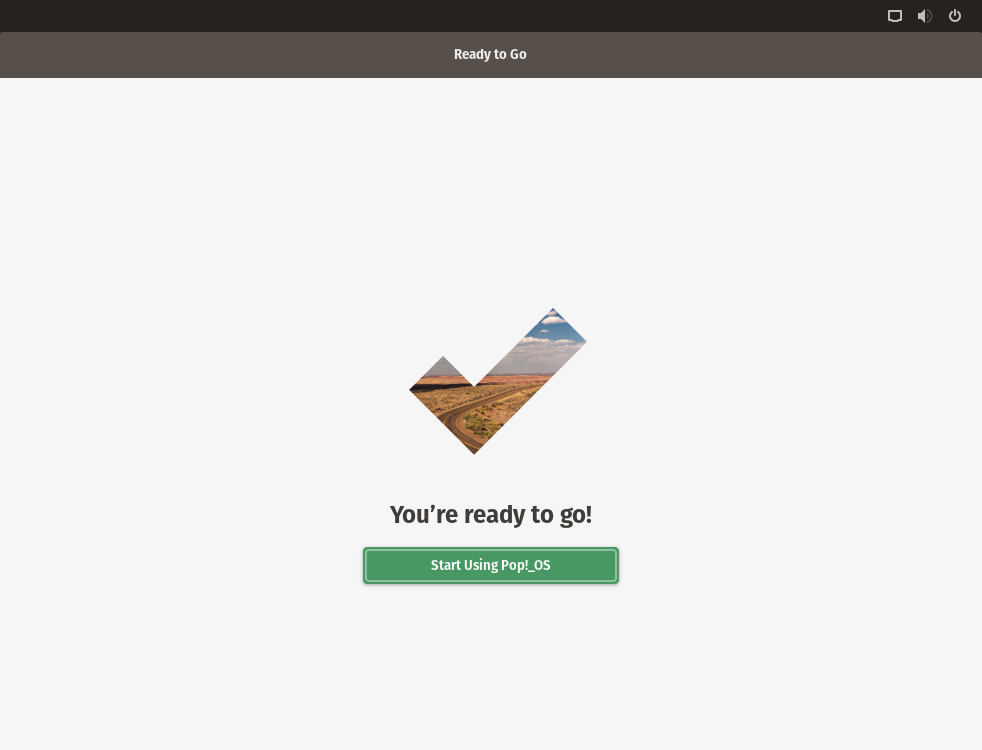
19: You’ve now completed the installation. Hooray! Now enjoy the fruits of your labor and start exploring or using Pop! OS. Select the Start Using Pop!_OS button.
Read More  Jetpack Compose Interop: Using Compose In A RecyclerView


20: Unleash your potential and start using Pop!_OS.


For enquiries, product placements, sponsorships, and collaborations, connect with us at [email protected]. We'd love to hear from you!

Our humans need coffee too! Your support is highly appreciated, thank you!

root

Related Topics
  • How To
  • Installation
  • Linux
  • Pop!_OS
You May Also Like
Smartphone hero image
View Post
  • Gears
  • Tech

Zed Approves | Smartphones for Every Budget Range

  • January 29, 2026
Early Black Friday Gears
View Post
  • Tech

Friday Deals – And It’s Not Even Black Friday Yet

  • November 13, 2025
aster-cloud-sms-pexels-tim-samuel-6697306
View Post
  • Programming
  • Software

Send SMS texts with Amazon’s SNS simple notification service

  • July 1, 2025
aster-cloud-website-pexels-goumbik-574069
View Post
  • Programming
  • Software

Host a static website on AWS with Amazon S3 and Route 53

  • June 27, 2025
Getting things done makes her feel amazing
View Post
  • Computing
  • Data
  • Featured
  • Learning
  • Tech
  • Technology

Nurturing Minds in the Digital Revolution

  • April 25, 2025
View Post
  • Tech

Deep dive into AI with Google Cloud’s global generative AI roadshow

  • February 18, 2025
Volvo Group: Confidently ahead at CES
View Post
  • Tech

Volvo Group: Confidently ahead at CES

  • January 8, 2025
zedreviews-ces-2025-social-meta
View Post
  • Featured
  • Gears
  • Tech
  • Technology

What Not to Miss at CES 2025

  • January 6, 2025

Stay Connected!
LATEST
  • digital-nomad-freelancer-worker-2151205464 1
    One paperwork problem – Get your Digital Nomad Visa employment documents fast from UK, EU or Singapore
    • June 16, 2026
  • 2
    Samsung Art Store Brings Art Basel to Homes Worldwide With New Curated Collection
    • June 15, 2026
  • 3
    You Do Not Need to Invest in the IPO of SpaceX, Anthropic, and OpenAI
    • June 10, 2026
  • 4
    The consequences of relying on AI for accurate news
    • June 10, 2026
  • 5
    Connecting AI agents with unstructured data using Google Cloud Storage MCP Servers
    • June 10, 2026
  • 6
    WWDC26: Apple unveils next generation of Apple Intelligence, Siri AI, powerful parental controls, and an expansive set of software improvements
    • June 8, 2026
  • 7
    IBM and Google Cloud Announce Strategic Partnership to Scale AI with Human Expertise and AI‑Powered Delivery
    • June 4, 2026
  • Data center 8
    Data Sovereignty in Spain. It’s Not Just About the Law, It’s About Efficiency
    • June 3, 2026
  • 9
    Ink vs Pixels. What you miss versus what you are actually missing.
    • June 1, 2026
  • 10
    Banks race to patch new cyber vulnerabilities, and other cybersecurity news
    • May 25, 2026
about
Hello World!

We are aster.cloud. We’re created by programmers for programmers.

Our site aims to provide guides, programming tips, reviews, and interesting materials for tech people and those who want to learn in general.

We would like to hear from you.

If you have any feedback, enquiries, or sponsorship request, kindly reach out to us at:

[email protected]
Most Popular
  • pope-leo-xiv-cq5dam-1500.844 1
    Pope Leo XIV to Publish First Encyclical on Artificial Intelligence and Human Dignity on 25 May
    • May 22, 2026
  • 2
    Portfolio to Clients, and is Strengthened by Ongoing Project Glasswing Work
    • May 20, 2026
  • reMarkable Paper Pure 3
    Everything The reMarkable Paper Pure Actually Does
    • May 14, 2026
  • 4
    Scaling cloud and AI: Microsoft Azure’s commitment to Europe’s digital future
    • May 11, 2026
  • Anthropic Institute 5
    Introducing The Anthropic Institute
    • March 11, 2026
  • /
  • Technology
  • Tools
  • About
  • Contact Us

Input your search keywords and press Enter.