aster.cloud aster.cloud
  • /
  • Platforms
    • Public Cloud
    • On-Premise
    • Hybrid Cloud
    • Data
  • Architecture
    • Design
    • Solutions
    • Enterprise
  • Engineering
    • Automation
    • Software Engineering
    • Project Management
    • DevOps
  • Programming
    • Learning
  • Tools
  • About
  • /
  • Platforms
    • Public Cloud
    • On-Premise
    • Hybrid Cloud
    • Data
  • Architecture
    • Design
    • Solutions
    • Enterprise
  • Engineering
    • Automation
    • Software Engineering
    • Project Management
    • DevOps
  • Programming
    • Learning
  • Tools
  • About
aster.cloud aster.cloud
  • /
  • Platforms
    • Public Cloud
    • On-Premise
    • Hybrid Cloud
    • Data
  • Architecture
    • Design
    • Solutions
    • Enterprise
  • Engineering
    • Automation
    • Software Engineering
    • Project Management
    • DevOps
  • Programming
    • Learning
  • Tools
  • About
  • Software

How To Install Ubuntu Studio 19.10

  • root
  • November 12, 2019
  • 2 minute read

Overview

This guide shows how to install Ubuntu Studio 19.10 on a new machine.


Partner with aster.cloud
for your next big idea.
Let us know here.


From our partners:

CITI.IO :: Business. Institutions. Society. Global Political Economy.
CYBERPOGO.COM :: For the Arts, Sciences, and Technology.
DADAHACKS.COM :: Parenting For The Rest Of Us.
ZEDISTA.COM :: Entertainment. Sports. Culture. Escape.
TAKUMAKU.COM :: For The Hearth And Home.
ASTER.CLOUD :: From The Cloud And Beyond.
LIWAIWAI.COM :: Intelligence, Inside and Outside.
GLOBALCLOUDPLATFORMS.COM :: For The World's Computing Needs.
FIREGULAMAN.COM :: For The Fire In The Belly Of The Coder.
ASTERCASTER.COM :: Supra Astra. Beyond The Stars.
BARTDAY.COM :: Prosperity For Everyone.

Prerequisites

  • A disk or USB drive with a bootable Ubuntu Studio 19.10
    • Link to Ubuntu Studio 19.10 Desktop
  • Recommended Machine Requirements
    • 1 GiB RAM minimum, 4 GiB RAM recommended
    • 10 GB of hard-drive space (or USB stick, memory card or external drive but see LiveCD for an alternative approach) for the OS installation only


Installation

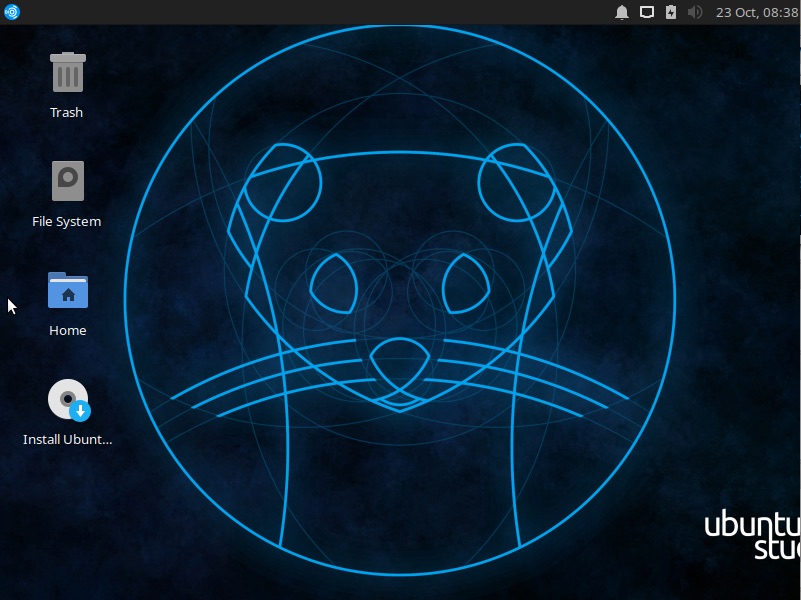
01. Plug the media (disk or USB). You will be shown the language selection. Then the desktop will be shown. Select the “Install Ubuntu” icon on the desktop.
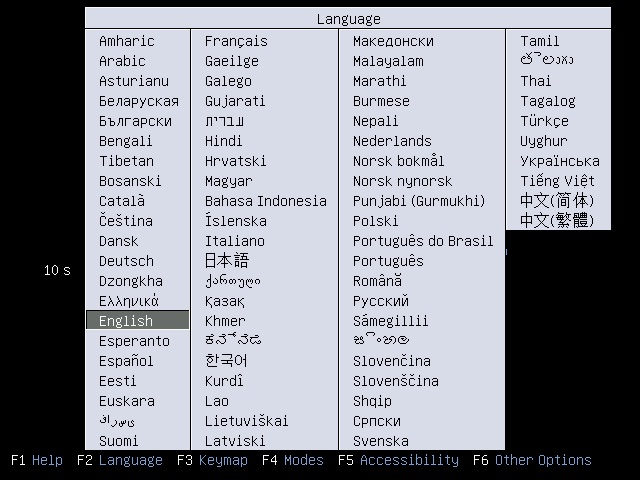
 

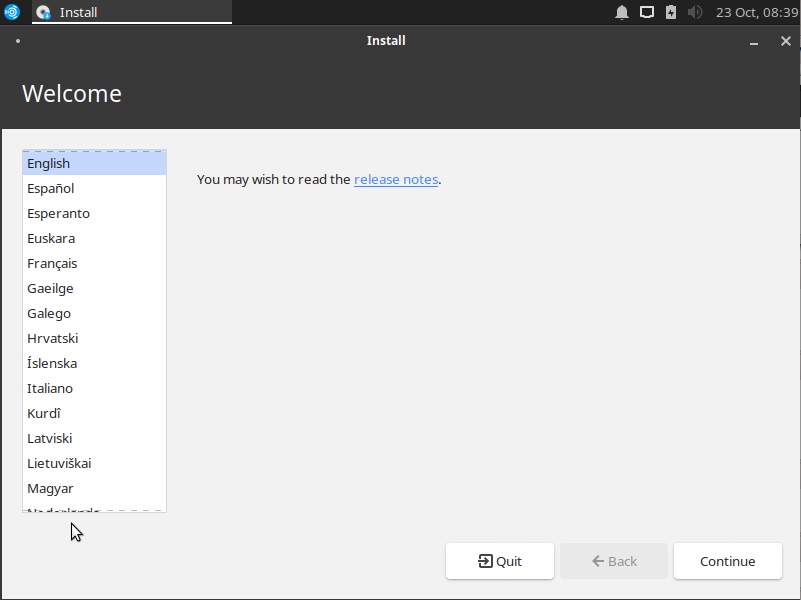
02. The installation will start and the language selection will be shown. Select your preferred language, then click on the “Continue” button.
 

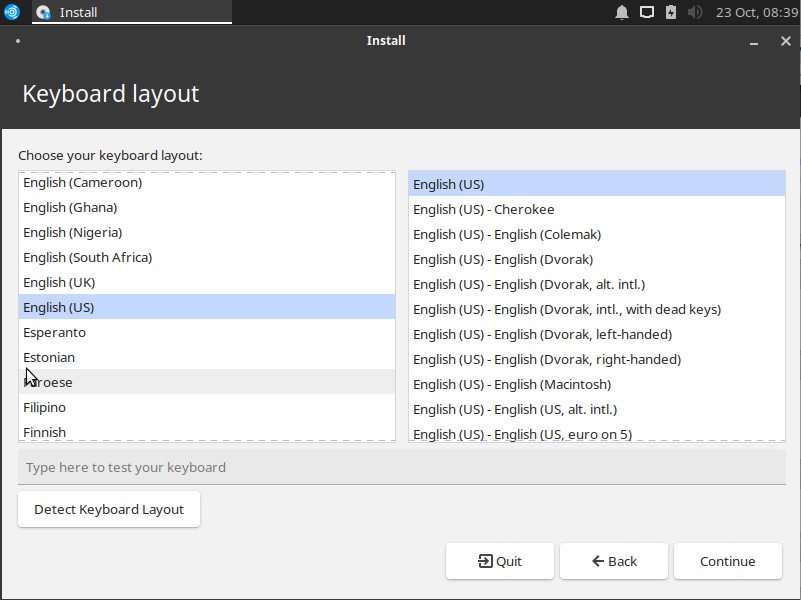
03. The next step allows you to select the keyboard layout. It tries to detect this and but you choose your preferred option. Then click on the “Continue” button.
 

04. Tick the checkbox if you want to download updates from the internet and 3rd party software. Then click on the “Continue” button.
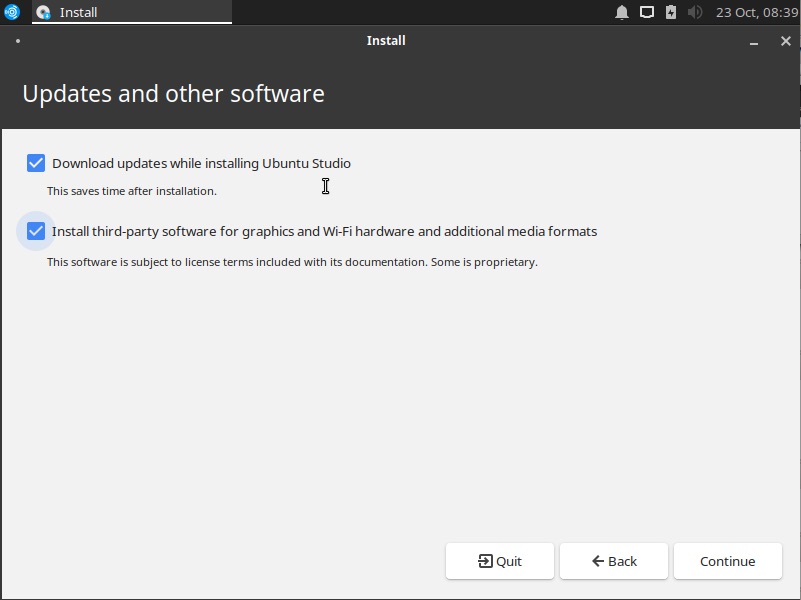
 

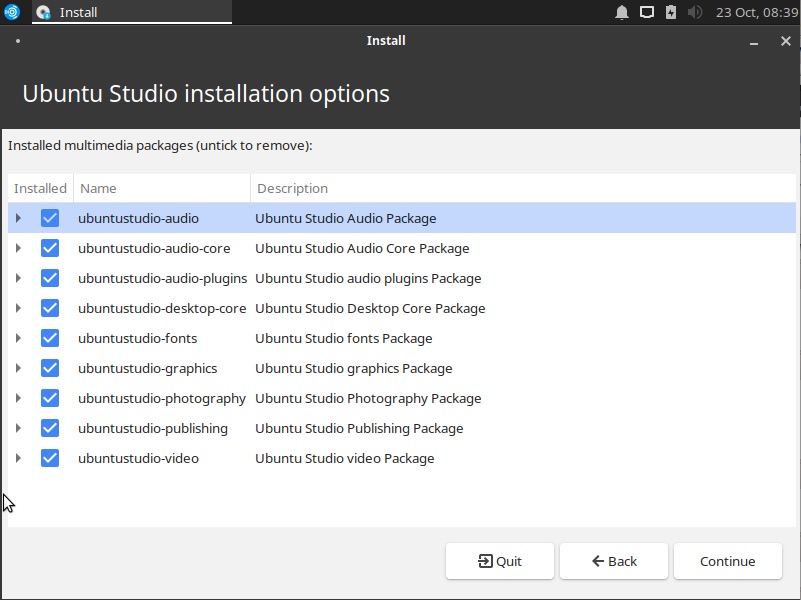
05. In this step you can select which additional multimedia packages you can install. Select the checkbox depending on your preference.
 

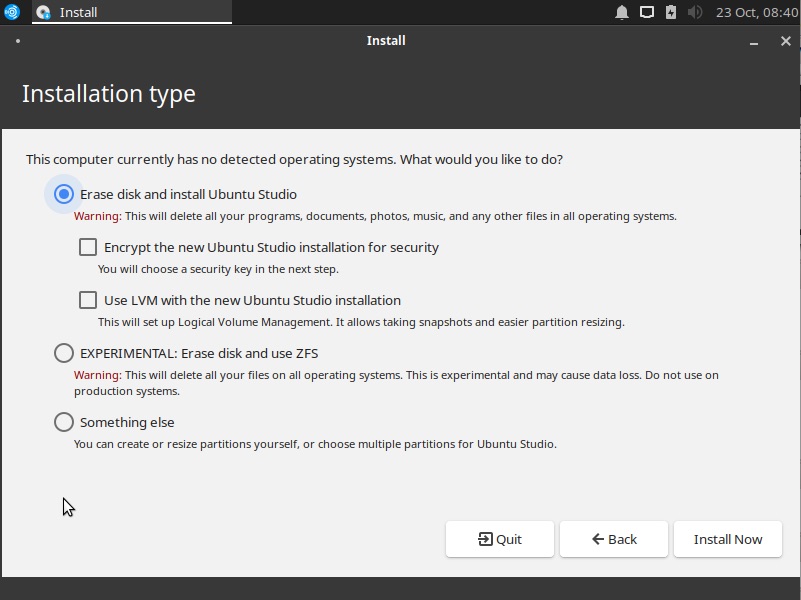
06. In the Installation type screen, you are given the option “Erase disk and install Ubuntu Studio” which will provide a clean install, removing any files you have on disk. Another option is in the “Something else” option which will let you manage the disk and create multiple partitions for Ubuntu.
 

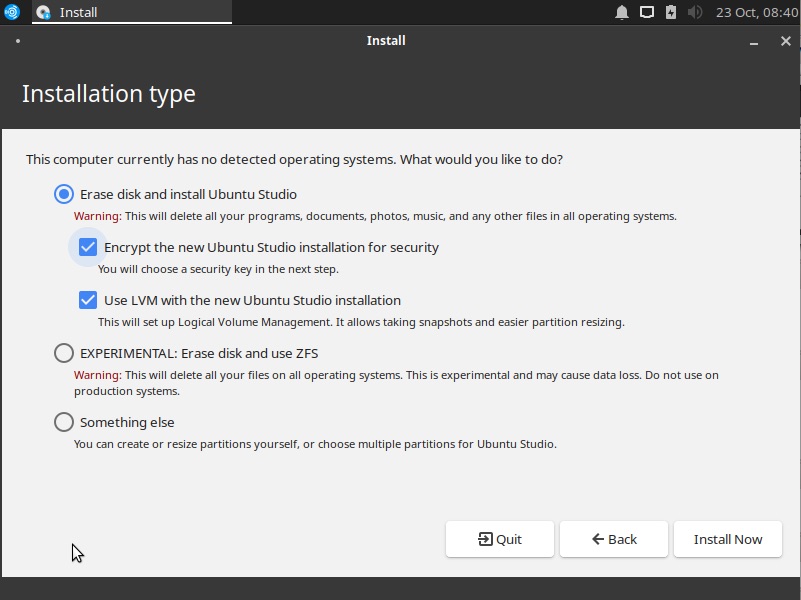
07. Optional. There is also the option for Encryption and LVM (Logical Volume Management). Opting to Encrypt will require you later to provide a security key (or password). This will later require you to enter the security key before even logging to your Ubuntu user account.
Read More  How To: Sublime Text Editor For Ubuntu - Installation


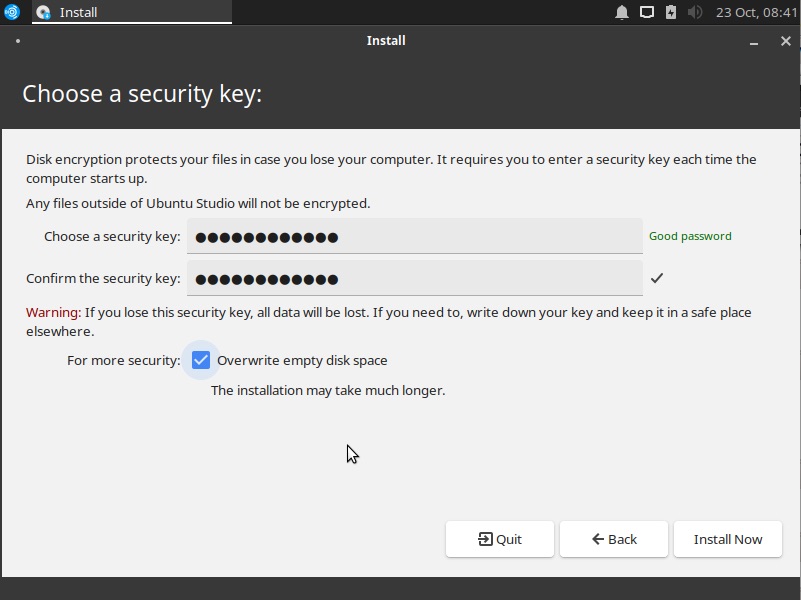
08. Optional if you selected to encrypt the Ubuntu installation, skip to the next step if not selected. Enter the security key and confirm it. Choose a good password (lengthy enough but one that you can remember).
 

09. Confirm the changes to the disk, then select “Continue”.
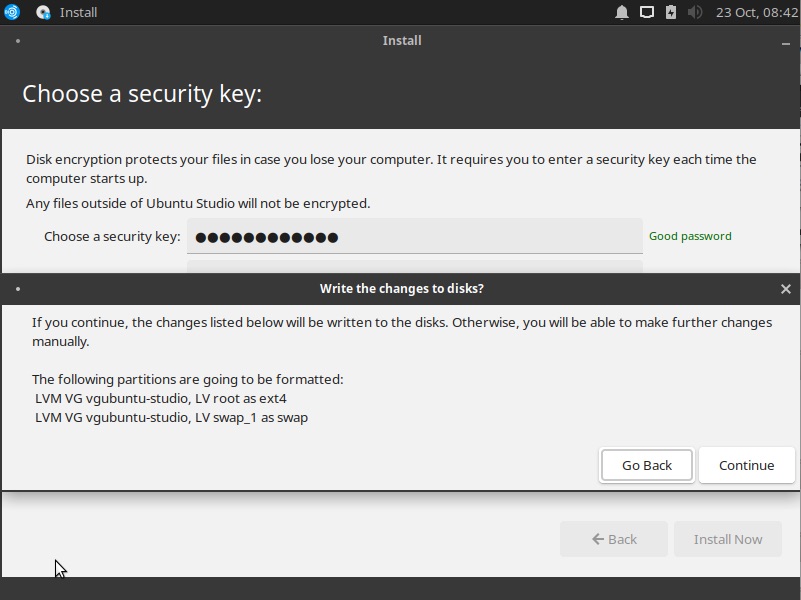
 

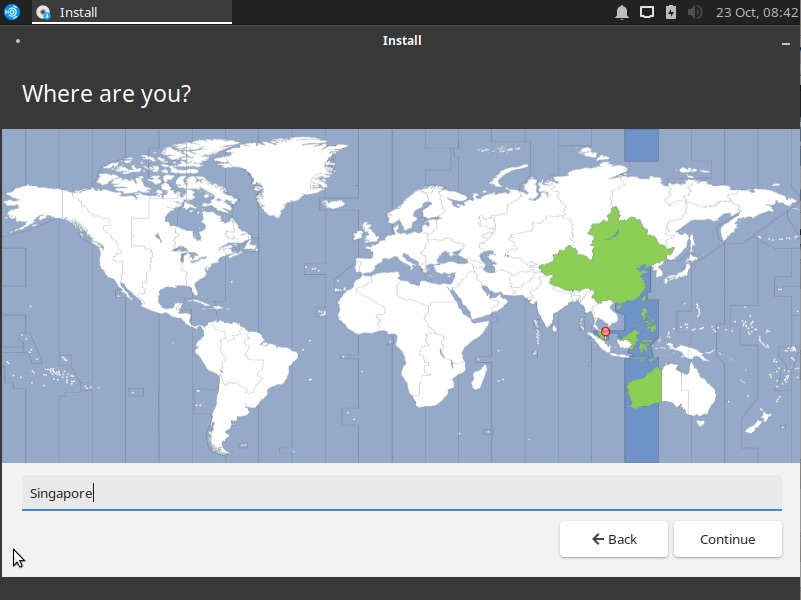
10. Choose from the map or use the textbox to search for your preferred Timezone.
 

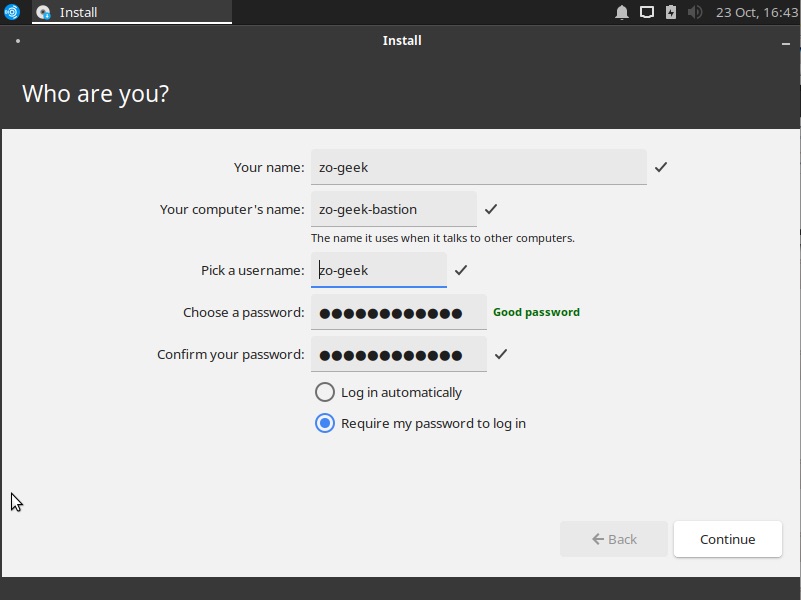
11. Choose your name, computer name, username and password. Note: the “Name” and “Username” does not necessarily have to be the same, this is just an example.
 

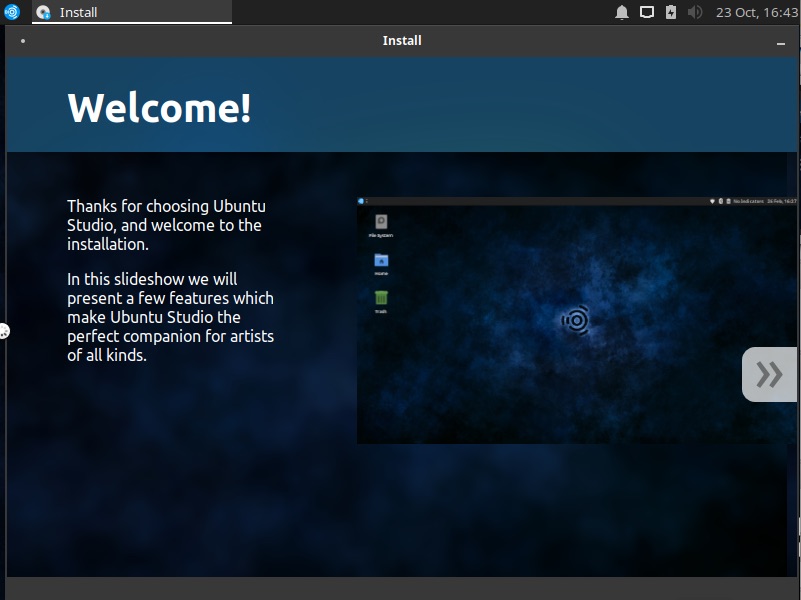
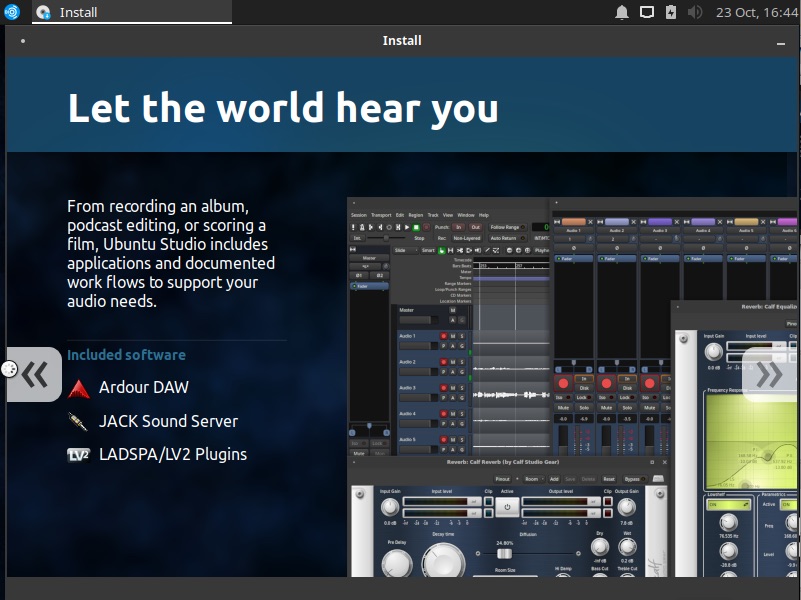
12. Wait until the installation is completed. This might take longer if you opted to encrypt the Ubuntu installation.
 

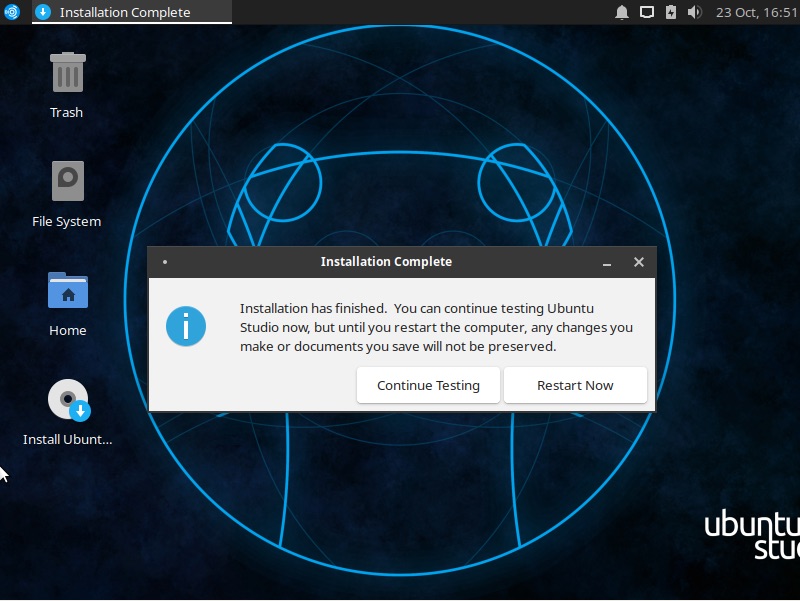
13. Click on the “Restart Now” button once finished.
 

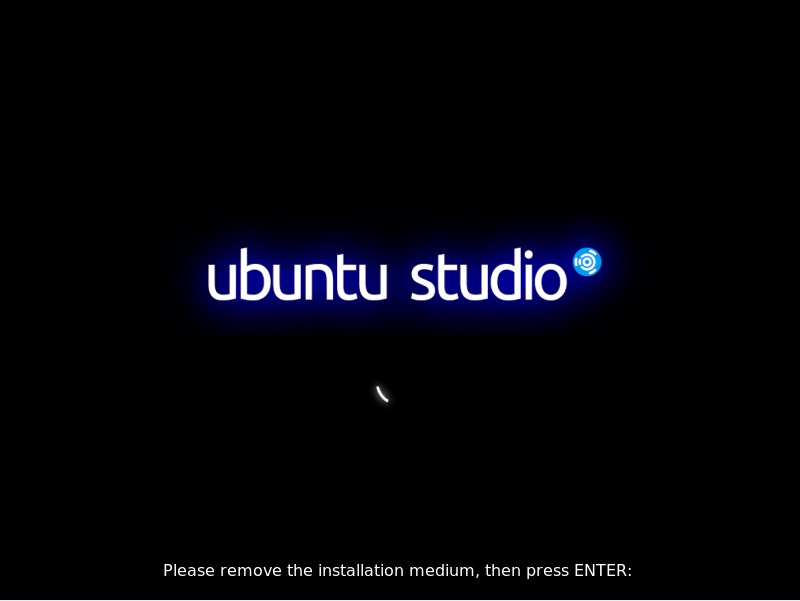
14. A prompt to remove the installation medium will be shown. Remove the disk or USB drive, then press “Enter”.
 

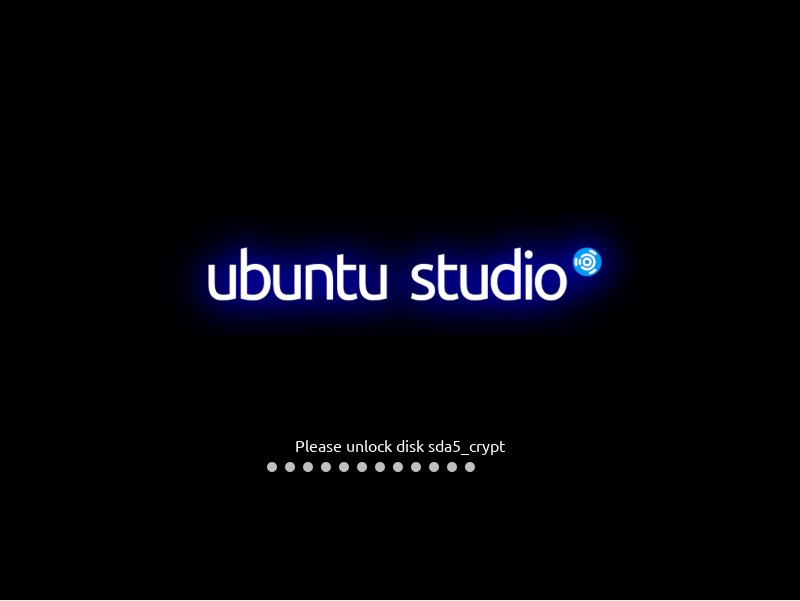
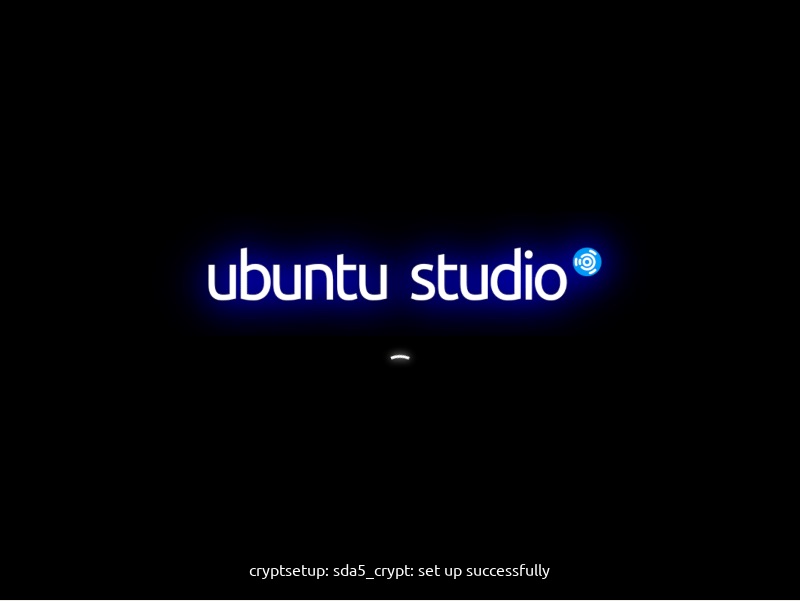
15. Optional if you opted to encrypt the Ubuntu Studio installation. On every boot, you will be asked to enter the encryption key. Supply the key/password then press “Enter” key on the keyboard.
 

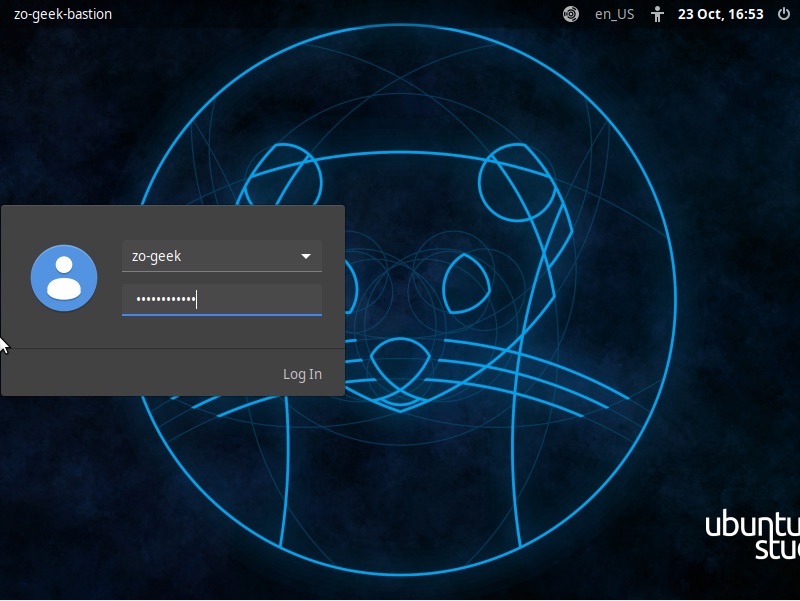
16. The list of users will be shown, select the user with your mouse or keyboard. Enter the user password then click on the “Log In” button (or press the “Enter” key).
 

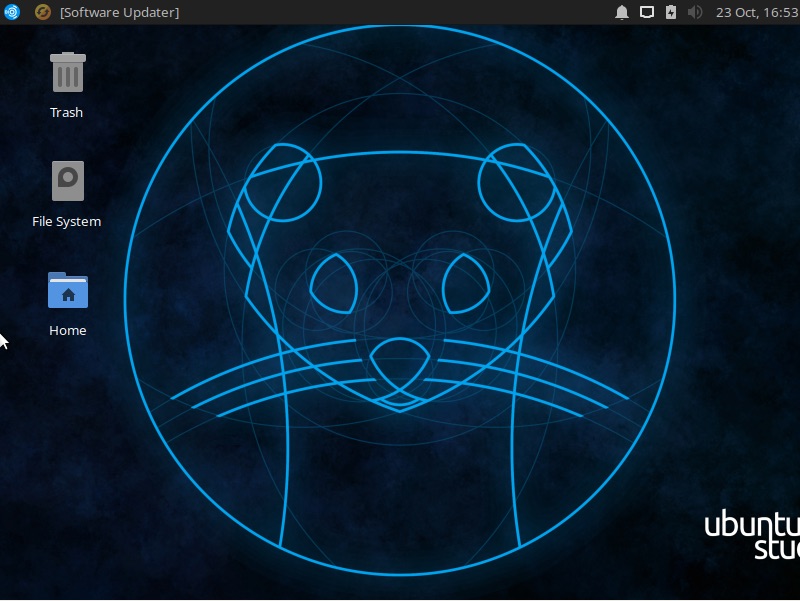
17. Congratulations you’ve successfully installed Ubuntu Studio 19.10!

For enquiries, product placements, sponsorships, and collaborations, connect with us at [email protected]. We'd love to hear from you!

Our humans need coffee too! Your support is highly appreciated, thank you!

root

Related Topics
  • Installation
  • Ubuntu Studio
You May Also Like
men with computer website information and chat bubbles vector illustration
View Post
  • Software
  • Software Engineering

What is an ISV (independent software vendor)?

  • August 27, 2025
aster-cloud-erp-bill_of_materials_2
View Post
  • Software
  • Software Engineering

What is an SBOM (software bill of materials)?

  • July 2, 2025
aster-cloud-sms-pexels-tim-samuel-6697306
View Post
  • Programming
  • Software

Send SMS texts with Amazon’s SNS simple notification service

  • July 1, 2025
aster-cloud-website-pexels-goumbik-574069
View Post
  • Programming
  • Software

Host a static website on AWS with Amazon S3 and Route 53

  • June 27, 2025
View Post
  • Software
  • Technology

Canonical Releases Ubuntu 25.04 Plucky Puffin

  • April 17, 2025
View Post
  • Software
  • Technology

IBM Accelerates Momentum in the as a Service Space with Growing Portfolio of Tools Simplifying Infrastructure Management

  • March 27, 2025
Vehicle manufacturing
View Post
  • Software

IBM Study: Vehicles Believed to be Software Defined and AI Powered by 2035

  • December 12, 2024
aster-cloud-tux-gaming
View Post
  • Computing
  • Gears
  • Software

5 best Linux distributions for gamers in 2024

  • September 11, 2024

Stay Connected!
LATEST
  • digital-nomad-freelancer-worker-2151205464 1
    One paperwork problem – Get your Digital Nomad Visa employment documents fast from UK, EU or Singapore
    • June 16, 2026
  • 2
    Samsung Art Store Brings Art Basel to Homes Worldwide With New Curated Collection
    • June 15, 2026
  • 3
    You Do Not Need to Invest in the IPO of SpaceX, Anthropic, and OpenAI
    • June 10, 2026
  • 4
    The consequences of relying on AI for accurate news
    • June 10, 2026
  • 5
    Connecting AI agents with unstructured data using Google Cloud Storage MCP Servers
    • June 10, 2026
  • 6
    WWDC26: Apple unveils next generation of Apple Intelligence, Siri AI, powerful parental controls, and an expansive set of software improvements
    • June 8, 2026
  • 7
    IBM and Google Cloud Announce Strategic Partnership to Scale AI with Human Expertise and AI‑Powered Delivery
    • June 4, 2026
  • Data center 8
    Data Sovereignty in Spain. It’s Not Just About the Law, It’s About Efficiency
    • June 3, 2026
  • 9
    Ink vs Pixels. What you miss versus what you are actually missing.
    • June 1, 2026
  • 10
    Banks race to patch new cyber vulnerabilities, and other cybersecurity news
    • May 25, 2026
about
Hello World!

We are aster.cloud. We’re created by programmers for programmers.

Our site aims to provide guides, programming tips, reviews, and interesting materials for tech people and those who want to learn in general.

We would like to hear from you.

If you have any feedback, enquiries, or sponsorship request, kindly reach out to us at:

[email protected]
Most Popular
  • pope-leo-xiv-cq5dam-1500.844 1
    Pope Leo XIV to Publish First Encyclical on Artificial Intelligence and Human Dignity on 25 May
    • May 22, 2026
  • 2
    Portfolio to Clients, and is Strengthened by Ongoing Project Glasswing Work
    • May 20, 2026
  • reMarkable Paper Pure 3
    Everything The reMarkable Paper Pure Actually Does
    • May 14, 2026
  • 4
    Scaling cloud and AI: Microsoft Azure’s commitment to Europe’s digital future
    • May 11, 2026
  • Anthropic Institute 5
    Introducing The Anthropic Institute
    • March 11, 2026
  • /
  • Technology
  • Tools
  • About
  • Contact Us

Input your search keywords and press Enter.